Guide
Quick Start
Eleven short sections, from your first sound to the tape, exporting and MIDI gear.
Prefer a PDF? Download the Quick Start (20 pages, 3.1 MB) or the full user manual (532 pages, 29.6 MB).
Sound in two minutes
Tonaut is an instrument for iPhone and iPad, played sideways. Everything saves itself.
A new project has eight lanes, each an instrument with its own sound: two drum kits on lanes 1 and 2 (Chrome Kit and Punch Kit), a bass on lane 3 (Cellar Snap), then Bottle Glass, Acid Line, Attic Strings, Arp Shards and Bee Hive. The buttons across the top choose the lane the keys play; on iPhone they show four at a time, with arrows for the rest. There's also a sequencer, a mixer and an eight-track tape recorder.
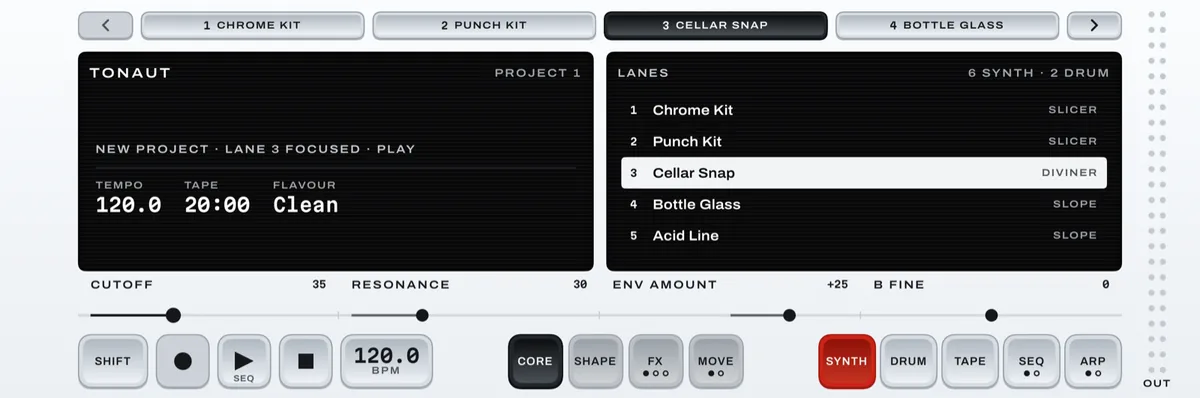
- Used Tonaut before? Start a fresh project so these steps match: hold SHIFT and press PROJ (the TAPE key), then press NEW.
- Turn the phone sideways and set the level with the volume buttons; silent mode doesn't mute Tonaut.
- Tap 3 CELLAR SNAP at the top and touch any round key: the bass plays. Tilt the phone while you hold a key and, on a sound with LEAN on, the note bends (section 11).
- Tap 4 BOTTLE GLASS to play lane 4. Tap 1 CHROME KIT: the screen jumps to DRUM, and each key is now a drum, called a pad.
- Press ARP, the last button (on a kit lane it opens GROOVE). Drag the first slider, GROOVE, to ON and hold any pad: the kit plays a beat until you let go.
- Lost? Hold SHIFT and press HELP (the last key of the top row). Let go and tap any control: the left window says what it does instead. Do it again to turn HELP off.
The panel at a glance
Everything happens on one screen. Here's what each part does, and the two keys that reach the rest: SHIFT and HELP.
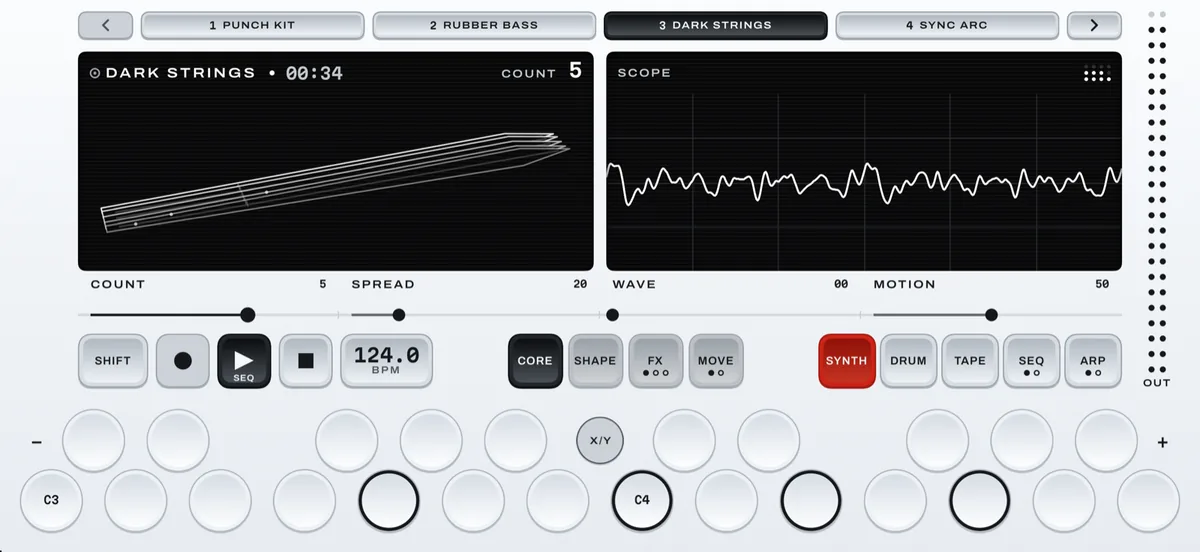
- Lane buttons. The filled one is the lane the keys, and a MIDI keyboard, play. On iPhone the arrows show lanes 1 to 4 or 5 to 8 (the windows follow), and light when the focused lane is on the other page. Stopped, hold SHIFT and tap two lanes to swap them; latched, SHIFT only selects.
- Two black windows. They show what you're working on.
- The band. Four sliders. Drag slowly for small steps or sweep to go far; hold still first (×8) for the finest. Double-tap resets one; with SHIFT on, it undoes its last change.
- The button row. SHIFT; REC (steady when armed, blinking while it records), PLAY (its small word says what it starts) and STOP; the tempo key, which shows the tempo: tap it for the click, a metronome, lit while it's on, or hold it for the tempo page. Then four page keys, a shade apart, and the five mode keys, SYNTH to ARP.
- The keyboard. 24 round keys, two octaves. At the ends of the top row, − and + move the keyboard an octave (each lane keeps its own; dimmed on a kit lane); in its middle gap, X/Y opens the X/Y pad (6.2).
If the OUT meter's top dot turns red, it's too loud: turn something down in MIX (section 7). On iPad, Tonaut has a panel of its own, with 32 keys: the manual's chapter 17. On iPhone, Settings › THEME › Housing adds three TN looks, whose keys have LEDs.
Screens and pages. The mode keys choose the screen; the red one is where you are. The page keys choose a page of it. Dots under a key's name mean pressing it again goes somewhere else; the filled dot is where you are. The screen follows the lane: on SYNTH, tap a kit lane and you're on DRUM. A key drawn flat can't act right now; some say why in the notice line at the bottom left of the screen.
2.1SHIFT and HELP
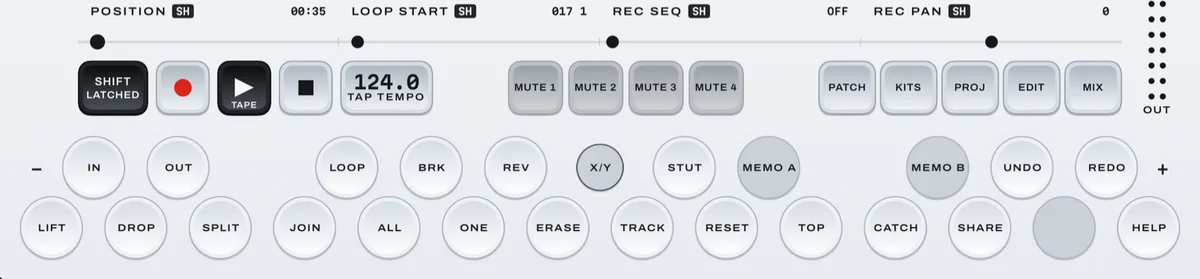
Tap SHIFT and it stays on (LATCHED); tap it again to turn it off. Or hold it while you press one other key. Under SHIFT, the band shows its second four controls (SH); the mode keys read PATCH, KITS, PROJ, EDIT and MIX; the keyboard's top row is quick slots 1 to 8 (8 in the gap after 7; 3.2), UNDO, DIE (a random take on this page's controls; UNDO steps back) and HELP, and the bottom row's end keys are blank (on SEQ, PAT OCT- and PAT OCT+); and the tempo key reads TAP TEMPO. On SYNTH the page keys become the chord keys (6.4). On TAPE the keyboard becomes the tape's tools, with HELP as the bottom row's last key. In PATCHES, KITS and PROJECTS, SHIFT reads BACK, and a tap goes back.
HELP. Hold SHIFT and press HELP: a tap on any control shows its help line instead of acting, and the left window shows the cells that can act now (LEAN, SAMPLE, RECORD, SETTINGS). Again turns it off.
Choose a sound and shape it
Every lane holds one sound. Pick it from a list, then shape it on SYNTH's four pages.
A patch is a saved sound. An engine is the kind of synth that makes it; each engine works differently, so each has its own controls. Tonaut comes with 532 factory sounds: 489 patches on nine synth engines (158 of them SAMPLER instruments) and 43 drum kits.
3.1Browse the sounds
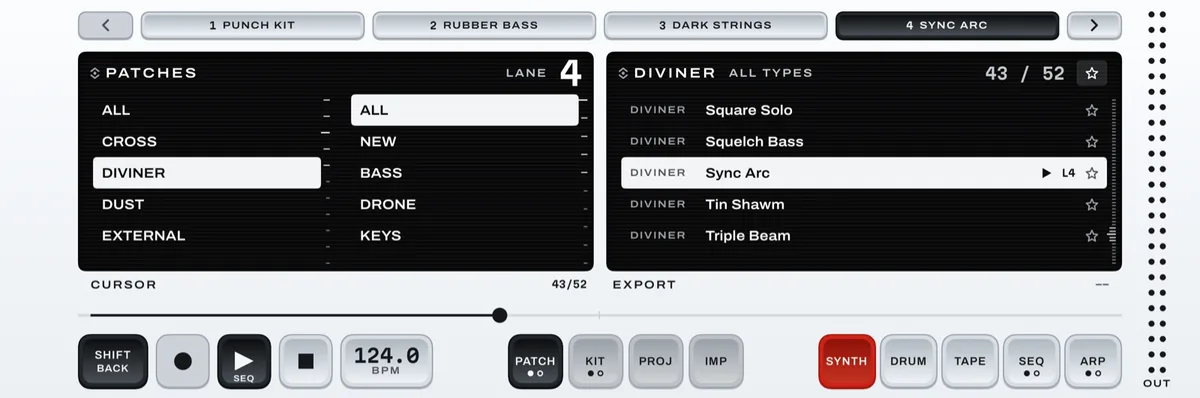
- Tap a synth lane's button at the top, such as 4 BOTTLE GLASS.
- Hold SHIFT and press PATCH (the SYNTH key). PATCHES opens.
- In the left window, the engine and type columns narrow the list. It opens where this lane left it, or on the lane's own engine; for every sound, scroll the engine column to the top and tap ALL. Choosing in the columns loads nothing. The type column's NEW lists the forty newest sounds.
- In the right window, move the cursor onto a sound: tap a row, drag the list or drag CURSOR. The lane switches to it at once, so you hear it in your music. A bass loads with the keyboard two octaves down, where it belongs; − and + move it. A chip such as L4 marks the sound lane 4 holds.
- Tap SHIFT (it reads BACK) to go back with the sound you chose.
A row's star makes that sound a favorite; the star at the top of the list puts favorites first. Moving the cursor replaces the lane's sound, including any changes you made, so keep a sound you like first (3.2). Kits work the same way under SHIFT + KITS (section 4).
3.2Change the sound
On SYNTH, the page keys choose what the band edits:
- CORE: the engine's own controls.
- SHAPE: how a note starts and fades: ATTACK, DECAY, SUSTAIN (the level while you hold the key) and RELEASE.
- FX: four effects; the band sets how much of each you hear. Tap a slot's name (or press FX again) to choose from sixteen effects, among them Echo, a tape echo, Pump, which ducks on the beat, and Lo-Fi, an old record; press FX a third time for all eight of that effect's controls.
- MOVE: one modulator, something that moves a control for you. Press MOVE again to choose it.
Each page has eight controls: four on the band and four more under SHIFT. The SCOPE on the right draws what you hear; on SHAPE, FX and MOVE the left window plots the band's four.
The engine screen. On CORE the left window shows the engine itself in 3D, turning slowly: a hard note hits harder, a chord moves it more, and the band reshapes it as you drag. Tap it for the CLASSIC screen, a small plot per control; change lanes and the 3D screen comes back. On a SAMPLER lane, CORE pressed again opens its FILTER. More in the manual's section 4.5.
Keep a sound. Changes save with the project, but loading another sound replaces them. Two ways to keep one:
- Quick slots. Under SHIFT, hold a key from 1 to 8 for a little over half a second (
SAVED TO SLOT 3
). Tap it later, in any project, to load it (LOADED SLOT 3
). Kits have their own eight. - USER, your own list. Open PATCHES (or KITS), press PATCH (or KIT) again, press SAVE and type a name: keep a USER sound's own name to save over it, or type a new one for a new sound. The same key again goes back to the factory list. TICK and SHIFT + SHARE send the ticked ones as one file.
Every control of a sound is in EDIT (SHIFT + EDIT); the manual's chapters 4, 6 and 7 cover them all.
Drums and grooves
On a kit lane the 24 keys are 24 drums. Shape each one on DRUM, build a kit from your own samples, or let GROOVE play the kit for you.
Each key plays one drum, called a pad. Kits come on three engines: KNOCK synthesizes every pad; a SLICER kit plays slices of one recording, as the seven sample kits made from real drums do; CINDER gives every pad two layers and rings the kit through one shared resonator. To change kit, focus a kit lane and press SHIFT + KITS, then move the cursor. Tap the kit the lane holds to hear a preview beat.
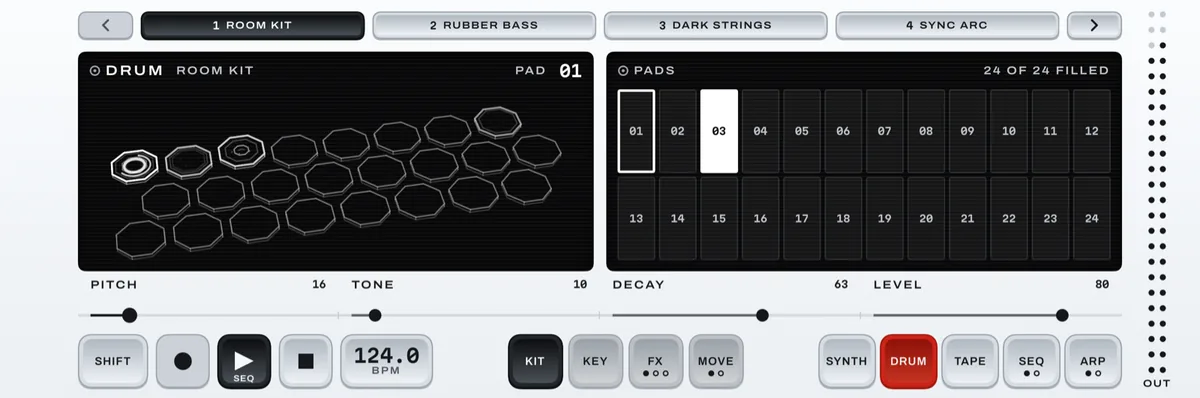
The DRUM screen. Press DRUM. On the KIT page, play a pad to choose it, and the band edits that pad; KEY edits the whole kit. The PADS map flashes as pads sound. Tap a pad there to mute it in the pattern and the groove (its number turns red); tap again to unmute. On a KNOCK or CINDER kit the left window draws the kit in 3D, each hit ringing on its plate or drum, and the band reshapes the chosen pad; tap the window for the plainer CLASSIC view while you stay on the lane.
4.1Your own drum kit, from your own samples
Any audio files in the Files app can become a kit: your own drum samples, a loop, a recording, as WAV, AIFF, CAF, M4A, MP3 or FLAC. To make a whole kit:
- Tap the lane the kit should go on, then hold SHIFT and press KITS.
- Drag the second slider, FROM, to FILES, then press IMP, the last page key. Your files open.
- Pick up to 24 files, one per pad: files named for a kick, snare, hat, tom or clap go on the pads those drums usually take. Or pick one file, and it's sliced into 24 equal parts.
The screen says what it made, such as KIT MADE · 12 FILES ON 12 PADS
. A kit holds 20 seconds of sound in all; STOP cancels while it loads. It's a SLICER kit, kept in USER too, so any project can load it. On DRUM's KIT page, IN and OUT move where each pad's slice starts and ends.
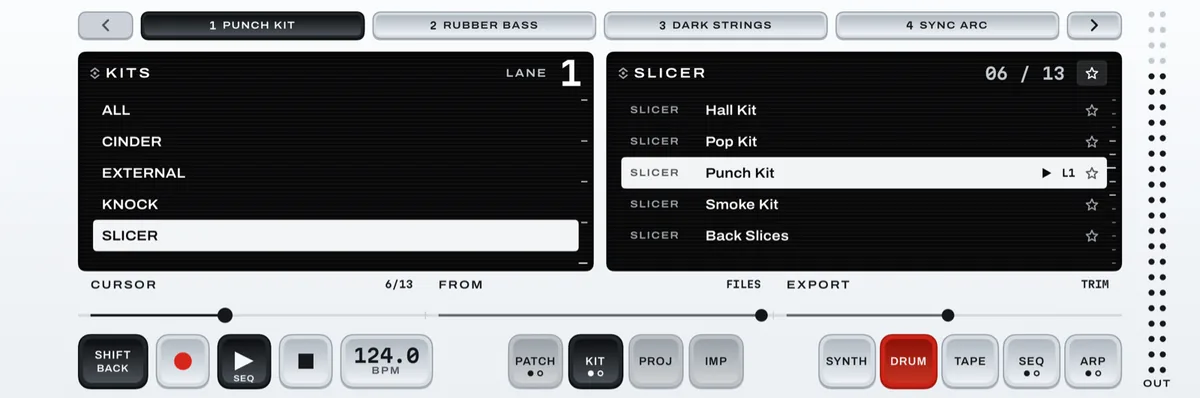
To put your own sample on one pad of a SLICER kit (one you made, or a sample kit such as Punch Kit):
- Play the pad. Hold SHIFT, press HELP and tap the SAMPLE cell: the sample editor opens on that pad.
- Hold SHIFT and press LOAD, the first page key, then pick a file. Only that pad changes; pick several and they fill the pads after it too.
A KNOCK or CINDER kit has no recording, so it shows no SAMPLE cell. With FROM on TAPE, IMP makes a kit from the chosen tape track. The manual's chapters 6 and 12 have more.
4.2Grooves
On a kit lane, ARP opens GROOVE. Set GROOVE to ON and hold any pad: the whole kit plays a beat until you let go. STYLE picks one of sixteen, COMPLEXITY goes from a plain beat to fills, and HOLD keeps it playing with no pad held, until you set GROOVE or HOLD to OFF. Under SHIFT: SWING, and which pads play the KICK, SNARE and HAT. Started while patterns play, a groove comes in on their beat. More in the manual's chapter 9.
Make a pattern on SEQ
SEQ plays patterns: loops of steps, each holding notes or drum hits. PATTERN PLAY moves the whole song from one set of patterns to the next.
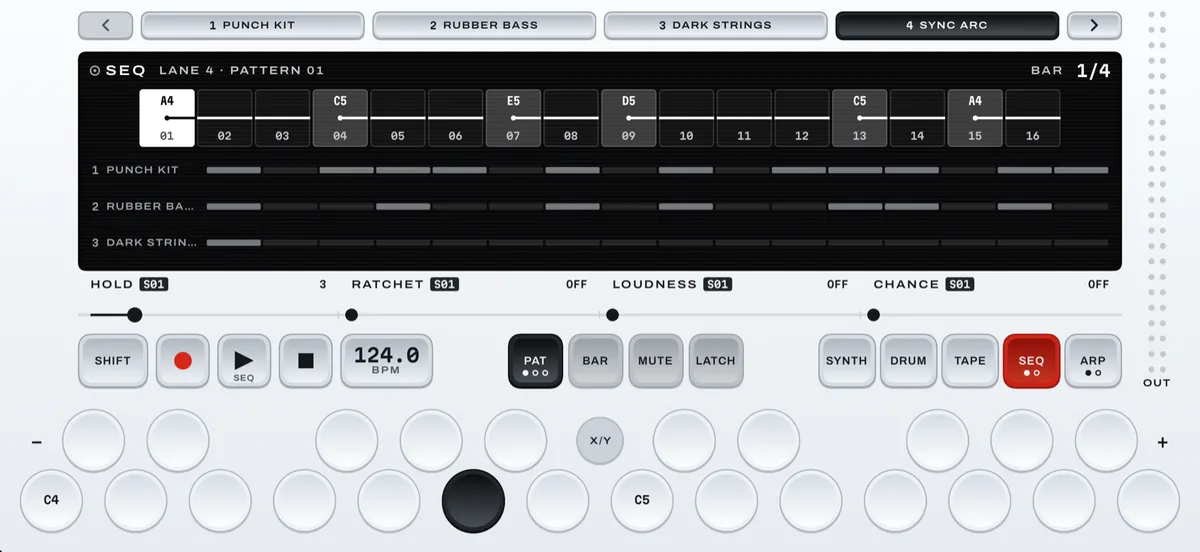
Each lane has 16 patterns (PATTERN, on the PAT page, picks one), and PLAY on SEQ runs every lane's pattern at once. Focus a lane and press SEQ: the wide window shows its pattern, each cell one step, sixteen to a bar, with other lanes as thin rows. The header's top right shows the bar on screen and how many the pattern has, such as BAR 3/4; while it plays, SEQ follows it bar by bar.
5.1Enter notes by hand
- Tap a cell. It's selected; nothing is written yet. (A cell that holds notes plays them.)
- Press keys: each adds its note (a pad on a kit lane), and a second press takes it out. Up to eight make a chord. A MIDI keyboard enters notes the same way.
- The band now edits that step: HOLD (how long the note lasts), RATCHET (repeats), LOUDNESS and CHANCE (how often it plays at all).
- Tap the next cell, or the same one again to let it go. Press PLAY.
5.2Record as you play
Press REC on SEQ (PATTERN REC ON · FIRST NOTE STARTS
); your first note starts the pattern on step 1, and REC blinks while it records. Notes land on the nearest 1/16: on the BAR page, QUANTIZE sets that grid (OFF keeps your timing) and STRENGTH how far notes move onto it, even after the take. STOP ends the take but leaves REC on: press REC again before you play back. Under SHIFT: UNDO, REDO, CLEAR and RESET, which erases every lane's patterns when pressed twice. The MUTE page stops a lane's pattern.
STEP REC. Stopped, hold SHIFT and press REC (REC MODE · STEP
), let go, and press REC. Each note or chord fills the step under the cursor and moves on; REST leaves a step empty, TIE makes the last note a step longer, and a tap on a cell moves the cursor. It ends at the pattern's end or with PLAY.
5.3PATTERN PLAY and PATTERNS
Press PAT a second time for sixteen boxes, one per pattern number: outlined where any lane has notes, solid for the one every lane is playing. Tap a box while the song plays and it flashes; when the longest pattern playing ends, every lane switches to that number together. Tap the playing box to cancel; stopped, a tap switches at once. A lane with nothing in that pattern goes quiet.
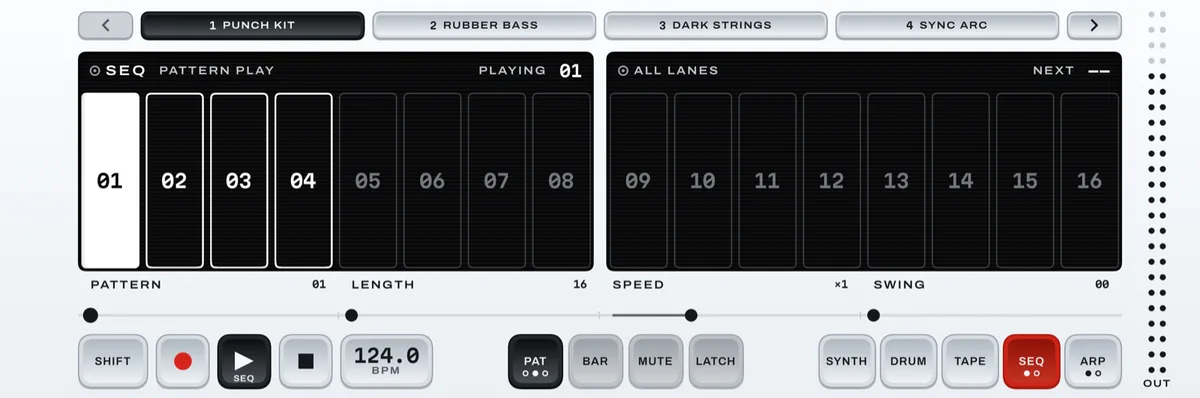
PATTERNS. Press PAT a third time for the lane's patterns as tiles. COPY, then a tile, copies the current pattern there; SWAP, then two tiles, swaps them; CLEAR, a tile and CLEAR again empties it. With SHIFT they act on every lane. To copy to another lane, press COPY, then that lane's button and a tile. PAT goes back to the steps, where SHIFT + UNDO takes the last one back. To move a whole pattern an octave, press PAT OCT- or PAT OCT+ under SHIFT, at the ends of the bottom row. More in the manual's chapter 8.
Play it live
The arpeggiator plays the notes you hold one after another, in time. PERFORM and the X/Y pad reshape the sound while the music runs, and the chord pad puts a whole chord under one finger.
6.1The arpeggiator
- Focus a synth lane and press ARP. The page keys, LANE 1 and on, also pick the lane.
- Drag the first slider, ARP, to ON, and hold a chord.
- Shape it with RATE (such as 1/16), MODE (UP, DOWN, UP-DN, PLAYED, RANDOM, CHORD) and GATE (how long each note sounds).
Under SHIFT: HOLD keeps it playing after you let go (set ARP to OFF to stop it); SWING makes every second note land a little late; SYNC set to LOCK keeps it in time with the patterns and grooves, and FREE starts it from your first note; OCTAVES runs it over 1 to 4 octaves. The arpeggio belongs to the lane and plays on every screen. On a kit lane this screen is GROOVE (4.2).
6.2PERFORM and the X/Y pad
On SEQ, press SEQ again (its second dot lights). Every lane gets two faders: TONE in the left window, darker to brighter, and SPACE in the right, drier to wetter, from the sound's own effects. Each starts in the middle, where the sound is exactly as saved. Drag them while the music plays.
- STOP glides every fader back to the middle, as the screen says when PERFORM opens:
PERFORM · STOP PUTS EVERY SOUND BACK
. - KEEP, the fourth page key, holds them where they are through STOP. Turn KEEP off and every sound goes back.
- Nothing here changes your saved sounds or the project. A fader that can't act says why under it: EMPTY, MIDI, NO FX or NO TONE.
The X/Y pad. Press X/Y in the middle gap of the keyboard's top row, on SYNTH, DRUM, TAPE or ARP. The right window becomes a pad for the focused lane. Drag from anywhere: left and right bend the pitch, which springs back when you let go; up and down move the sound's mod wheel, or its TONE on a sound with no wheel (the pad's header says which). Y stays put until STOP; X/Y again closes it. More in the manual's chapters 9 and 15.
6.3Chords and scales: KEY
On a synth lane, press ARP again (its second dot lights) for KEY. Set KEY and SCALE, such as A MINOR: the scale's keys get a small light. Each lane has its own key. LOCK keeps every note in the scale; CHORDS makes each key play a chord in the key (in A minor, D plays D minor). Under SHIFT: 7THS, TYPE for chords with no scale, and LEARN for your own shape. With ARP on, one key arpeggiates the chord. More in the manual's section 3.11.
6.4The chord pad
On SYNTH, on a synth lane, hold SHIFT: the page keys read CHORD, KEY, STRUM and BASS. Tap CHORD until it reads PAD, and seven chord keys and a stick take the keyboard's place. The keys play the seven chords of your key and scale (C major until you set one), each named on its key. Push the stick, from anywhere on its panel, to change the chord: up 7, up-right 9, right SUS4, down-right DOM7, down FLIP (major to minor), down-left DIM, left SUS2, up-left ADD9. The keys' names follow it, and it springs back when you let go (Settings › CHORD PAD › Stick on HOLD keeps it). Each key always plays the same voicing, unless you turn on Voice leading there. KEY opens the KEY page and brings you back, STRUM rolls each chord's notes, BASS adds the root an octave down, and − and + move the octave.
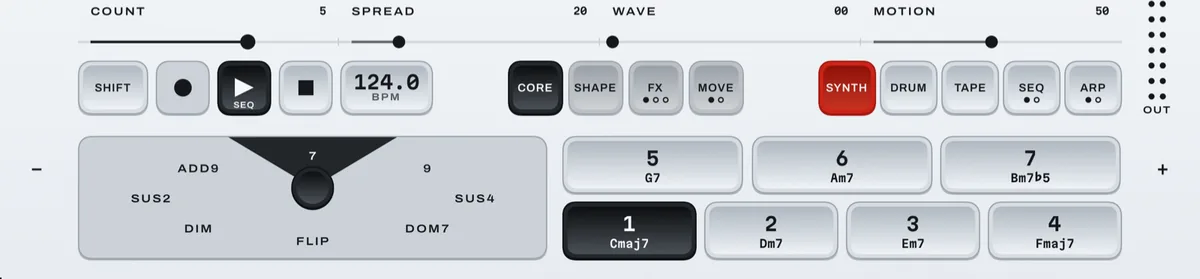
The pad works with ARP, SEQ (live and step by step) and MIDI out. A MIDI keyboard plays it too: white keys C to B are chords 1 to 7, the bend wheel pushes the stick left and right, the mod wheel up, and a held black key down. More in the manual's section 3.12.
Balance the lanes in MIX
MIX sets how loud each lane is against the others. TAPE MIX does the same for the tape's tracks.
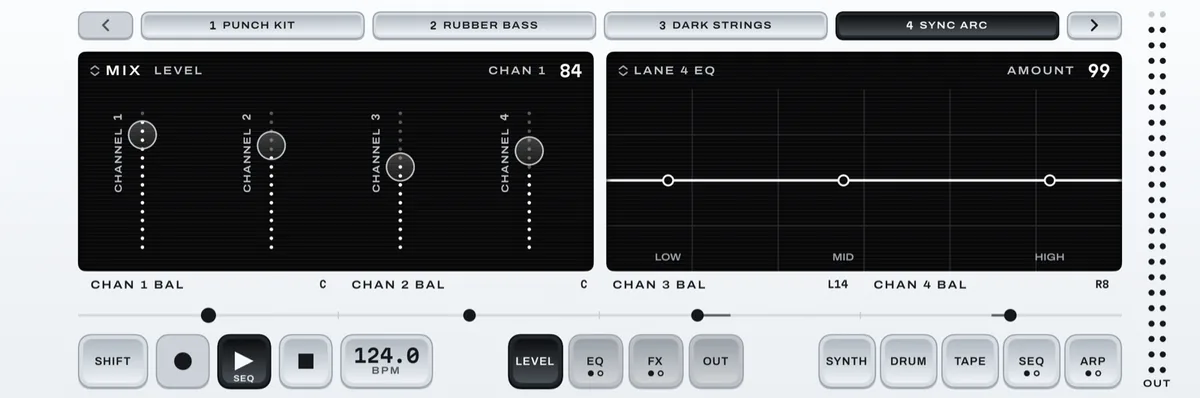
Each channel is one lane: CHANNEL 1 is lane 1. MIX shows the lanes the lane buttons show.
- Hold SHIFT and press MIX (the ARP key). MIX opens on LEVEL.
- Drag a channel's fader up or down in the left window. The band sets each one's balance, left to right, such as CHAN 1 BAL; double-tap one to center it.
- To mute a channel, hold SHIFT and press the page key that reads MUTE and its number. The channel's name turns red; the lane goes quiet, and the tape plays on.
EQ lifts or cuts the bass, middle and treble of the focused lane alone (the window reads LANE 3 EQ, say); press it again for the MASTER EQ, which shapes the whole mix. The other page keys work on the whole mix: FX is one effect (press it again to choose which); OUT has DRIVE, for grit, and the output level. SHIFT + MIX again, or a mode key, leaves.
On TAPE, SHIFT + MIX opens TAPE MIX instead: the same faders, balances and mutes, for what each tape track plays back. On a lane that plays your own MIDI gear, the fader and balance set its volume and pan (10.2). More in the manual's chapter 10.
Record onto TAPE
TAPE is a multitrack recorder with up to 30 minutes of tape per project. Record what you play, layer takes, and put your patterns on tape.
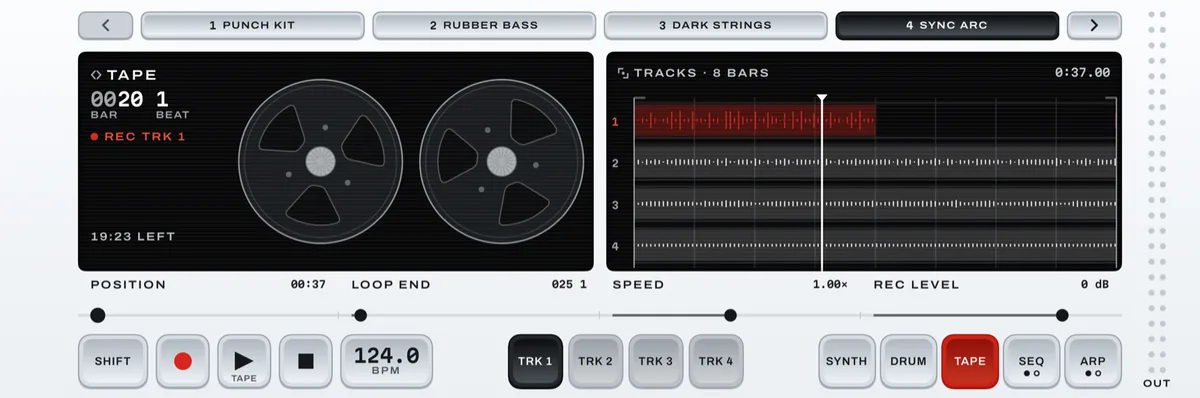
Press TAPE. A new project has eight tracks of 20 minutes, or six of 30 if you choose (9.1). The deck on the left shows where you are and the time left; TRACKS on the right shows the takes and the playhead. Pinch TRACKS to see 16, 32 or 64 bars or the whole tape; double-tap for 8 bars again. The track keys, TRK 1 and on, choose the track you record onto; on iPhone the lane arrows bring up tracks 5 to 8.
8.1Record a take
- Press TRK 1. Track 1 turns red: it's the track you'll record onto.
- Press REC (steady red: armed), then PLAY (its word reads TAPE), and play; REC blinks while the take is written: the keys on any screen, arpeggios and grooves go onto the tape. With the click on, PLAY counts in one bar first; the click never goes onto the tape.
- Press STOP. The take is kept, but REC stays red: press REC to turn it off, STOP again to go back to the start, and PLAY to hear it.
On TAPE, PLAY rolls the tape and nothing else, so your patterns stay stopped. Recording onto a track that already holds a take adds to it, and REC pressed while the tape plays punches in and out. To start somewhere else, drag POSITION, the first slider: slowly for a bar at a time, a flick to jump further.
8.2Record your patterns: REC SEQ
Under SHIFT, TAPE's third slider is REC SEQ. On EACH, each lane playing a pattern records onto its own track, lane 1 onto track 1 and so on (one lane alone goes onto the track you chose). On ONE, every lane you hear is mixed onto the track you chose; OFF keeps the patterns out. Then press REC (the deck's red line names the tracks, such as REC TRK 1
) and PLAY: the patterns come in on a bar line, so separate passes line up. To leave a lane out, mute its pattern on SEQ's MUTE page.
The tool row. With SHIFT on, TAPE's keyboard turns into tools. UNDO and REDO take back takes and edits. CATCH puts the last thirty seconds you played onto the chosen track, even if you weren't recording. IN and OUT, pressed while the tape plays, mark a stretch that LOOP then plays over and over. The track keys read MUTE 1 and on: press one to mute that track. SHARE turns the tape into a vertical VIDEO for social apps, or AUDIO ONLY, from what PLAY would play (the loop when LOOP is on), and opens the share sheet. SHIFT + MIX opens TAPE MIX, each track's level, balance and mute.
Projects, and exporting
A project is your whole session: every lane's sound, the patterns, the mix, the tempo and the tape. It saves itself about a second after every change.
9.1PROJECTS
You never need to save to keep your work. SHIFT + PROJ (the TAPE key) opens PROJECTS from any screen. Projects run A to Z, the open one is outlined, and the right-hand column shows how much of each one's tape is recorded (-- for nothing yet). Moving the cursor opens nothing; the right window shows that project's lanes, with RENAME and DELETE at its foot.
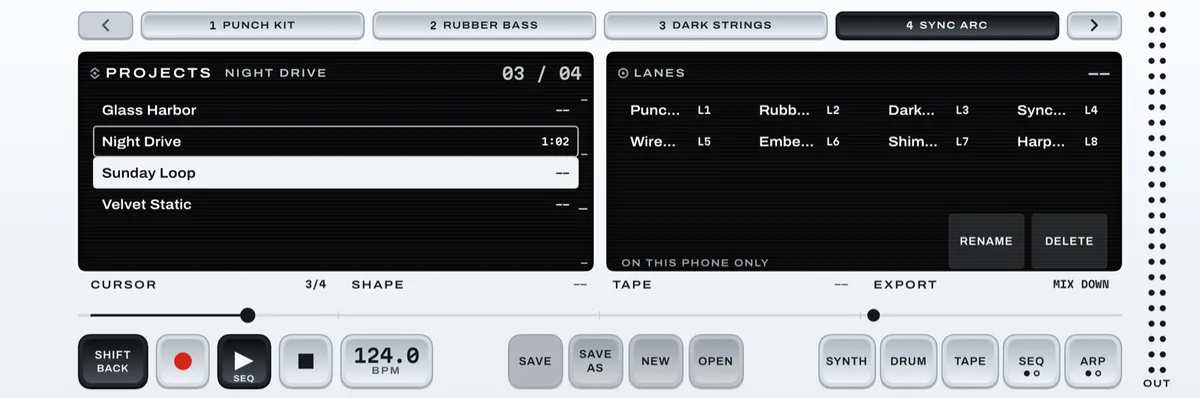
- SAVE
- Makes the open project, as it is now, the version to go back to (
SAVED · NIGHT DRIVE
). Lit only when something has changed. - SAVE AS
- A pop-up suggests the name with (2) after it; press SAVE to carry on in a new copy. The project you were in stays as it is.
- NEW
- Makes a fresh project of eight lanes and opens it.
- OPEN
- Opens the project at the cursor. The music stops.
- SHIFT + REVERT
- Pressed twice, takes the open project back to its last SAVE, takes and all (
REVERTED TO YOUR LAST SAVE
). - RENAME
- Renames the project at the cursor, 24 characters at most.
- DELETE
- Pressed twice, deletes the project at the cursor. There's no undo, and the open project can't be deleted.
In PROJECTS a tap on SHIFT means BACK, so hold SHIFT for the keys under it.
SHAPE: eight tracks or six. With the cursor on the open project and the music stopped, the second slider, SHAPE, switches it between 8 × 20 (eight lanes, eight tape tracks of 20 minutes) and 6 × 30 (six lanes, six tracks of 30 minutes). It refuses a switch that would lose anything, and says why, such as LANE 7 ISN'T EMPTY
.
Send a song. Hold SHIFT and press SHARE to send the project at the cursor through the share sheet: AirDrop, Messages, Mail or Files. The third slider, TAPE, picks whether its tape goes too; while you hold SHIFT the foot of the right window gives the size, such as SHARE · 732 KB
. A song that uses something an older version of Tonaut lacks, such as chord mode or the newest effects, asks it to update first. A song someone sends you arrives as a new project, such as Night Drive (shared): press OPEN to play it.
9.2Export audio or MIDI
An audio export writes what's on the tape, not your patterns, so record them first with REC SEQ (8.2). To take the patterns themselves to another app, export MIDI.
- Open PROJECTS. EXPORT always writes the open project, wherever the cursor is.
- Set the fourth slider, EXPORT, to MIX DOWN (the tape as you hear it) or STEMS (a file per track with a recording), or MIDI (a MIDI file for each lane's pattern, as it plays).
- Press REC. STOP cancels.
When it's done, the screen says where, such as SAVED IN FILES · TONAUT / EXPORTS
; MIDI files open the share sheet first. Find the files in the Files app, in On My iPhone › Tonaut › Exports, to share them. More in the manual's chapters 13 and 14.
MIDI keyboards and gear
Play Tonaut from a MIDI keyboard, and let Tonaut play your synths and drum machines.
10.1Connect a MIDI keyboard
A USB class-compliant keyboard (one that needs no driver) plugs in, through an adapter if your iPhone needs one: MIDI CONNECTED · name
. It plays the focused lane (step entry on SEQ included), with velocity, pitch bend and the sustain pedal, and SEQ and TAPE record it. The mod wheel moves a sound once its MOVE page uses the Expression modulator (the manual's section 3.8.6).
For Bluetooth, open Settings: hold SHIFT, press HELP, tap the SETTINGS cell and press the MIDI page key. Press BLUETOOTH, tap your keyboard in Apple's list, then Done. MIDI in on LANE plays the focused lane, and the Channel row picks one MIDI channel to listen on (back to OMNI, every channel, each time Tonaut starts). On BY CHANNEL, lanes 1 to 8 listen on channels 1 to 8, each changeable, for a split keyboard or another app playing several parts. A mode key leaves Settings.
10.2Play your own gear: MIDI out
Any lane can play a hardware synth or drum machine, over USB, a MIDI interface or Bluetooth:
- Focus the lane and open PATCHES (for a synth) or KITS (for a drum machine).
- In the engine column, tap EXTERNAL, then move the cursor to your gear's channel, CH 01 to CH 16. The lane button reads MIDI CH and the number.
The keys, the lane's patterns, a MIDI keyboard, the arpeggiator and grooves now play your gear; MIX's fader, balance and mute work on it too. STOP pressed while stopped turns every note off. A MIDI lane isn't recorded to the tape. To take it back, choose a sound.
The tempo page (hold the tempo key) has a SYNC page: Clock out sends Tonaut's tempo; Transport, OFF, OUT, BOTH or IN, sets whether PLAY and STOP start your gear and whether its start and stop play Tonaut; MIDI delay, −50 to +50 ms, lines your gear up with Tonaut's sounds. Tonaut always keeps its own tempo. More in the manual's chapter 16.
Quick fixes and help
What trips people up, how to reach us, and where to read more.
No sound. Turn up the volume. Then check the mutes: a lit MUTE key on MIX or TAPE MIX under SHIFT, a lit lane on SEQ's MUTE page, red pad numbers on DRUM. A lane on EXTERNAL plays your MIDI gear, not the phone.
The keys play another lane. They play the filled lane button. A lit arrow at the end of the lane row means that lane is on the other page.
Controls answer with a line instead of acting. HELP is on (SHIFT reads HELP; in a TN look, HELP's LED is lit under SHIFT): hold SHIFT and press HELP to turn it off.
REC does nothing. It records on SEQ and TAPE, and exports in PATCHES, KITS and PROJECTS. Elsewhere it's drawn flat.
The left window shows four small plots instead of the 3D engine. That's the CLASSIC screen: a tap on the window switches it. Tap again, or change lanes, for the 3D screen.
Crackles. In Settings, press AUDIO: keep Buffer on 256, as Tonaut comes. 128 halves the delay but leaves the device less room; Latency counts the blocks that came out late.
− and + do nothing. The lane holds a kit, and a kit has no octave.
A held note bends when you tilt the phone. That's LEAN. Hold SHIFT and press HELP: the LEAN cell turns it off for the focused lane. The manual's section 14.10 has more fixes.
Write to us. We're Coast Creative, and we make Tonaut. Questions, problems and ideas all go to hello@coastcreative.studio. If something isn't working, tell us what you were doing, what the screen said and which iPhone or iPad you have. Tonaut's version is in Settings (10.1): press INFO, and it's the first row, Version.
The full user manual, with an index, is on the Support page. It covers every control of a sound and the nine engine screens (chapters 4, 6 and 7), quick slots, LEAN, DIE and chord mode (3), the tape's editing tools and SHARE (11), sampling with the microphone (12), Settings, iCloud sync and exporting (14), PERFORM and the X/Y pad (15), MIDI out (16) and Tonaut on iPad (17).