Support
A real person reads this.
Write to us about anything — a bug, a question, a feature you want, or a recording that went wrong.
Replies are not instant, but everything gets read and everything gets a reply. If something has broken and you are losing work, say so in the subject line and it goes to the front of the queue.
Before you buy
What is Tonaut, exactly?
A synthesizer, drum machine, sampler and eight-track tape recorder on one panel, played with the phone held sideways. Everything happens in eight lanes. Each lane holds a synth sound or a drum kit, and each has its own sixteen patterns, its own arpeggiator (or groove player, on a kit) and its own channel on the mixer.
A typical session: pick a sound for each lane, play it, build patterns, balance the mix, record onto the tape and export a WAV file. You can skip any of those steps.
Where can I buy it?
Tonaut is on the App Store, and one purchase covers iPhone, iPad and iPhone Duo: https://apps.apple.com/us/app/tonaut/id6812577930
What does it cost? Is there a subscription?
It's $19.99, paid once through the App Store, with no subscription and nothing to unlock afterwards.
Apple handles the payment, so refunds go through Apple under its own policy. The terms have the detail.
Which iPhones and iPads does it run on?
From version 1.5, Tonaut runs on iOS and iPadOS 17 or later.
iPhone: an iPhone with an edge-to-edge screen, the iPhone XS, XS Max or XR or any newer iPhone, including the iPhone Duo. The iPhone SE (2nd and 3rd generation) can install Tonaut, but its screen is too small for the panel, so Tonaut shows a message instead of the instrument, with how to ask Apple for a refund at reportaproblem.apple.com. Display Zoom is fine: set to Larger Text, an iPhone draws its usual panel scaled to fit, the same size on the glass as at Default.
On iPhone, the layout is drawn for each screen size rather than scaled. The four bands you touch (lane buttons, sliders, buttons and keys) keep their height on every phone, and the two screen windows take up the difference. A bigger phone gets taller windows, more list rows and slightly wider keys.
- Largest
- 956 × 440
- Large
- 874 × 402
- Medium
- 852 × 393
- Standard
- 844 × 390
- Smallest
- 812 × 375
Screen sizes with a layout of their own, in points, landscape. Other iPhones, such as the XS Max, the XR, the iPhone 11, older Pro Max models and the Plus and Air models, get the same layout fitted to their screen. We haven't checked those sizes one by one yet.
iPad: iPad (6th generation) or newer, iPad mini (5th generation) or newer, iPad Air (3rd generation) or newer, and every iPad Pro from 2017 on. Every one of them gets the full iPad layout; on the 9.7- and 10.2-inch iPads, the 10.5-inch iPad Pro and iPad Air (3rd generation) and the iPad mini (5th generation) it is drawn a little smaller to fit.
The iPad layout is a panel of its own for the bigger screen: thirty-two keys, and as many rows of controls as the screen holds, from two on the newer iPad mini models to four on the 13-inch. The 11- and 13-inch models show all eight lanes in a row. The iPad mini and the other iPads drawn smaller show four at a time, as the iPhone does, with arrows to page to the rest.
In Settings, under THEME, the iPad has a Layout row: AUTO, 11-INCH or 13-INCH. It's there because of Display Zoom. Set to More Space, an 11-inch iPad tells apps it has a 13-inch screen, which used to give it the 13-inch layout, four rows of sliders and all, squeezed onto the smaller screen. AUTO, how it comes, picks the layout by your iPad's model instead, so an 11-inch iPad keeps the 11-inch layout at any zoom. Or choose 11-INCH or 13-INCH to use that layout, fitted to your screen. On every iPad smaller than the 12.9- and 13-inch models, Tonaut won't take 13-INCH, because its keys would come out too small to play.
On the oldest of these, the iPads with the A10 chip (iPad 6th and 7th generation, the 10.5-inch iPad Pro and the 12.9-inch iPad Pro, 2nd generation), Tonaut turns on PERFORMANCE: LIGHT by itself: a larger audio buffer, fewer notes at once and calmer 30 fps screens. You can change it in Settings, under AUDIO, Performance (more below).
On the iPhone XS and XR and the iPads with the A12 chip, very dense songs, all eight lanes with heavy sounds and every effect on, can still be more than the chip can play in time. If that happens, Tonaut says so on screen and suggests PERFORMANCE: LIGHT. These devices start on the larger buffer, 512, for that reason.
iPhone Duo is supported, with a layout for each way you hold it. Folded, the outer screen has the lanes, both screens, four sliders, one row of nine keys and a one-octave keyboard. Half folded, or open and held upright, the screens and sliders sit above the fold, with big buttons and keys below it. Fully open and held sideways, it plays the iPhone layout with its two-octave keyboard, bigger, with all eight lanes, all eight sliders and a row of PATCH, KITS, PROJ, EDIT, MIX, UNDO, DIE and HELP keys always in view. Folding or unfolding never stops the music or a recording.
Side by side with another app on the Duo, Tonaut goes straight to the upright layout, drawn to fit its side of the screen, with two big lanes on the lane row. The arrows step two lanes at a time. Hold a lane for about half a second to show four lanes, and again to go back to two; Tonaut remembers which you chose. In every upright layout, TAPE stacks its screen: the counter, REC TRK and the time left run across the top, with the reels big and centered underneath.
What does Performance in Settings do?
It's a row in Settings, under AUDIO, on iPhone and iPad: AUTO, FULL or LIGHT. LIGHT eases an older chip so the music keeps time. The audio buffer starts at 1024 instead of 256 (512 on the iPhone XS and XR and the A12 iPads), which gives the chip more time to work out each slice of sound. Fewer notes sound at once: six on a synth lane instead of eight, ten on a kit lane instead of sixteen, and twenty-four across the song, with the oldest note fading out to make room. And the screens draw at 30 frames a second, with the 3D engine and drum pictures held still.
The sounds, effects, tape and sequencer don't change. AUTO, how it comes, turns LIGHT on for the iPads with the A10 chip (iPad 6th and 7th generation, the 10.5-inch iPad Pro and the 12.9-inch iPad Pro, 2nd generation) and leaves every other iPhone and iPad at full. FULL keeps it off and LIGHT keeps it on, on any iPhone or iPad. A buffer you pick yourself, in AUDIO under Buffer, always wins.
If the chip falls behind, Tonaut says TOO MUCH · TRY PERFORMANCE LIGHT IN SETTINGS. The iPhone Duo has no Performance row: it always plays at full.
Why is it landscape only?
Because the keyboard is real: fourteen round keys along the bottom and ten more above them, each big enough for a thumb, with two windows and a row of sliders above that. It needs the long edge of the phone. Turned upright, it would mean keys you miss or half the controls gone.
So there's no portrait mode and no lock to fight. It plays either way round sideways, and turning the phone upright doesn't rotate the panel. The iPad is the same: landscape, full screen. The one exception is the iPhone Duo's big inner screen, which has an upright layout of its own for when it's half folded, held upright or side by side with another app.
Is there a dark version?
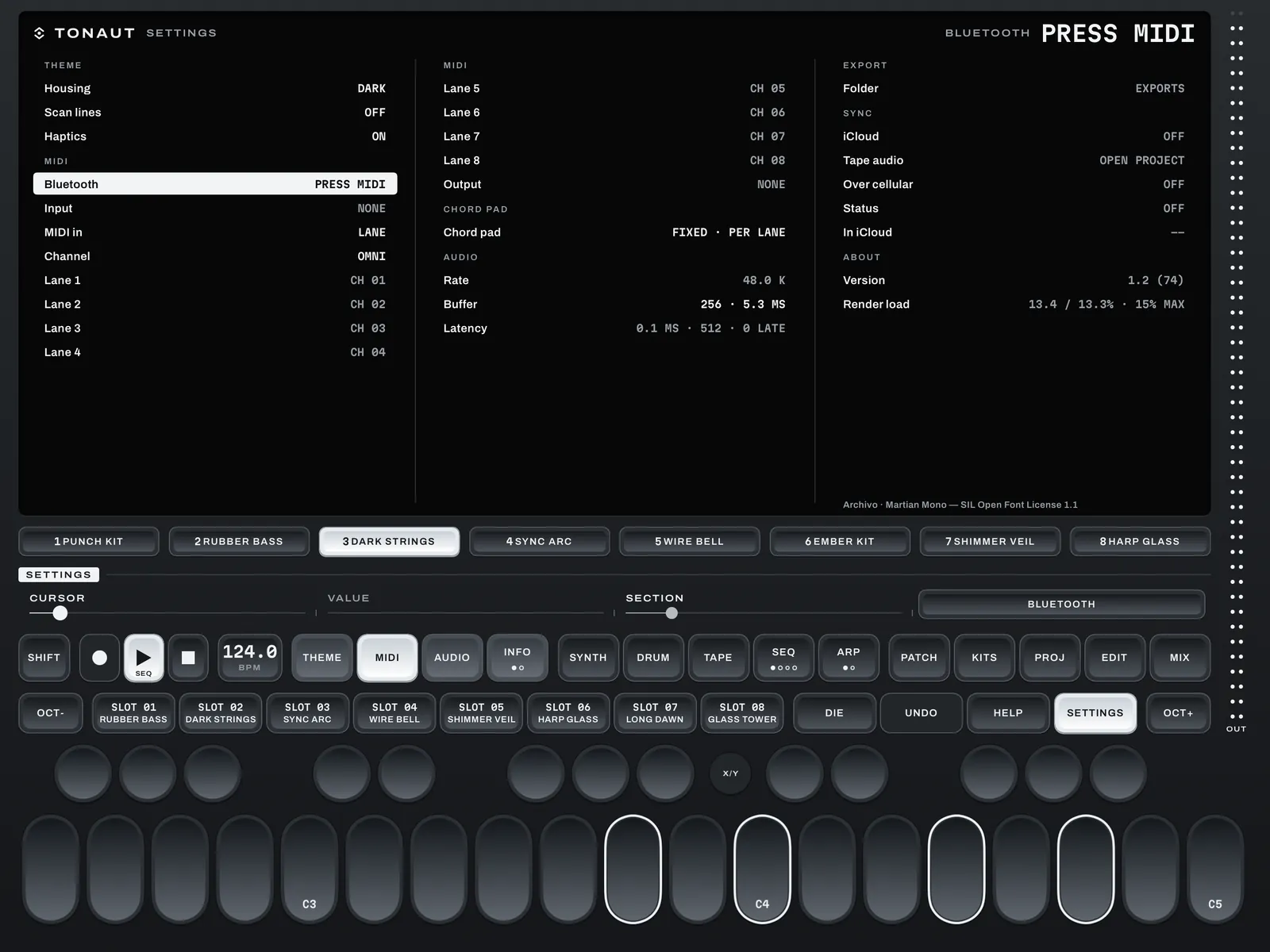
Yes, several. A new install opens in TN-Dark, a charcoal panel built like desktop hardware. To change it, open Tonaut's own Settings: on iPad press the SETTINGS key beside HELP; on iPhone, with SHIFT on, hold HELP / SETTINGS in the strip. The first row, Housing, lists AUTO, then TN-Dark; TN-Light, the same panel in warm cream with raised white keys and black caps; TN-XY, in black and silver; TN-Signal, flat midnight blue with cyan and coral and its own tape reels and scope; and OG-Dark and OG-Light, Tonaut's original panel. Tap one to choose it, or set it with the VALUE slider. In the four TN looks every key has a small LED that lights as its note plays. AUTO switches between TN-Light and TN-Dark with the phone's own appearance, live, mid-note. Updating keeps the look you had, under its new name. The screens stay dark in every look. Settings also has the scope style (line or pixels), the screens' scan lines, the app icon and, on iPhone, the haptic ticks.
Is there an iPad version? A plug-in version?
Yes to iPad. Tonaut is one purchase for iPhone and iPad, and on iPad it isn't the phone layout blown up: the panel is drawn again for the bigger screen, with thirty-two keys and more of the controls in view at once, and on a drum lane, sixteen big pads can take the keys' place. It plays in landscape, full screen.
And yes to a plug-in. Tonaut also plays inside other music apps such as AUM, Loopy Pro, GarageBand and Logic Pro for iPad, as an AUv3 plug-in. And the app hosts your own AUv3 instruments and effects. The plug-in and hosting questions below cover both, and chapter 19 of the Reference Manual has the plug-in in full.
Does it need an internet connection, or an account?
No to both. Tonaut needs no connection for anything of its own: no licensing check, no analytics, no registration, and no server of ours to reach. There's no account to make. In airplane mode it plays, records, samples and exports the same as anywhere else.
The one thing that reaches the internet is iCloud sync. It's off until you turn it on, it uses the Apple Account already on your phone, and if it can't reach iCloud it tries again the next time the project saves. Ableton Link, when you switch it on, talks only to other apps on your own Wi-Fi. The privacy policy has the detail.
Can I put it on more than one iPhone or iPad?
Yes. Buying it once lets you use it on the iPhones and iPads you own or control under your Apple Account (the terms have the exact wording). Turn on iCloud sync on each one, and a project you open on one can then be opened on the other.
The plug-in, hosting, songs, MIDI learn and tempo sync
How do I use Tonaut as a plug-in?
Update to Tonaut 2.0 and open it once, so iOS lists the plug-in. Then, in your host, add an instrument and pick Tonaut, by Coast Creative, from its Audio Unit (AUv3) instruments. Some hosts list it as Coast Creative: Tonaut. Route a keyboard or a MIDI track to it and press PLAY in the host: Tonaut plays at the host's tempo, and its patterns start on the host's next bar line.
What you see depends on the window. At 770 × 341 points or more you get the full panel, the same one you play in the app, in the TN-Dark look. Smaller, Tonaut shows a compact card: every lane with its level and mute, the tape's REC, PLAY and STOP, a keyboard with octave − and +, and the host's tempo. Where the card has room for four lanes, a tap on LANES 1–4 OF 8 flips to lanes 5 to 8 and back. Drag the window bigger for everything else. On a big iPad window you get the iPad panel.
Chapter 19 of the Reference Manual covers the plug-in in full, host by host.
Which apps can I use the plug-in in?
Any app that hosts AUv3 instruments, among them AUM, Loopy Pro, GarageBand, Logic Pro for iPad and Cubasis. The plug-in comes with the app, so there's nothing else to buy or install.
You can load several copies. Each one is a whole instrument with a project of its own: eight lanes, patterns, a song, a mix and a tape. Each listens on MIDI channels 1 to 8, one for each lane, so send each copy its own MIDI in the host. On an older iPhone or iPad, one or two copies is a sensible limit.
Can Tonaut host my AUv3 plug-ins?
Yes, in the Tonaut app. Your own AUv3 instruments play on a lane: open PATCHES, choose PLUG-IN, then the instrument and one of its presets. The lane plays it like any other lane, from the keys, the sequencer, the arpeggiator, the chord pad, Song Mode or a MIDI keyboard, and it goes onto the tape and into mixdowns and stems. A tap on its screen opens the plug-in's own window over the panel: FILL gives it the whole window, and FIT shows it at its own size. CORE's sliders move its main controls.
Drum machines go on a kit lane: open KITS and choose PLUG-IN, and the plug-ins that say they're drum machines come first. The pads play General MIDI drum notes (kick on pad 1, snare on pad 3, closed hat on pad 5), so the pads, the sequencer and the groove player all play it, on any lane, an EMPTY one included. The plug-in list and the lane's card say which way a plug-in is on: AS DRUMS from KITS, AS SYNTH from PATCHES. AUv3 effects go in any of a lane's four FX slots, and as the master effect on MIX: every effect list has TONAUT and PLUG-INS. A plug-in effect shows its name in the slot, and a tap on the name opens the slot's list, as with Tonaut's own effects. On the FX page, a tap on the screen opens the window of the effect in the lit slot. A plug-in's window always stays in its frame, with CLOSE on top, whatever size the plug-in asks for.
Each project saves its plug-ins and their settings, so it opens the way you left it, on this device or another one through iCloud, and a song you send carries them too. If a project needs a plug-in this device doesn't have, Tonaut says which one, and that lane stays quiet until you install it. A plug-in that misses a beat, while it loads a preset for example, is silent for that moment and then plays on. The lane you load a plug-in onto stays the lane you're on, and the lists are in alphabetical order. MIDI plug-ins, which make notes rather than sound, aren't listed: Tonaut doesn't host those. How many you can run at once depends on your device. Hosting is in the app: when Tonaut itself runs as a plug-in inside another host, load your other plug-ins in that host.
A plug-in says PLUG-IN NOT PLAYING. What do I do?
Tap TAP TO RELOAD on the lane's card, and Tonaut loads the plug-in again. The line also says why it stopped: an error number from iOS, TOO SLOW when it kept falling behind, or IT CLOSED when the plug-in itself quit. The same line shows in the plug-in's window.
A plug-in that misses a beat, while it loads a preset for example, isn't switched off: it's silent for that moment and plays on. Only a second of errors in a row, or the plug-in closing, stops it. If one keeps stopping, try running fewer plug-ins at once.
In a host app, why do my notes jump from lane to lane?
In a host, Tonaut picks the lane by MIDI channel: channel 1 plays lane 1, channel 2 plays lane 2, and so on up to 8. If each note from the host's keyboard lands on a different lane, that keyboard is sending each note on a new channel, which is what MPE mode does.
In the host's keyboard settings, turn MPE off and pick one channel: the channel of the lane you want to play. You can also change which channel each lane listens to in Tonaut's Settings › MIDI, in the plug-in or the app.
Or keep MPE on and set the plug-in's Settings › MIDI › MIDI in to LANE: then every channel plays the lane on screen, with its scale and chords. BY CHANNEL is the default, and each copy of the plug-in keeps its own choice. Each note's own MPE bend isn't followed; a bend moves the whole lane.
Can the plug-in record my host's audio onto Tonaut's tape?
Tonaut's own lanes record onto its tape in any host: arm the tape on TAPE, or with REC on the card, and the host's PLAY rolls it.
To record another app's audio, use Tonaut FX, the version of the plug-in for a host's effect slot (Coast Creative: Tonaut FX, in AUM, Loopy Pro and others). Put it on the channel you want: the channel always passes through untouched, as its panel says when it opens, and REC on Tonaut's card, then the host's PLAY, records it onto Tonaut's tape. GarageBand doesn't list this kind of effect.
What can't the plug-in do that the app can?
A few things stay in the app: sharing and every export (the plug-in says SHARE FROM THE APP), deleting projects, LEAN, which reads the phone's tilt, iCloud sync, and hosting AUv3 plug-ins of your own. Ableton Link is the app's too: inside a host, the host sets the tempo, so use the host's own Link if it has one. The plug-in always wears the TN-Dark look.
Everything else works as in the app: the sounds, the sequencer and the song, the arpeggiator, the mixer and effects, the tape and PROJECTS. A host can also draw and record 144 of Tonaut's values, from each lane's CORE sliders to the master EQ and the tape's speed.
Do the plug-in and the app share projects?
Yes. Your sounds, samples and projects are the same in every host and in the app. A project you start in a host shows up in PROJECTS in the app, and the other way around, and when the host saves its session, Tonaut saves the project too.
A project plays in one place at a time, so it's never written from two. While a host plays it, the app can't open it, and a second copy that reaches it, from a duplicated track or a session opened twice, opens a copy of it under a new name.
Can I map my MIDI controller's knobs?
Yes, with MIDI learn. In Settings, under MIDI, go to Learn and tap LEARN, touch a slider on SYNTH, DRUM, MIX or TAPE, then turn a knob. The screen says what you mapped, such as CC 74 → CUTOFF (LANE 2), and the slider wears a CC74 badge. Learn stays on for the next one, and SHIFT ends it.
Under Knobs, choose PICKUP, where a knob waits until it meets the value before it moves anything, or JUMP. Mappings lists every link, each with CLEAR, plus CLEAR ALL. Each project keeps its own, and SET AS DEFAULT makes them the set new projects start with.
With no setup at all, CC 70 to 73 move the four sliders on screen. A few CCs are never taken, so your controller keeps doing its usual jobs: bank select, the mod wheel, breath, data entry, expression, the sustain pedal and the mode messages. MIDI learn works inside the plug-in too, alongside the host's automation.
Does Tonaut support Ableton Link?
Yes. Ableton Link puts Tonaut on one tempo and one bar line with Ableton Live and other Link apps on the same Wi-Fi, on phones, iPads and computers. Switch it on in Settings, under MIDI: Ableton Link's OPEN shows Ableton's own settings, including Sync Start/Stop, which shares PLAY and STOP with the other apps.
While it's on, the tempo key counts the other apps in the session (NO LINKS, 1 LINK, 2 LINKS), a tempo change in any app moves everyone, and PLAY waits for the next bar, so Tonaut's step 1 lands on Live's downbeat. Link is in the app; inside a host, as a plug-in, Tonaut follows the host's tempo.
Link follows the tempo but not start and stop. Why?
Start and stop travel over Link only with Sync Start/Stop on, in every app in the session. In Tonaut, Settings › MIDI shows it on the Ableton Link row: ENABLED · START/STOP SYNC ON, or OFF. To change it, press OPEN there and switch Sync Start/Stop in Ableton's view. In Ableton Live it's in Preferences › Link, Tempo & MIDI.
Ableton Link can't find my other app. What do I check?
First, that both are on the same Wi-Fi network: a phone on cellular, or on a guest network that keeps devices apart, can't see the others. Next, that Tonaut may use the local network: if you tapped Don't Allow when iOS asked, turn it on in your device's Settings, under Privacy & Security, Local Network. Then, that Link is switched on in both apps. On a computer, check that its firewall lets Live use the network.
Sounds, kits and effects
What synth engines does it have?
Twelve, each making its tone a different way. SLOPE is a classic subtractive synth for basses, leads and pads. CROSS is six-operator FM, for bells, electric pianos and hard basses. SCAN is a wavetable synth with twelve tables. PULSE is two pulse oscillators with pulse-width modulation. GUT is a modeled plucked string. SWARM stacks up to seven detuned waves. DUST builds clouds and textures from grains of sound. DIVINER is laid out like the classic analog polysynths, with two oscillators, poly-mod and forty controls. SAMPLER plays one of 147 sampled instruments across the keys, or your own recording. KINK is phase distortion: a wave read at a bent speed, so it kinks, from glassy to buzzy. MOUTH is a vocoder that sings its own vowels, or your voice through the microphone. CHIP is an old sound chip as an oscillator: few bits, a slow sample rate and stepped waves, with fast chords on one key.
Every synth sound has the same four pages: CORE for the engine's own eight controls, SHAPE for the envelope and how notes play, FX for its four effects, and MOVE for its modulator.
How does MOUTH sing? Why is a Mic sound silent?
MOUTH is a vocoder. Most of its sounds sing on their own: with LISTEN on SELF it talks its way through the vowels, A, E, I, O and U, so it needs no microphone and works on the phone's speaker.
The nine sounds whose names start with Mic (Mic Choir, Mic Pad, Mic Bass and the rest) set LISTEN to MIC. Hold a key and sing or talk into the microphone, and your voice shapes the note. They need headphones: on the built-in speaker with the built-in mic, MOUTH hears nothing, so it can't feed back, and its screen says MIC NEEDS HEADPHONES. Plug in any headphones, or use a USB or Bluetooth interface, and it listens again. iOS asks for microphone permission the first time a MOUTH listens, and a Mic sound stays silent until you sing into it. The mic opens the first time you pick a Mic sound in a project, with one short pause; after that, switching between MOUTH's sounds never pauses, and while a project has only MOUTH's own-voice sounds the mic stays closed.
How many sounds come with it?
Over 650: 637 synth patches across the twelve engines, sorted into eight types (bass, drone, keys, lead, pad, percussive, pluck and texture), and 55 drum kits. The newest are also listed under NEW, so you can step through just those. Each engine also has a plain starting point for building your own.
There's no separate preview step. Slide a finger up or down the browser's list, tap a sound, or step with the CURSOR slider, and the lane is already playing the sound you land on, so you can go through patches with a pattern running and hear each one in your music. Tap the star beside a sound to make it a favorite, and the star at the top of the list puts your favorites first.
What drum kits are there?
Seven kits made from real recorded drums (Arena, Boom, Chrome, Hall, Pop, Punch and Smoke). Twenty-six synthesized kits on the KNOCK engine, where every pad is its own drum with its own pitch, tone, decay, click and pitch drop. Five on CINDER, where every pad has two layers and the whole kit rings through one shared resonator. Five SLICER kits that cut a recording into pads in different ways. And twelve lo-fi kits on GRIT, rough and crunchy, where every pad is a pitched body with a punch, a noise layer and a click, through its own crusher, and a pad set to CHIP plays 8-bit drums. Every kit has 24 pads, one per key, numbered left to right: pad 1 on the first key, pad 2 on the black key after it, and so on up to 24, on screen and from a MIDI keyboard. If you liked the old numbering, it's in Settings as ROWS.
A pad can also LINK to a second pad, so a kick brings a clap with it. It works on sampled kits, KNOCK, CINDER and GRIT, from the keys, MIDI, patterns and grooves.
On iPad, a drum lane can swap its keys for 16 big pads: KEYS | PADS sits in the box beside the sliders, and each lane remembers its choice. LIVE plays the kit's parts on the pads. PROGRAM turns them into the steps of one part: tap to add or remove a hit, silently, up to 128 steps. M and S in the same box mute or solo one part in the pattern, the groove and PATTERN PLAY, while your fingers and a MIDI keyboard still play every part.
In the kit browser, tap the kit you've just loaded a second time and it plays two bars of a beat, so you hear it as a kit and not one hit at a time.
Can I make and save my own sounds?
Yes. The sound pages hold the controls you reach for most, and EDIT lays out the rest of the engine's controls in named groups, like the front panel of a hardware synth. Your changes save with the project as you make them.
To use a sound in other projects, save it to your USER bank in the sound browser, under its own name, and it's there in every project: PATCHES and KITS start from FACTORY, USER or PLUG-IN, and pressing PATCH or KIT again steps through them. Tick several and SHARE sends them as one bank file that another Tonaut can open. For quick access there are also quick slots: hold SHIFT and hold a slot key to save a sound there (on iPad, hold SLOT 01–08 on the strip), eight for synth sounds and eight for kits.
One thing to know: loading another sound onto a lane replaces your edits there, so save the sound first.
What effects are there?
Every sound, synth or kit, has four effect slots. On a new sound they hold reverb, delay, chorus and drive, all at zero, and factory sounds come with some of them turned up. Any slot can hold any of seventeen effects: reverb, delay, chorus, drive, spring reverb, bitcrusher, wavefolder, comb filter, and nine more. ECHO is a tape echo, locked to the tempo, whose repeats darken and blur with each pass. SPACE is a huge reverb, with tails from one second to a minute and an optional shimmer an octave up. DIST is real distortion, from crunch to fuzz, much stronger than DRIVE. FILTER is a resonant auto-filter, low, high or band, swept in time with the tempo or by how hard you play. PUMP ducks the sound in time with the tempo, like a sidechained kick. SWIRL is a phaser and a flanger in one. LO-FI adds crackle, hiss and wobble and narrows the sound, down to an old radio. TREMOLO pulses the level, or pans it side to side, in time with the tempo. CLIP is a soft clipper: push a loud mix hard and it stays clean. The FX page gives you each slot's amount and its main control, and a second press of FX lists all seventeen for the slot you're on.
Every lane has its own EQ in MIX, with a live spectrum behind the curve that shows what the EQ puts out. Double-tap a band, LOW, MID or HIGH, to put it back to flat. After the eight lanes, the mixer adds a master EQ, with its own spectrum, one master effect from the same seventeen (CLIP is a good one there), a drive stage, the output level and a limiter. The tape has a mixer of its own, TAPE MIX, with a level, balance and mute for every track.
How many notes can it play at once?
Each synth lane plays up to eight notes at once, and all eight lanes can play together. A sound can also play one note at a time (MONO or LEGATO, with glide if you want it) or UNISON, where each note is three detuned voices. The screen follows up to sixteen fingers.
A kit lane can have up to sixteen hits ringing at once, and CHOKE makes each new hit cut the others.
With Performance set to LIGHT in Settings, it's six notes a synth lane, ten hits a kit lane and twenty-four across the song (what LIGHT does).
Are the on-screen keys velocity sensitive?
No. Every note you play on the glass has the same strength, about 102 out of 127, however hard you press. For dynamics, plug in a MIDI keyboard: its velocity reaches the sound. Sequencer steps have their own LOUDNESS setting, and LEAN lets you move the sound by tilting the phone.
What happens when I tilt the phone?
Every factory sound comes with LEAN on. On most of them, hold a key and turn the phone like a steering wheel, and the pitch bends up to a semitone either way. Let go and it springs back in tune. On the DIVINER sounds, tilting works the sound's mod wheel instead. You can switch LEAN off for a sound, or point it at any control on the sound's CORE, SHAPE or FX page.
It only acts while a key is held, and the angle you're holding the phone at when you press counts as level, so you don't have to sit up straight. Lying flat on a table, it does nothing.
Making music: sequencer, arpeggiator, grooves and tape
How does the sequencer work?
Each lane has sixteen patterns, and each pattern runs from 1 to 128 steps: LENGTH adds whole bars of sixteen, and SHIFT + LENGTH moves one step at a time, so a 15-step lane can run against a 16-step one. A step holds up to eight notes, so chords are fine. Tap a step and play the keys to write into it, or arm the pattern and play live with a count-in and click. QUANTIZE pulls your timing onto the grid as much or as little as you like. BAR LOOP loops the bar on screen while you record, with REPLACE (each pass you play is a new take) or OVERDUB (each pass adds), and SHIFT + CLEAR on the BAR page empties just that bar.
Each step has its own length, ratchet (two to eight repeats inside the step), loudness, chance, play-every-Nth-time and slide. Hold a step for half a second to copy it, then tap another step to paste it there; SHIFT + hold cuts instead, and holding one step while you tap others takes them all, spacing kept. UNDO takes a paste back. REC on a lane's SYNTH or DRUM page records what you play into its pattern too, live, as REC on SEQ does. Each pattern has its own length, speed and swing. Press PLAY and all eight lanes play their patterns together. A muted lane's steps show dimmed, and its header says MUTED.
Can I chain patterns into a song?
Yes, with Song Mode. Press SEQ again for SONG (on iPad, press SEQ until SONG shows). Each of 16 scenes picks a pattern for every lane, so lane 1 can play pattern 1 while lane 2 plays pattern 3, and remembers which lanes are muted. Tap scenes in order to build a song of up to 64 steps, set each step to play from once to 16 times, and end it on LOOP or STOP. PLAY plays the song from the step you've picked, and a scene you tap while it plays comes in when the current one ends.
Editing a pattern changes it in every scene that uses it. REC SEQ on TAPE records the whole song in one take, each lane on its own track, and MIDI export writes the song in order.
PATTERN PLAY is still there for switching by hand. Press PAT twice (on iPad, press SEQ again) and the sixteen patterns show as tiles. Tap one while the song plays and it waits, flashing, then every lane moves to that pattern together when the longest one playing reaches its end. Press PAT a third time (on iPad, SEQ until PATTERNS shows) to copy, swap and clear patterns, for one lane or, with SHIFT, all lanes at once.
Or arrange on the tape: play, switch patterns as you go, and record. REC SEQ records every lane onto its own tape track in one pass, or several lanes onto one track, and the tape's edit tools move takes around afterwards.
Can I play it live, with a performance mode?
Yes. Press SEQ twice more, past SONG, and PERFORM opens (on iPad, after PATTERN PLAY and SONG): two controls for every lane, TONE and SPACE, starting in the middle, that reshape each lane's sound while the patterns run. They glide back when you press STOP, or stay where you left them while KEEP is lit. Nothing you do there changes the saved sounds or the project.
There's also an X/Y pad. A key in the gap in the middle of the keyboard turns the right-hand screen into a pad you play with one finger while the other hand plays the keys, and the scope keeps drawing behind it. X bends the pitch and springs back when you let go; Y moves the sound's mod wheel, or its TONE, and stays until STOP. The pad picks up from where it is, so it never jumps. Every lane also keeps its own octave: on iPhone, − and + sit at either end of the keys, and on iPad, OCT− and OCT+.
Mute keys can keep time, too. In Settings, choose when they act: NOW, ON RELEASE (hold the key ready and let go on the downbeat), or NEXT BEAT or NEXT BAR, where the change waits and lands right on the line. It works for SEQ's MUTE keys, PERFORM, MIX and the drum pads' M and S.
How do I stop every sound at once?
Use KILL ALL. Press STOP when everything is already stopped, or hold SHIFT and press STOP at any time. Every note and every reverb and delay tail on every lane goes quiet at once, with no click. Your tape and your patterns aren't touched, so PLAY carries on as before.
Can I change the order of the lanes?
Yes. Hold SHIFT, press a lane button, then tap the lane to swap it with. The two lanes swap whole: the sound, the patterns, the mixer settings and the tape track all move together. It works while the transport is stopped.
Is there an arpeggiator?
Yes, one on every synth lane, each with its own settings. Six modes (up, down, up-down, as played, random and chord), rates from quarter notes to 32nds with triplets, gate, swing, one to four octaves, and HOLD to keep it going after you let go. Switch it on and it runs on every screen, from the screen keys or a MIDI keyboard.
PHRASE turns it into a phrase sequencer: hold SHIFT and play up to 999 steps, chords, rests and long notes included, then press any key to play the phrase from that key, forward, backward, at random or one step per press. RHYTHM gives any arpeggio a pattern of dots and dashes, shifted with ROTATE, where a dash rests or skips a note. TRIGGER and ADD stack octaves or other notes on each note, or restart the arp on every beat. The octave keys move a playing arp or phrase right away.
Set to LOCK, which is how they start, arpeggios share one clock with grooves and patterns, so whatever you start lands on the beat. You can record what an arpeggio plays into a pattern as notes, or onto the tape as sound.
Is there a chord mode? How do I turn on the chord pad?
There are two. On iPad, the synth page has a CHORD MODE section beside the sliders; on iPhone, hold SHIFT on the synth page and the strip shows the same four buttons: CHORD, KEY, STRUM and BASS. Each tap of CHORD goes OFF, ON, PAD. ON plays a whole chord from any one key: with a scale set, that key's own chord in the scale, and with none, the chord type you pick. PAD swaps the keyboard for the chord pad, seven chord keys and a stick. KEY shows your key and steps to the next one with each tap. The KEY page (press ARP again) is where you set the key and scale and can switch both chord modes as well.
The setting is per lane and saved with the project. A drum lane plays no chords.
What do the chord pad's keys and stick do?
The seven keys play the seven chords of your key and scale, three above four, each named with the chord it plays right now. Hold one and it sounds; hold another and the newest wins, and letting it go brings the first one back. Each key plays the same voicing every time; set Chord pad to SMOOTH in Settings' CHORD PAD section and each chord is voiced close to the one before, so changes stay smooth. − and + (OCT on iPad) move the octave.
The stick turns every chord. Push it up for a 7th, then round the clock: 9, SUS4, DOM7, FLIP (major to minor and back), DIM, SUS2 and ADD9. The key names change as you push, so you see the chord before you play it. Push while a chord sounds and it changes at once; let go and it springs back to the plain chord. STRUM rolls each chord's notes upward, short or long, and BASS adds its root an octave below.
Does the chord pad work with a MIDI keyboard, the arpeggiator and the sequencer?
Yes. With the pad on, a MIDI keyboard's white keys from C to B play chords 1 to 7 in the octave you play them. The pitch bender pushes the stick left (SUS2) and right (SUS4), the mod wheel pushes it up (7, or ADD9 and 9 with the bender), and a black key held down pulls it down (FLIP, or DIM and DOM7 with the bender). On a pad lane the bender and wheel move the stick rather than bend the sound, and the pad on the screen follows your hands.
Switch ARP on and one chord key plays as a run, the stick changing it as you hold. REC SEQ records every note of every chord, a chord key writes the whole chord into the selected step, and with LATCH every cell you tap takes it. MIDI out sends the chord's notes to your other gear. STRUM applies to chords played on the screen only: chords from a MIDI keyboard stay together, and the arpeggiator ignores it.
What's the groove player?
On a kit lane, the ARP key opens GROOVE instead. Switch it on, hold any pad, and the whole kit plays a beat. There are sixteen styles written for Tonaut, among them rock, funk, house, boom bap, trap, breakbeat, drum & bass, bossa and afrobeat. COMPLEXITY runs from a plain beat to busy fills, SWING adds shuffle, and HOLD keeps it playing with your hands free.
You choose which pads play the kick, snare and hat, and you can mute any pad you don't want in it.
How does the tape work?
Every project has up to 30 minutes of tape. A new project starts with eight stereo tracks of twenty minutes each at normal speed, and SHAPE on PROJECTS turns it into six tracks of thirty minutes. Pick a track, press REC and PLAY, and everything the instrument plays goes onto it: what you play on the keys, arpeggios, grooves and any patterns that are running. PLAY on TAPE rolls only the tape, so start the patterns on SEQ first, or switch on REC SEQ to put each lane's pattern on its own track, or several lanes onto one. Recording over a take adds to it, so you build parts in layers, punch in and out on the fly, or loop a few bars and stack passes.
SPEED runs from half to double, with the pitch following like real tape, and BRAKE, REV and STUT play the tape like an instrument. The edit tools cut, move, split, join and erase takes, and a pinch zooms the tracks from eight bars to the whole tape. Touch and hold still on LOOP START or LOOP END, then drag, to place the loop between the beats, read to the hundredth of a second.
A take can wait for you, too. On the tempo page, set TAPE › Rec start to SOUND and pick a threshold, -60 to 0 dB. Arm REC, press PLAY, and the tape waits until you play, then records from just before the first hit, so nothing is cut.
What's CATCH?
Tonaut always keeps the last 30 seconds of what you played, recording or not. Played something good without pressing REC? Stop the tape, pick a track and press CATCH, and it lands on the tape at the playhead, starting from your first note. Press it within 30 seconds of your last note.
Is there a metronome, a count-in and tap tempo?
Yes. Tempo is set per project, from 40 to 300 BPM, and you can tap it in. The metronome marks the first beat of each bar with a higher click and has its own level, and you can set a count-in of one to four bars before a recording you start with PLAY. You also choose whether the tape speeds up and slows down with the tempo, the way a real tape machine would, or stays put.
Is there undo?
Yes, where it matters most. The tape keeps its last eight changes, takes and edits alike, and remembers them with the project, so UNDO still works after you quit. Each pattern has 32 steps of UNDO and REDO while the project is open, from SEQ or from UNDO on the SHIFT keyboard. DIE, which rolls random values for a page of sound controls, can be taken back with one press.
On the sound pages, a double-tap puts a slider back to the sound as it was loaded or last saved, and SHIFT + double-tap undoes that slider's last move. Before trying something drastic, press SAVE on PROJECTS to mark the version to go back to, and REVERT takes the whole project back to it.
Sampling and recording
Can I sample with the microphone?
Yes. Open the recorder, press REC, hold any key and make the sound. It records up to 120 seconds (20 on the oldest iPads, the A10 models) and becomes the lane's sound straight away. On a synth lane it plays across the keyboard, with C4 at the pitch you recorded. On a kit lane it's cut into 24 slices, one per pad. On a SAMPLER lane or a kit lane, SHIFT + REC opens the recorder ready to sample onto that lane: hold a key and the capture starts when the sound does. REC on its own records what you play into the lane's pattern, as on every lane.
TRIG can wait for the sound, so you hold a key, get ready, and the first loud sound starts the recording. This works through the phone's own speaker and microphone, no headphones needed. iOS asks for microphone permission the first time.
Can I record vocals or a guitar onto the tape?
Yes, through the phone's microphone, a headset microphone, or a USB microphone or audio interface. Set the recorder to TAPE, then start with a count-in, or punch in on the next bar or beat while the tape plays. To play it through a lane's effects first, use an INPUT lane (below).
For this one you need headphones or an interface. The input reaches the tape through monitoring, and Tonaut won't monitor the microphone through the phone's own speaker, because the speaker would feed straight back into the mic and howl.
Can I play a mic or a guitar through Tonaut's effects?
Yes. Pick INPUT in PATCHES (the fourth source, after FACTORY, USER and PLUG-IN) and the lane plays your input live. It gets the lane's effect slots, plug-in effects included, its fader, mute and solo, and it records onto the tape with the other lanes.
INPUT lists what can work with what's plugged in. USB LINE IN is for an audio interface or a USB instrument. USB MIC IN is for a USB microphone. IPHONE MIC IN (IPAD MIC IN on an iPad) is the device's own mic, or a wired headset's. The two USB rows only show up when USB audio is connected, because iOS can't tell a USB mic from an interface, so you say which one it is.
The lane's screen shows GAIN, LOW CUT, GATE, CHANNEL and MONITOR over a live meter of the input. GAIN sets the level, LOW CUT takes out rumble and handling noise, GATE silences anything under its level, and CHANNEL picks input 1, 2 or both on an interface with more than one. INPUT is in the app, not in the plug-in, where the host handles the input.
Why do the mic inputs need headphones?
To stop feedback. On the built-in speaker, everything the mic hears comes straight back out of the speaker, into the mic again, and builds into a howl within a second. So USB MIC IN and IPHONE MIC IN say HEADPHONES REQUIRED and stay quiet until headphones are plugged in. Wired headphones work best. Bluetooth headphones work, but they add a delay you'll hear while you play.
USB LINE IN plays through the speaker too. An instrument plugged into an interface has no mic to feed back into, so there's nothing to howl.
Can I sample Tonaut itself?
Yes. Set the recorder's source to APP and it captures everything you hear, after the mixer and master effect: a pattern, a chord through a long reverb, a passage of tape. No microphone, no permission, no headphones. It's also a way to bounce several lanes into one sound and free the others up.
Can I make a drum kit from my own recordings?
Yes, three ways. Load audio files you already have: in KITS, set FROM to FILES and press IMP. That opens SAMPLES, where you can hear a file and LOAD it onto one pad; to fill a whole kit at once, hold SHIFT there and press FILES, then pick up to 24 files, one per pad, or a single file to slice across all 24. Sample onto a kit lane and the recording is cut across the 24 pads. Or record something at the very start of the tape, set FROM to TAPE, and lift that track into a kit with IMP. A kit holds up to 120 seconds, and IMP takes the track's first 120 seconds from 0:00.
Then set where each pad's slice starts and ends on the DRUM screen, or in the sample editor, which shows the whole recording beside a zoomed view (pinch either one to zoom, double-tap to zoom back out) and gives each pad its own trim, loop, fade and pitch.
Can I import audio files or samples I already have?
Yes. Tonaut opens WAV, AIFF, CAF, M4A, MP3 and FLAC files. Press IMP in PATCHES, or in KITS with FROM set to FILES, and the SAMPLES browser opens. Press LINK and pick a folder, in Files, iCloud Drive or on a USB drive. It stays linked, so you only do that once. The left screen lists your folders and their subfolders, the right screen their audio files, with each one's format and length. Tap a file, or step to it with the CURSOR slider, and you hear it straight away while the music keeps playing. Nothing comes into Tonaut until you press LOAD: on a synth lane the file goes into the SAMPLER, playable across the keys, and on a lane with a sampled kit it goes onto the pad you pick with the PAD slider. To chop a loop or break into a kit, put the cursor on it and press CHOP instead: it becomes a new kit, one slice to a pad, and a copy goes to USER KITS. SHIFT + CHOP picks how it's cut: 8, 16 or 24 equal slices, or HITS, which cuts right at each drum hit and puts one hit on each pad. CHOP works on every lane. A chopped kit's slices cut each other off, as on most samplers; turn CHOKE off on DRUM's KEY page (under SHIFT) to let them ring.
You can also drag audio files in from Files or another app. Drop them on one of a sampled kit's pads on DRUM's PADS screen, and several files fill that pad and the ones after it, or drop one on a SAMPLER lane's screen on SYNTH. The spot it will land on lights up as you hover. On iPhone, hold the file in Files and switch to Tonaut with another finger.
Apple's own file picker is still there: in SAMPLES, hold SHIFT and press FILES (on iPad, FILES is in the BROWSE row). From KITS it makes a new kit, one file to a pad or one file sliced across all 24. To change a single pad, open the sample editor on it, hold SHIFT and press LOAD.
A kit or sampler sound holds up to 120 seconds; a longer file keeps its first 120 (20 on the oldest iPads, the A10 models). Kits and sounds made this way are saved to your USER bank and travel with the song when you share it.
MIDI keyboards, interfaces and headphones
Will it work with my MIDI keyboard?
Over USB, very likely. Plug a class-compliant USB MIDI keyboard into the phone, through an adapter if your iPhone needs one, and it plays. Class compliant means it needs no driver, which covers most keyboards and pad controllers. A keyboard with its own power supply plugs straight in. A bus-powered one may need a powered hub if your phone can't power it.
Notes play the lane you have selected, with velocity, pitch bend and sustain pedal. Any one of the mod wheel, breath controller, expression pedal or aftertouch can move a control through a sound's Expression modulator. On a kit lane the keyboard plays the 24 pads. Settings shows the device Tonaut sees and lets you listen on one MIDI channel or all sixteen (it goes back to all sixteen each time Tonaut starts).
What about Bluetooth MIDI?
Yes. In Tonaut's Settings, under MIDI, press BLUETOOTH and pair your keyboard or controller in the standard iOS list, and it plays Tonaut the same way a USB one does. A lane set to EXTERNAL can play Bluetooth MIDI gear too. For the tightest timing when you play, a cable is still best: Bluetooth adds a little delay.
Which MIDI messages does it respond to?
Note on and off with velocity, pitch bend (up to 24 semitones, set per sound), sustain pedal (CC 64), mod wheel (CC 1), breath (CC 2), expression (CC 11), channel and polyphonic aftertouch, and all notes off. Any other CC can move a slider once you map it with MIDI learn, and CC 70 to 73 move the four sliders on screen with no setup. It ignores program change and SysEx, so it won't switch sounds from your controller or load patches over MIDI. It can follow an incoming MIDI clock (see the next question), and with Transport set to IN or BOTH it starts and stops with your gear.
Can it play my synths and drum machines over MIDI?
Yes. Set any lane's sound to EXTERNAL in PATCHES or KITS and pick a channel, 1 to 16, and that lane's sequencer, keys, arpeggiator and grooves play your synth or drum machine instead of a Tonaut sound. Connect with a USB cable, or a USB MIDI interface for 5-pin gear. On a MIDI lane, the mixer's fader and balance set the instrument's volume and pan, and MUTE stops its notes.
Tonaut sends MIDI clock and start/stop, so a drum machine or DAW follows its tempo. Transport on the tempo page chooses whether Tonaut sends start and stop, follows them from your gear, does both or neither, and MIDI DELAY, from -50 to +50 ms, lines your gear up with Tonaut's own sounds. Tonaut can also follow your gear: on the tempo page, set SYNC › Source to MIDI CLOCK and it takes the tempo and the bars of the clock coming in over USB or Bluetooth MIDI, smoothed so a Bluetooth link doesn't wobble, and the BPM key reads EXT. With Transport in on, the gear's Start starts Tonaut on its first beat; with it off, your own PLAY starts on the gear's next bar. If the clock stops, Tonaut keeps the last tempo. To share a tempo with other apps, use Ableton Link, or run Tonaut as a plug-in, where it follows the host. A MIDI lane isn't recorded to the tape, since its sound comes from your gear.
Will it work with my audio interface?
Yes. Tonaut plays through whatever output iOS is using, an interface included, and the recorder records from whatever input iOS is using: a USB interface, a USB microphone or a headset mic. Tonaut asks for 48 kHz, and Settings shows the sample rate, buffer size and output delay the phone has actually given it.
One catch: to record from an interface, its input has to run at the same sample rate as Tonaut, usually 48 kHz. If it's set to something else, such as 44.1 kHz, the recorder says so and won't record from it until you change the interface's rate and reconnect it.
Can I use headphones, AirPods or a Bluetooth speaker?
Yes, all of them are fine for listening. For playing, wired headphones, the phone's speaker or an interface feel tighter: anything wireless adds a delay between your finger and the sound, and no app can remove it. Settings shows the delay iOS reports for whatever you're listening through.
Takes still land on the tape where you played them, because Tonaut allows for the output delay when it records. The silent switch doesn't mute Tonaut. With the patterns or the tape running, a take recording or a MIDI keyboard connected, Tonaut keeps playing when you switch apps or lock the screen. Otherwise it goes quiet when you leave, even with an arpeggio or groove on HOLD.
Projects, iCloud and getting your work out
Where did Project 1 go?
From 1.6.1, a new install opens the demo song, Tonaut Demo, instead of an empty Project 1. Press PLAY on SEQ to hear it, then take it apart. If you updated from an earlier version, your own projects are where they were, and the demo is added to PROJECTS once, with a DEMO tag, without opening.
The demo always opens the way it shipped, so you can't wreck it. SAVE on it keeps your version as a copy under a new name. To start from scratch, open PROJECTS (PROJ: its own key on iPad, in the SHIFT strip on iPhone) and press NEW. If you delete the demo, it's gone for good and won't come back with later updates.
What's a project, and do I have to save?
A project is the whole session: the eight lanes' sounds, their patterns, arpeggiator and groove settings, the mix, the tempo, your samples and the tape. Tonaut saves the open project about a second after every change, so you never have to save, and it opens where you left off, on the lane you were working on.
PROJECTS (PROJ: its own key on iPad, in the SHIFT strip on iPhone) is where you keep versions. SAVE marks the version to go back to, and REVERT returns to it. SAVE AS carries on in a copy under a new name. OPEN, NEW, RENAME, DELETE and SHARE do what they say. You can have as many projects as the phone has room for.
In Settings, New projects picks how a new project starts: with the eight SOUNDS, BLANK (every lane empty, ready for the sounds you pick) or MY TEMPLATE. Template's SET makes the open project your starting point.
Where do my recordings live, and how do I get them out?
Projects are kept in Tonaut's own storage on the phone. They aren't in your photo library or in iCloud Drive. With iCloud sync on, the projects you open are also copied to your own iCloud (not iCloud Drive, so Tonaut's files never show up there), and there's still no server of ours involved.
To get your music out, export it. On PROJECTS, set EXPORT and press REC: MIX DOWN writes the tape as one stereo file through the whole mix, STEMS writes each tape track as its own file, lined up, and MIDI writes each lane's pattern as a MIDI file. On PATCHES or KITS you can export a lane's recording, or a sampled kit as one file per pad. Audio comes out as 24-bit WAV files. Everything lands in the Files app under On My iPhone › Tonaut › Exports (On My iPad, on an iPad), ready to AirDrop, email or drop into a DAW.
Audio exports come from the tape, so record your patterns onto tape first; REC SEQ does every lane in one pass. The patterns themselves can go out as MIDI files without the tape.
Can I use it with GarageBand or a DAW on my computer?
Yes, through export. Use STEMS for the tape tracks as separate WAV files, or MIX DOWN for the finished stereo track, and open them in GarageBand or any other DAW. Or export MIDI, one file per lane, and play your patterns on the DAW's own instruments. On iPad and iPhone, Tonaut 2.0 also runs as an AUv3 plug-in in Logic Pro for iPad, GarageBand, Cubasis and AUM: record it there like any other instrument.
Can I export MIDI?
Yes. Open PROJECTS (PROJ: in the SHIFT strip on iPhone, its own key on iPad), set EXPORT to MIDI and press REC. Each lane whose pattern has notes becomes one standard MIDI file, written exactly as it plays: ratchets, chance, every-Nth steps, swing and note lengths included. The files are all the same length, so they line up and loop together.
When they're written, the share sheet opens so you can AirDrop, mail or save them, and they're also in the Files app under On My iPhone › Tonaut › Exports. What the arpeggiator or groove player plays from keys you hold isn't in the files, only the patterns.
Can I import a MIDI file?
Yes, from 1.6. Bring a .mid in from Files, or send one to Tonaut from another app. You pick which of its tracks plays on which lane, and whether to keep your tempo or use the file's, then it plays on SEQ. Drum tracks land on the pads, and chords and velocity come with them. One UNDO takes the whole import back.
Can I send a song to a friend?
Yes. On PROJECTS, SHARE sends the whole song as one file, by AirDrop, Messages, Mail or Files. It opens on a friend's iPhone or iPad as a new project that sounds exactly as it did on yours, with every sound, note, edit and sample, and the tape if you include it. Nothing they do changes your copy, and they can send it back. A song with a sample longer than a minute needs an up-to-date Tonaut on the other device; an older one asks to be updated.
How does iCloud sync work, and how much space does it use?
It's off when you install the app. Turn it on in Tonaut's Settings, and each project you open, copy or rename from then on is copied to your own iCloud, so another iPhone or iPad signed in to the same Apple Account can open it. A project you never open while sync is on stays on the phone it's on. Settings, quick slots, favorites, your USER bank and exports stay on each phone.
The tape is the big part. It's uncompressed 32-bit audio, about 23 MB a minute per track, so a full twenty-minute, eight-track tape is about 3.7 GB, and a full thirty-minute, six-track tape about 4.1 GB. Only the stretches with sound on them are sent, Tonaut tells you the open project's size when you turn sync on, and you can keep tapes off iCloud altogether. On the other phone, a project opens straight away with its sounds, patterns and mix, and its tape comes down behind them. When the tape has arrived, press OPEN once more to load it, and wait for that before you record on that project.
Work on a project on one phone at a time. Sync doesn't merge: if both phones change the same project before either has synced, Tonaut keeps both, and the other phone's version arrives as a project of its own. Deleting a project on one phone deletes it on the other too, unless it's open there or the other phone has changes it hasn't sent yet. Delete while you're online: a delete made without a connection only removes the project from that phone. Sync waits for Wi-Fi unless you turn on Over cellular in Tonaut's Settings.
What happens if I delete the app?
Everything on the phone goes with it: every project, the quick slots, your USER bank, and the exports in Tonaut's folder in Files. With iCloud sync off, which is how the app arrives, Tonaut keeps no other copy, so move any WAV files you want out of On My iPhone › Tonaut › Exports first.
With sync on, the projects that have gone up stay in your iCloud, with their tapes if Tape audio was on. Treat that as a copy, not a backup: it follows what you do, deletions included, rather than remembering what you did.
Privacy, updates and help
What does Tonaut collect about me?
Nothing. No analytics, no advertising, no crash-reporting service and no account. The microphone is used only when you sample or monitor an input, and your recordings stay in your projects, reaching your own iCloud only if you turn sync on. The privacy policy says exactly what the app does.
Do I own the music I make with it?
Yes. Record it, release it, sell it, put it in a film. You owe nothing, you need no permission, and we claim no rights in anything you make with Tonaut. The terms say so in writing.
Are updates free? Will new engines cost extra?
Updates are included while Tonaut is on sale, and the one payment covers every engine we add later. Four engines have already come that way, free: KINK, MOUTH, CHIP and GRIT. We don't promise features by date, and if something ever has to come out, the release notes will say so plainly.
Is it hard to learn? Is there a manual?
It's built so you can find your way by touch. On iPhone most screens show four controls at a time, with four more under SHIFT; on iPad all eight are in view. The first few times you open each screen, a line at the bottom tells you what SHIFT adds there, and the first time you reach a few places, like step editing, MIX and the drum pads, a short tip shows once (Settings › ABOUT › TIPS shows them again). Press HELP (on iPhone, HELP / SETTINGS in the SHIFT strip) and it opens with a line about the screen you're on; then touching a control prints one line saying what it does while the keys keep playing. A key that can't act right now is drawn flat, and pressing it usually tells you why, and a key that makes no sound says why too. A demo song is in PROJECTS to take apart. Lists and Settings scroll like a picker: slide a finger and the row you want slides into a box in the middle, picked the moment the list stops, or tap a row to choose it. The sliders still step through them one item at a time. There's also a Quick Start guide, a Player's Guide of short tasks and a full Reference Manual, all free at the top of this page. The Quick start row in Settings, under ABOUT (the INFO key), opens the Quick Start.
Is it in English only?
Yes. The panel, its messages and this website are in English.
I press a key and hear nothing. Why?
Look at the line at the bottom of the screen: Tonaut tells you why. A key makes no sound when its lane is muted in MIX, when the lane's MIX fader or the sound's LEVEL is at zero, or when OUT is down. Turn that one back up and the key plays. A MOUTH sound whose name starts with Mic stays silent until you sing into it, and only listens with headphones on.
A pad you muted on DRUM's map still plays from the keys. Its mute is for the pattern and the groove, so your hands can still play it. If the screen says nothing and you still hear nothing, check your phone's volume and where the sound is going, for example to Bluetooth headphones that are switched off.
Something is wrong. What should I send?
Whatever you have, plus four things if you can: your iPhone or iPad model, the iOS or iPadOS version, the Tonaut version from ABOUT in Tonaut's Settings (the INFO key), and what you were doing in the ten seconds before it went wrong. A screen recording is worth more than a paragraph. If it's an audio problem, say what you were listening through.
hello@coastcreative.studio