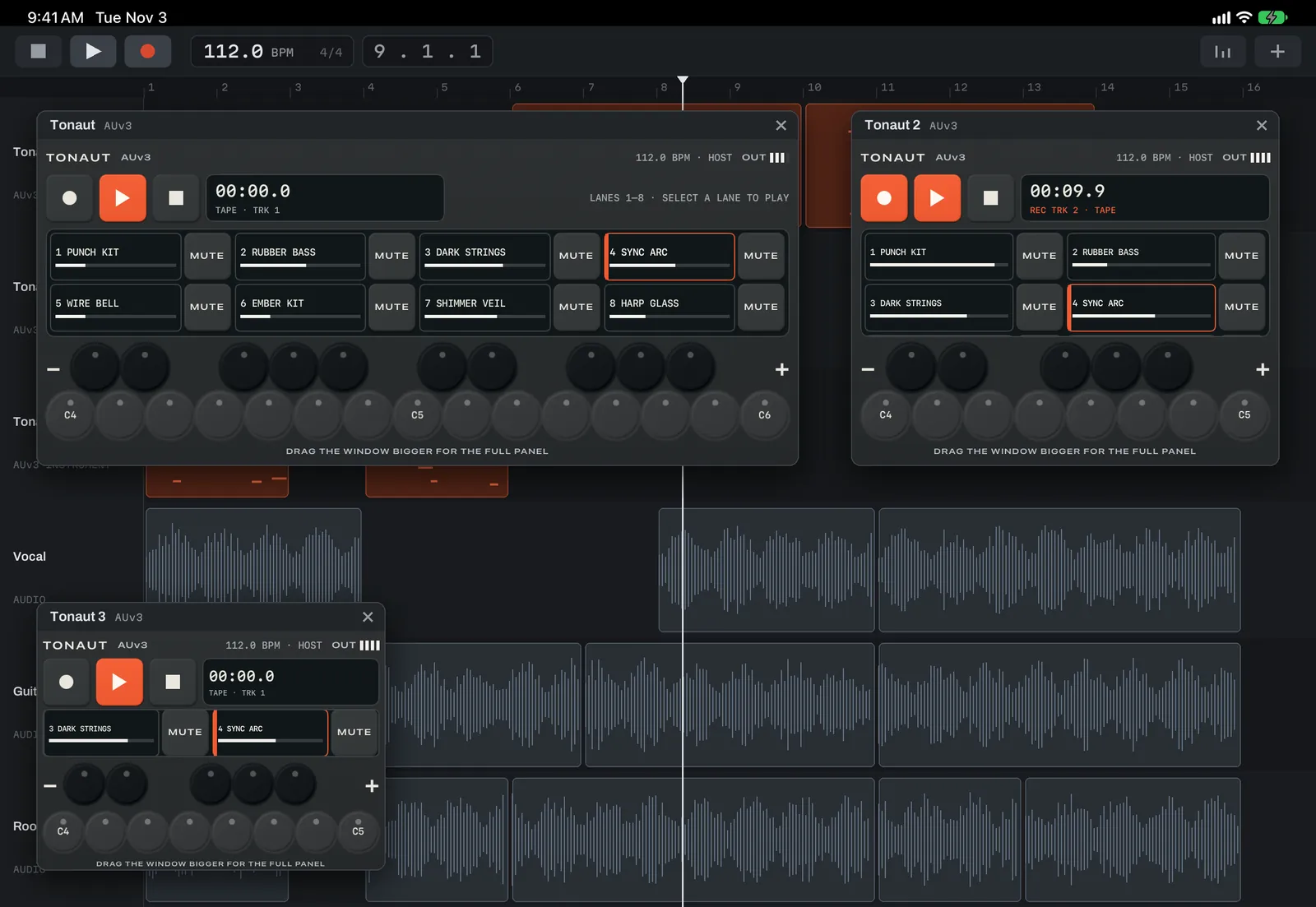
01
Synth
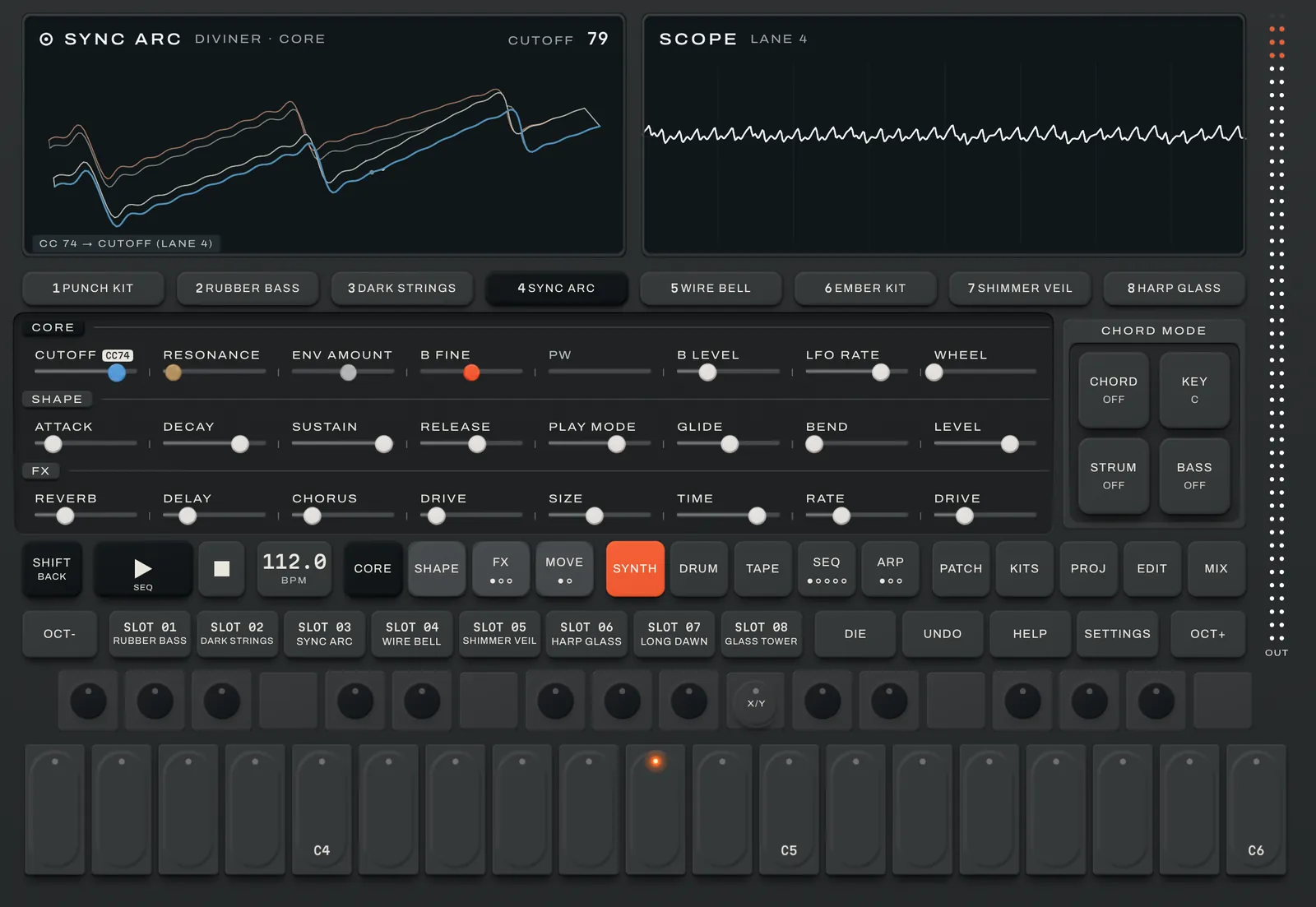
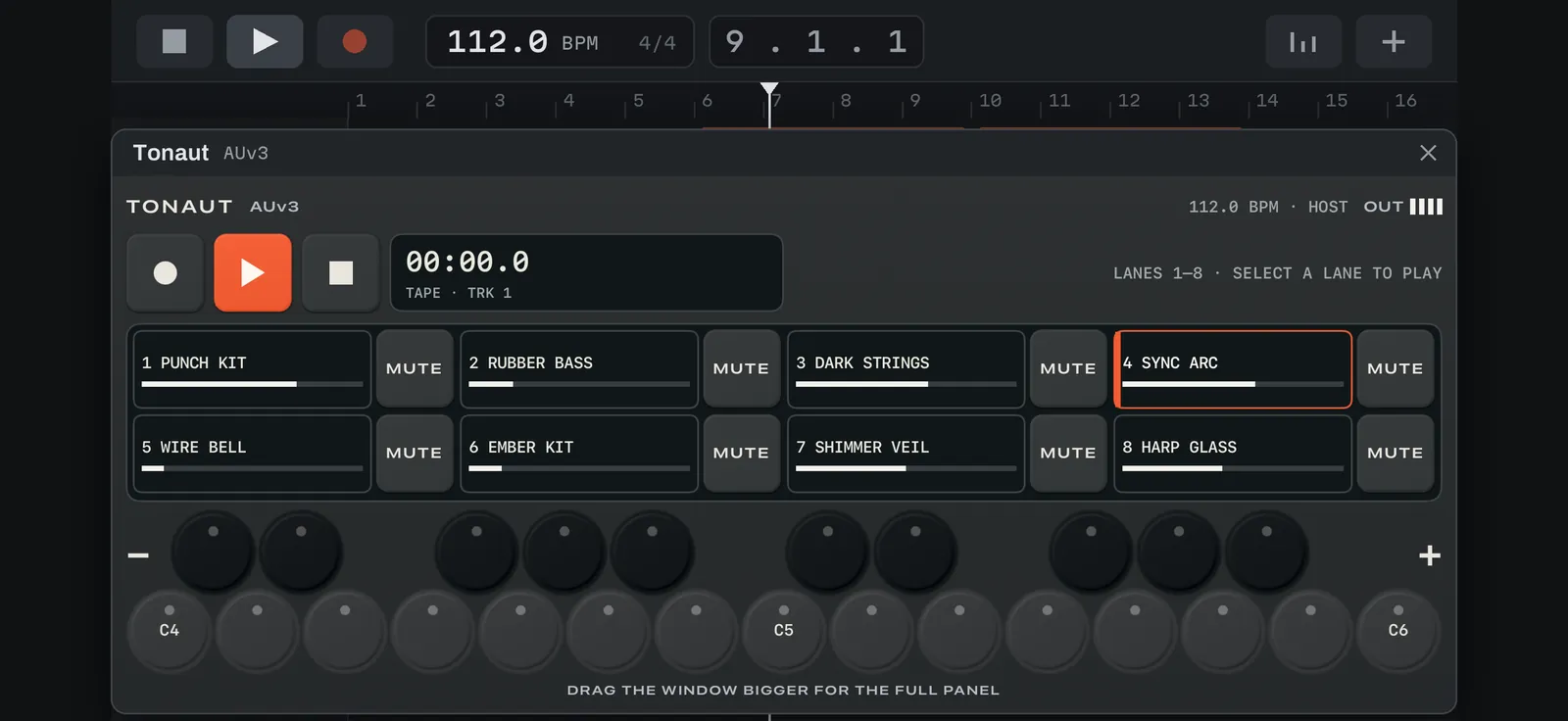
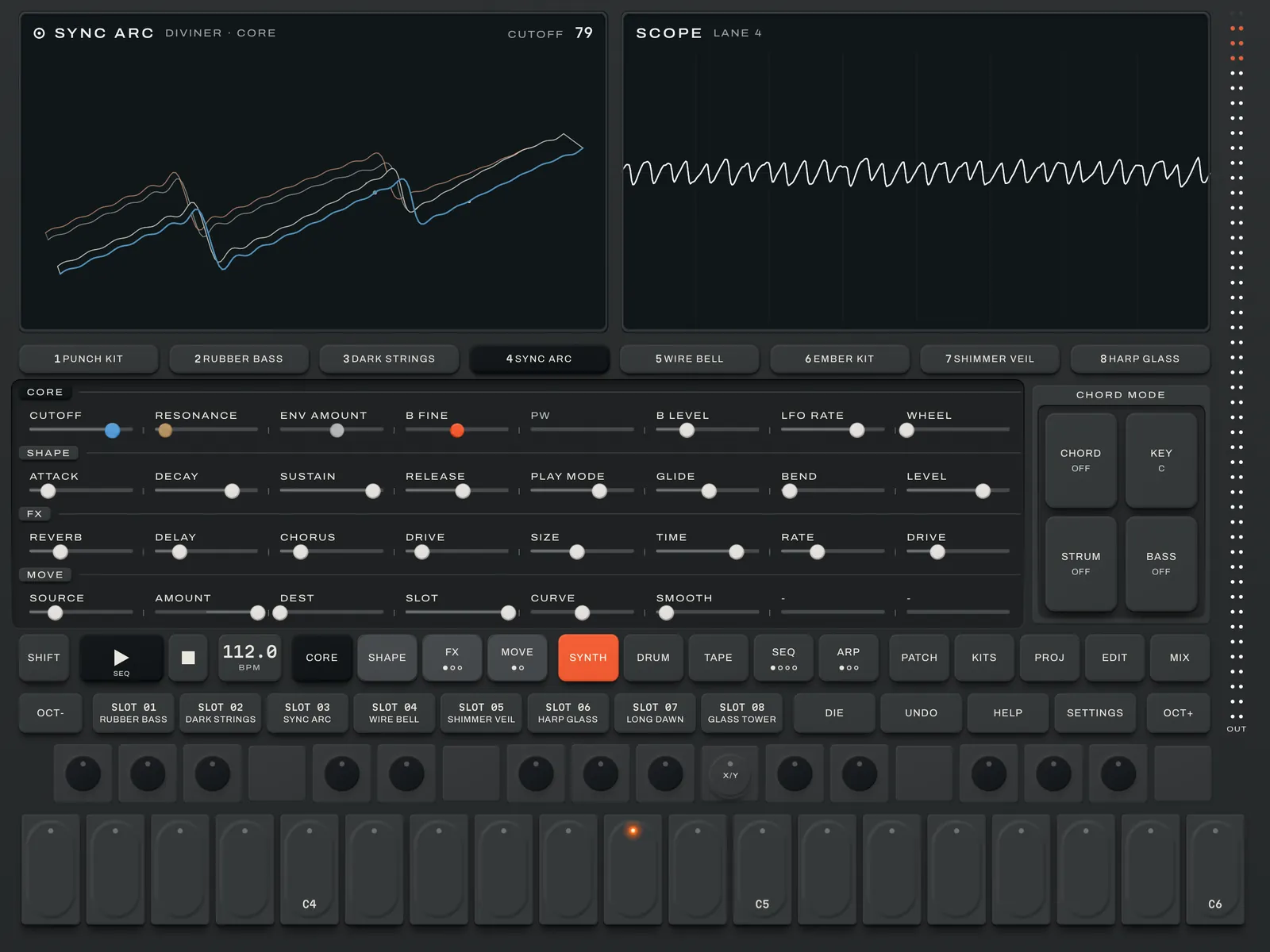
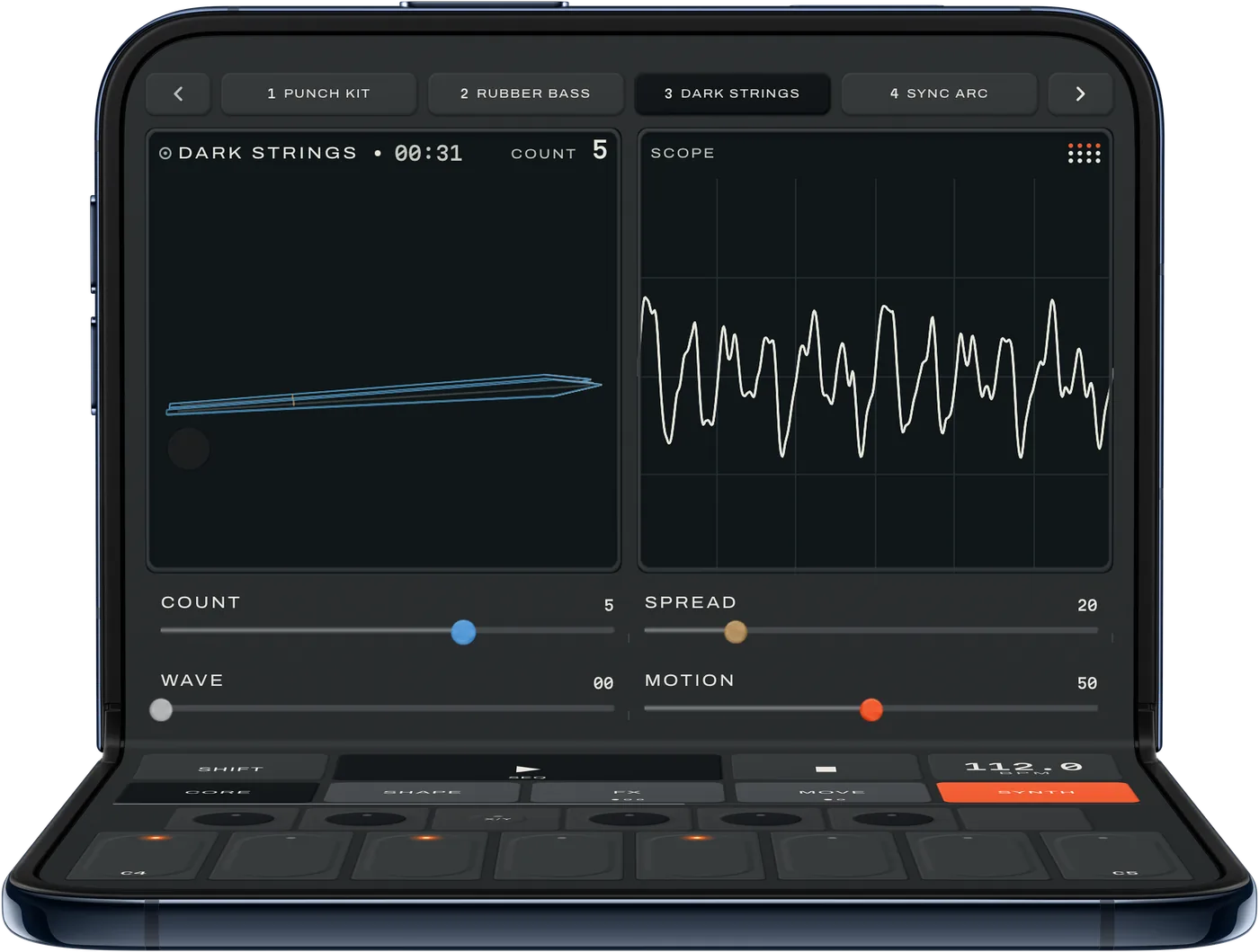
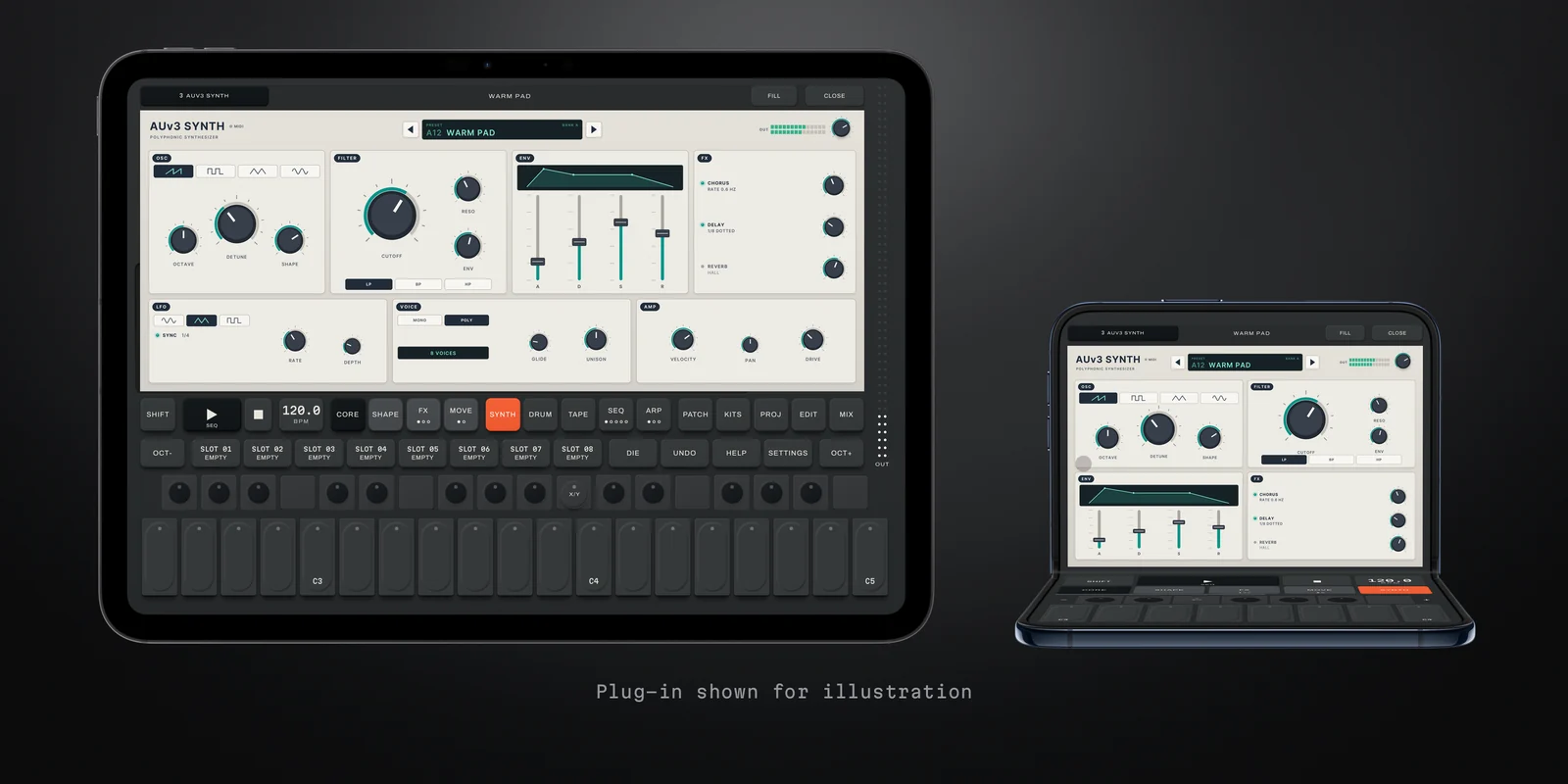
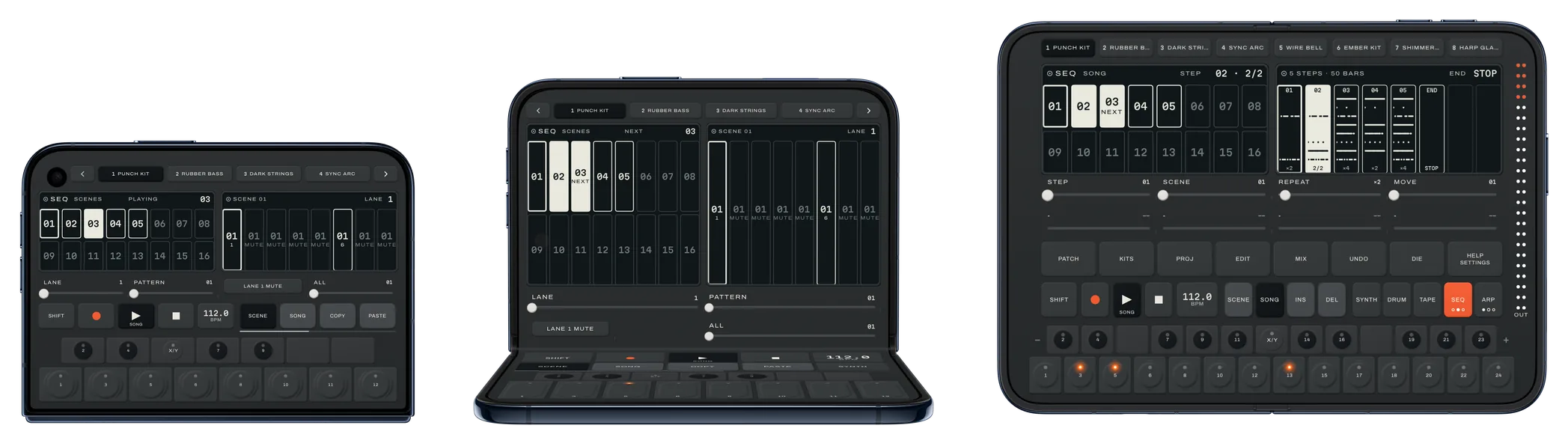
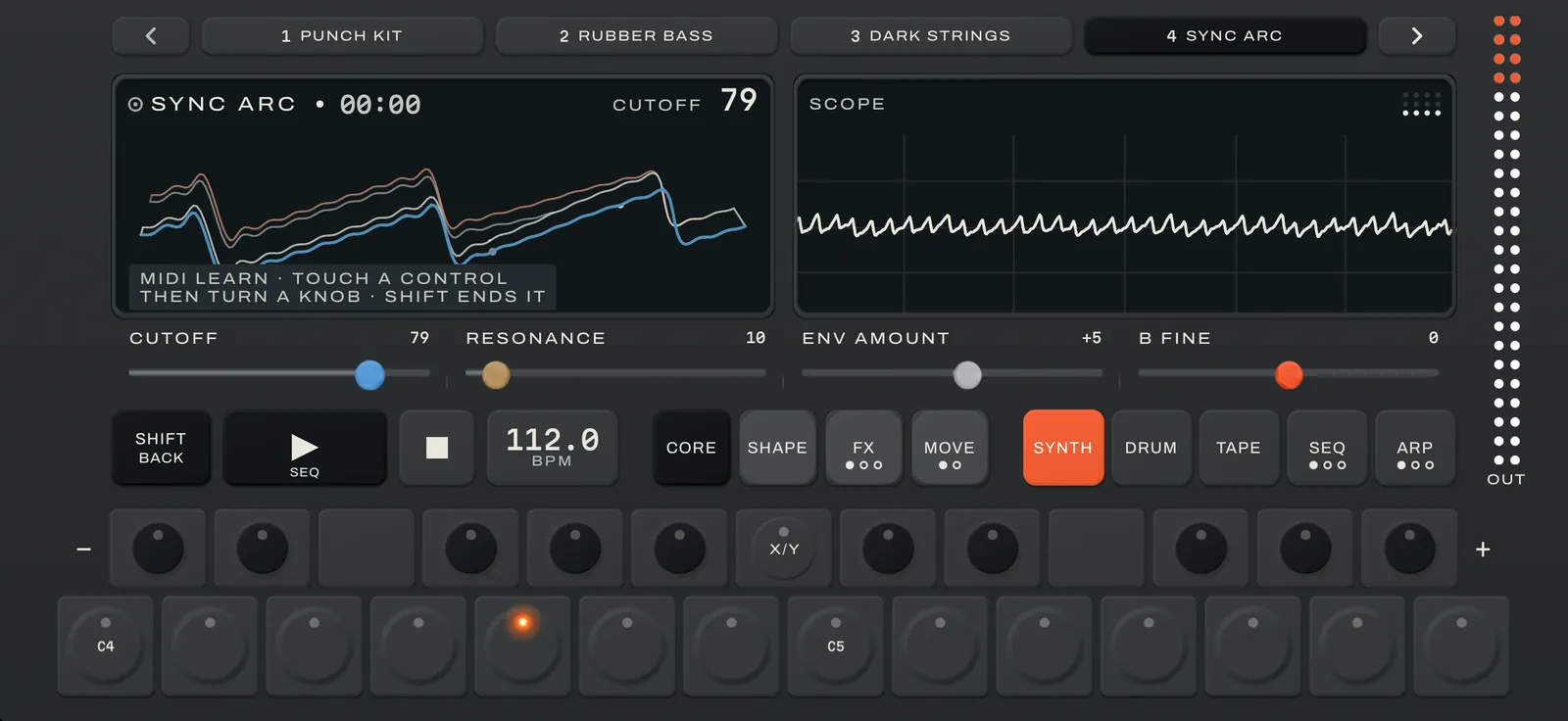
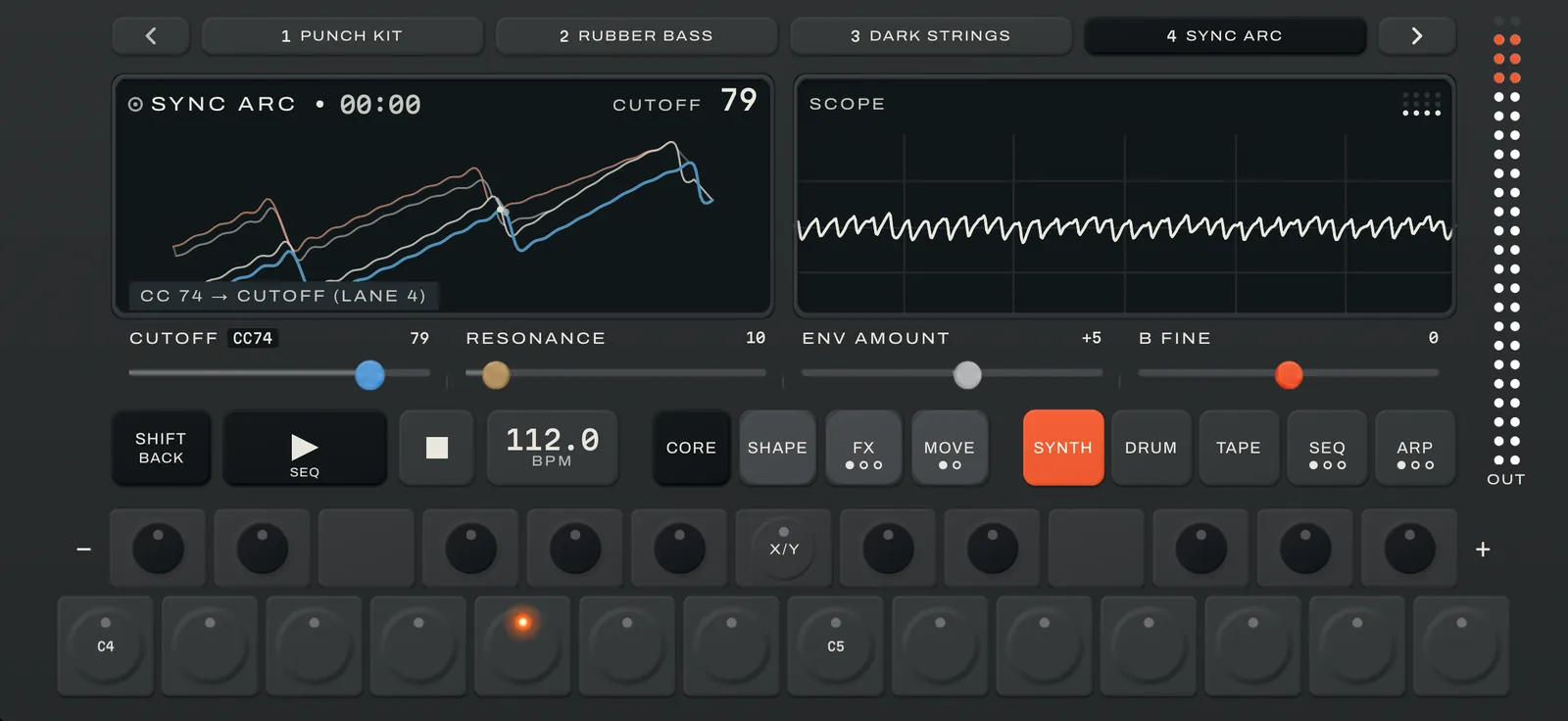
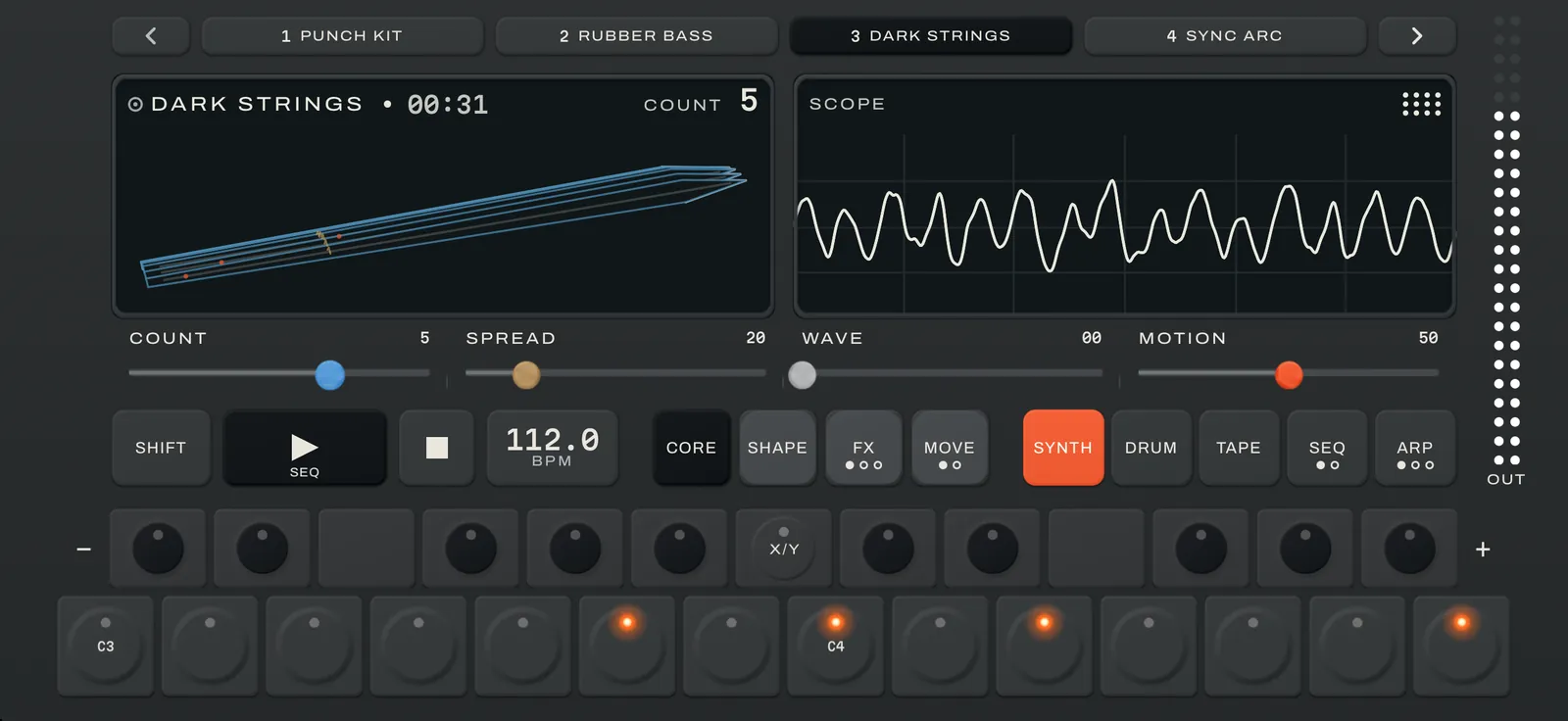
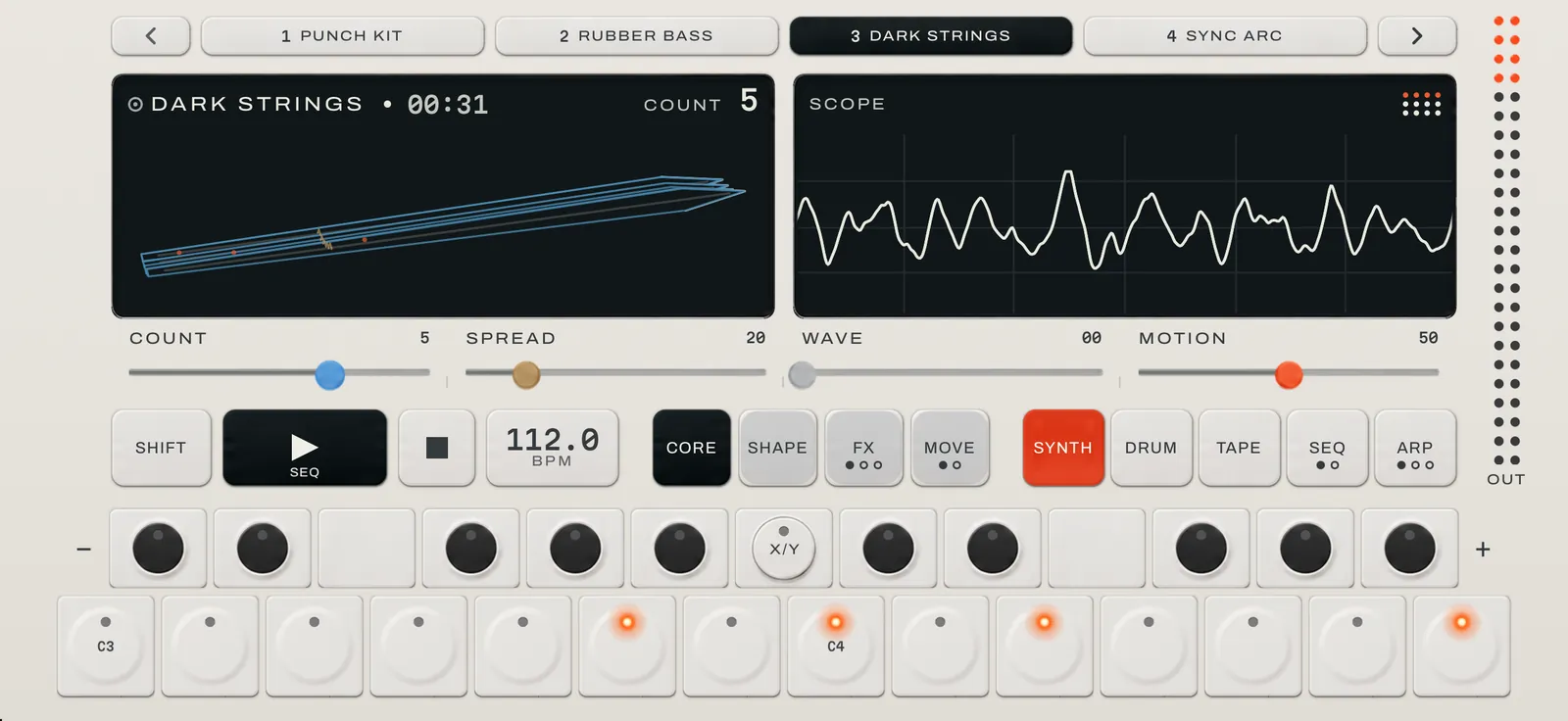
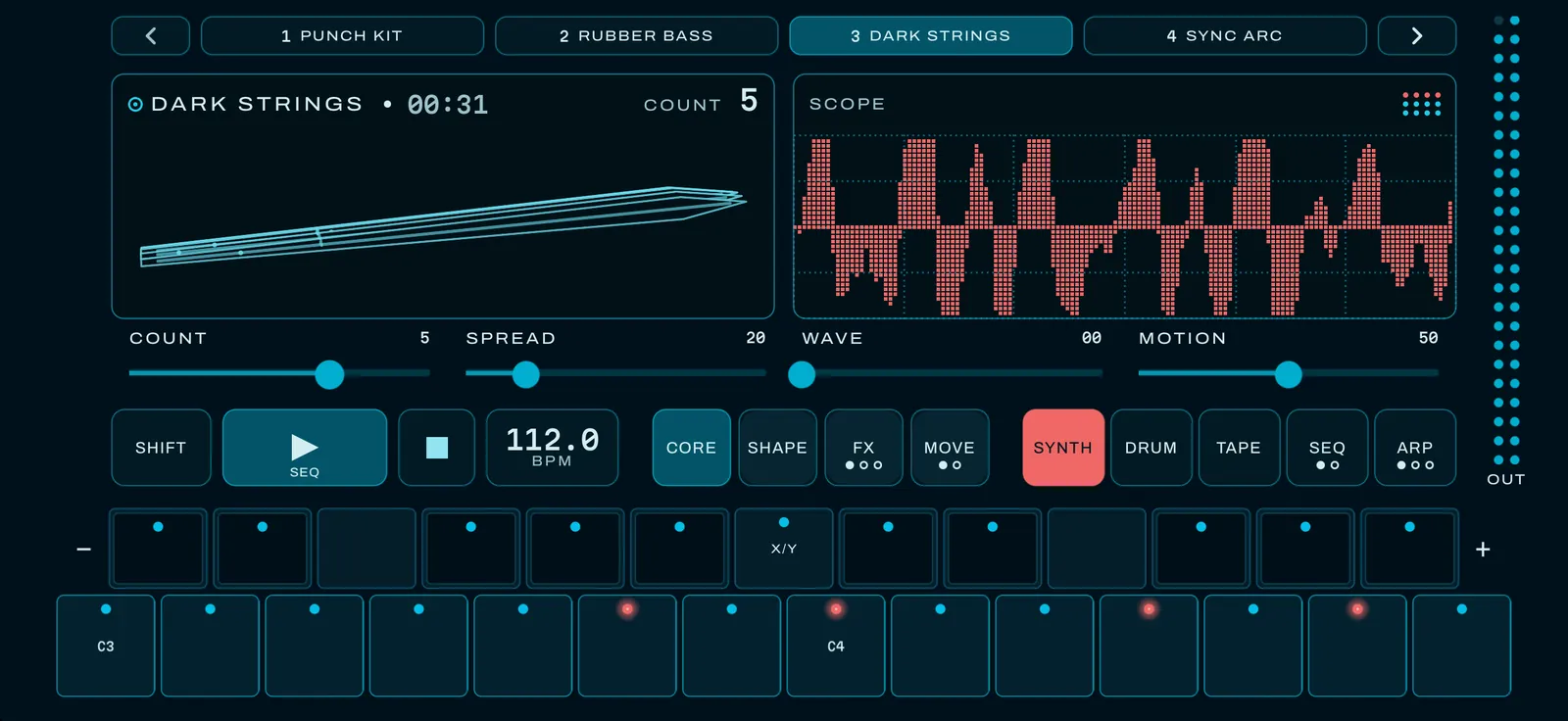
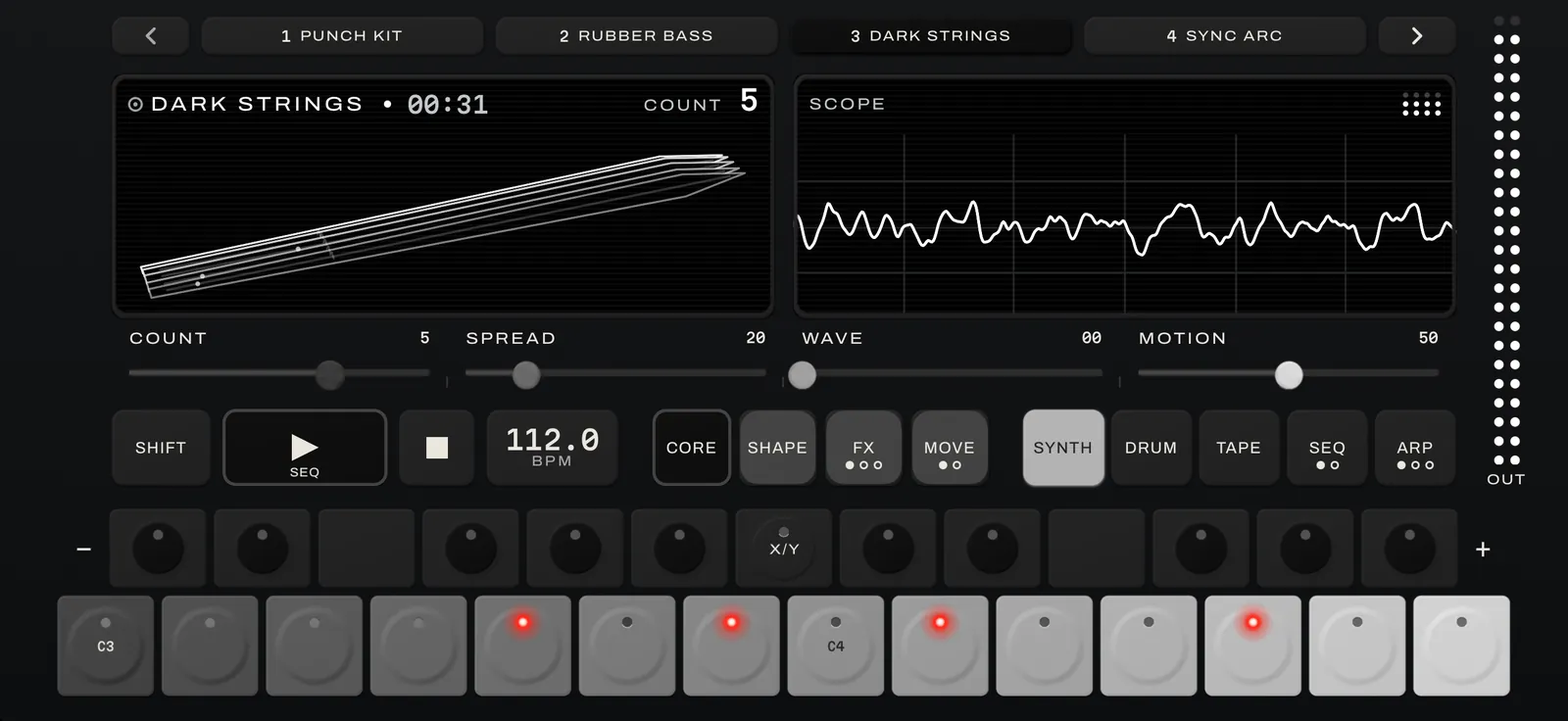
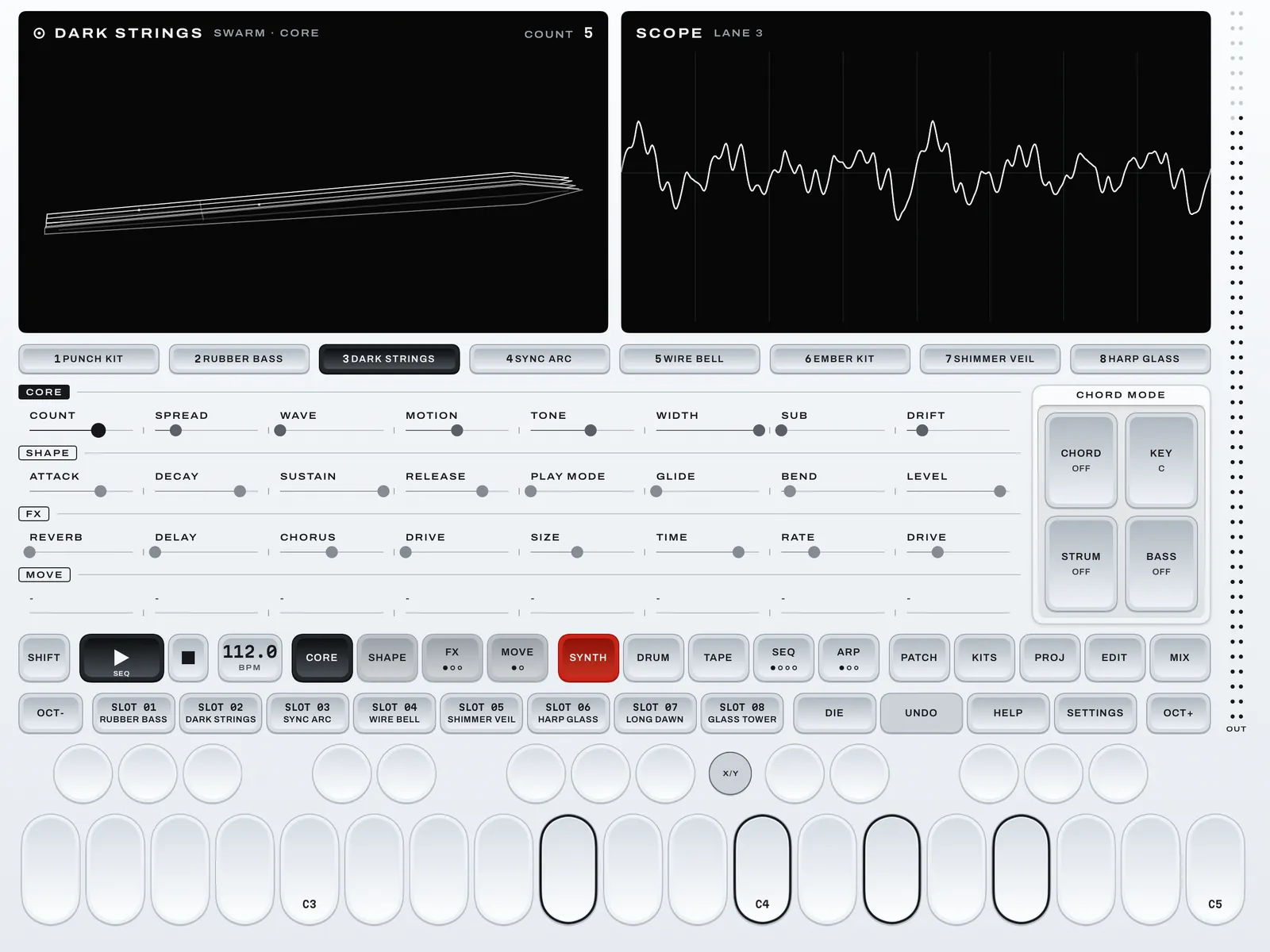
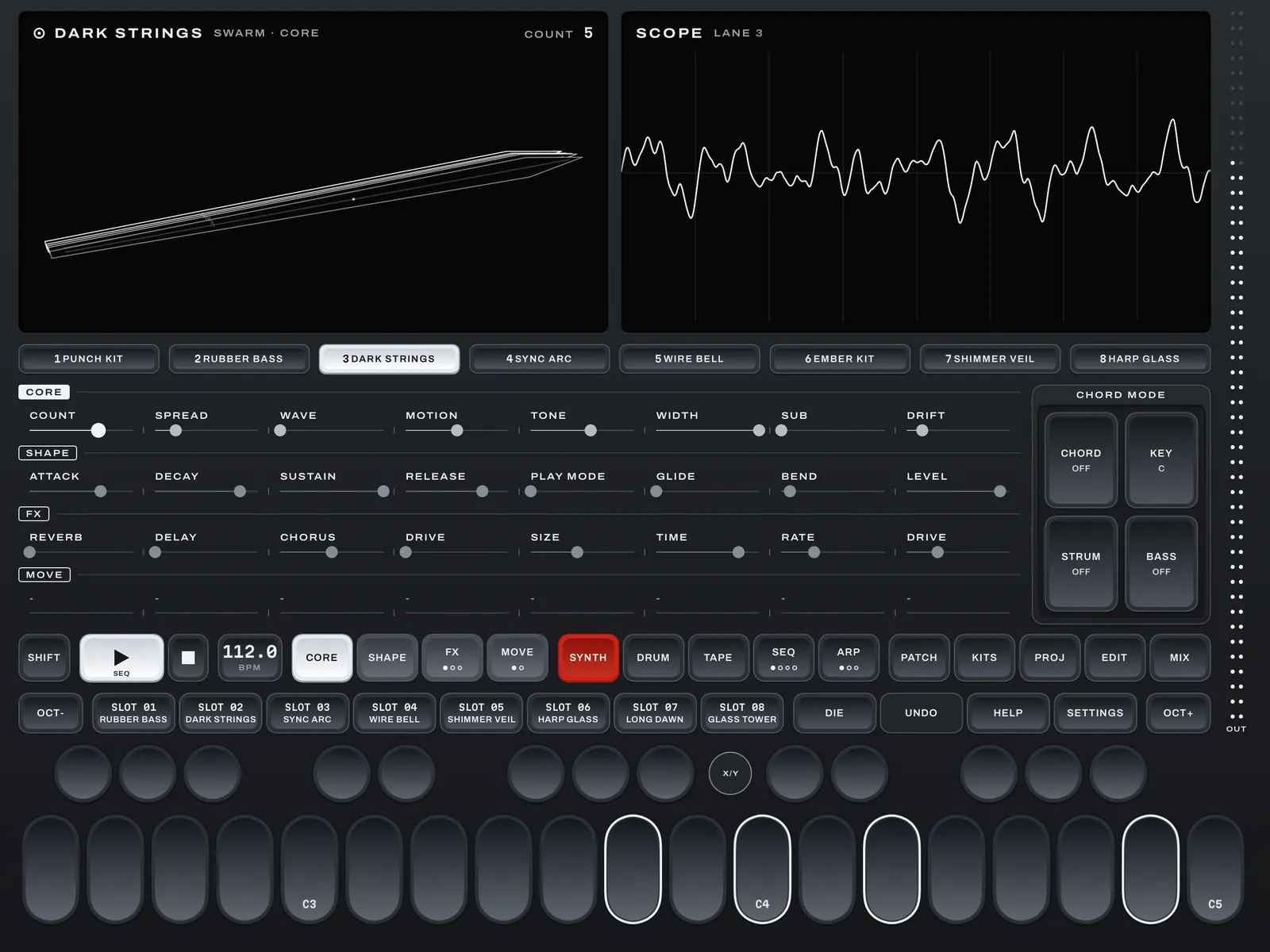
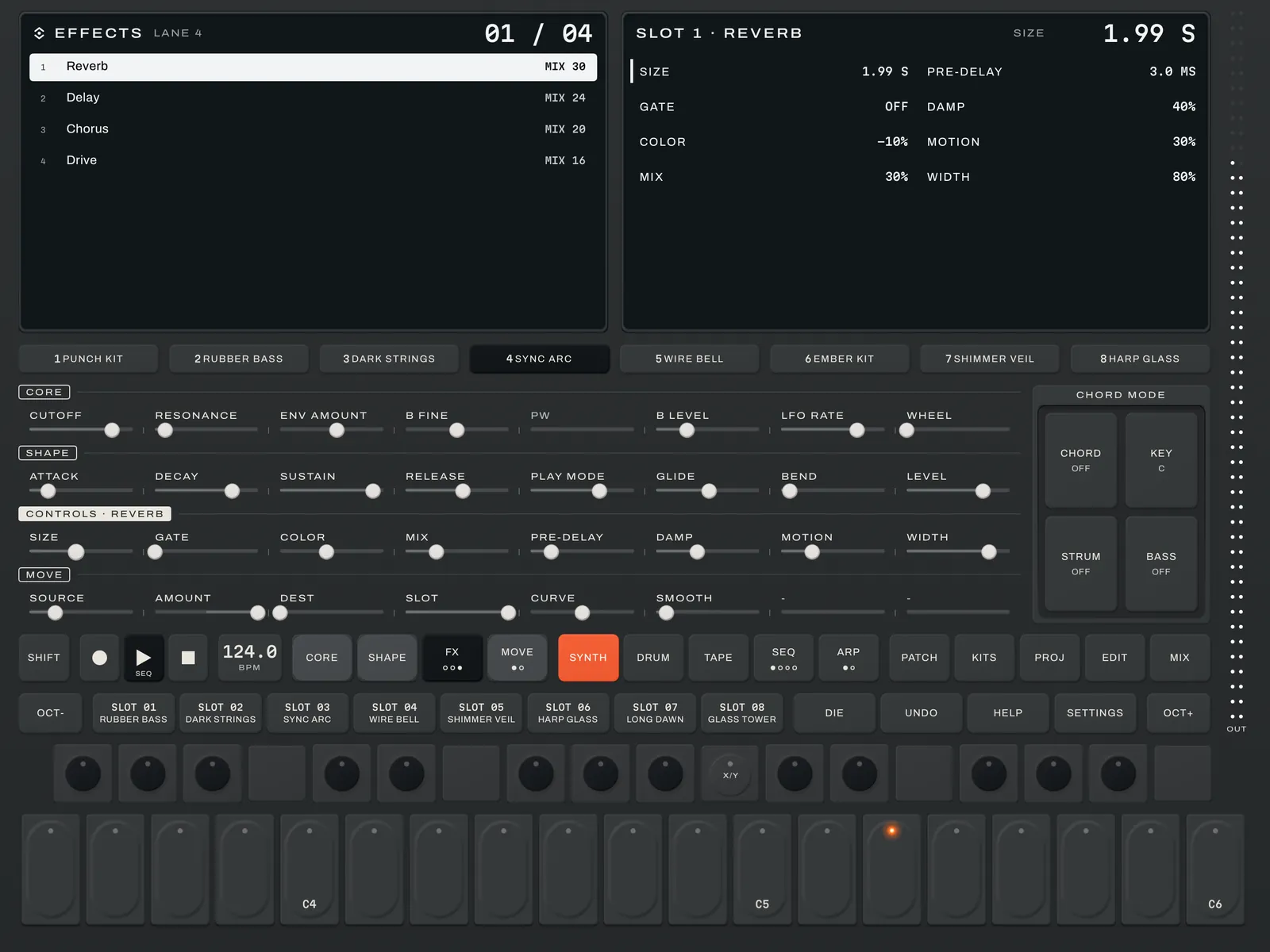
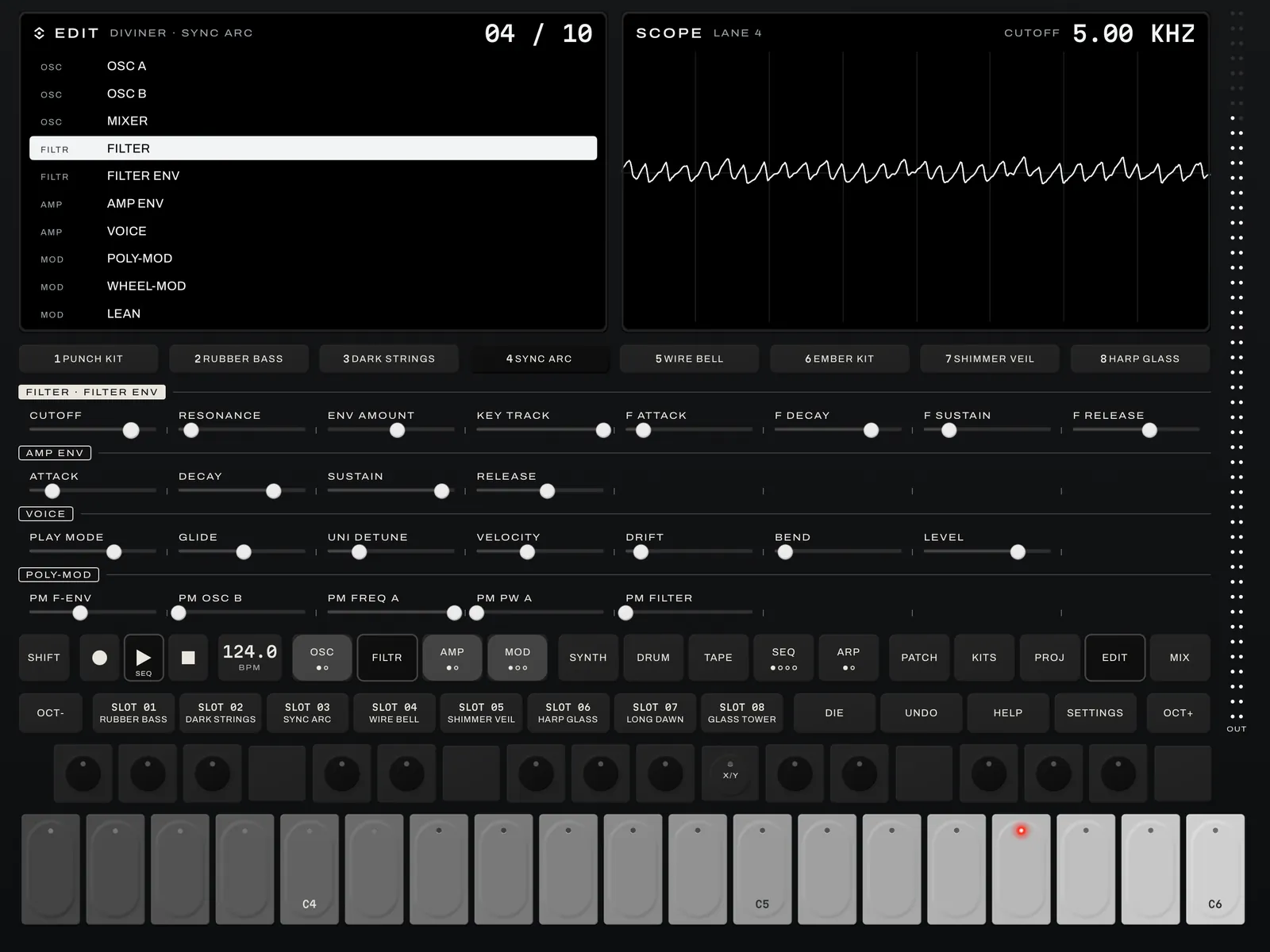
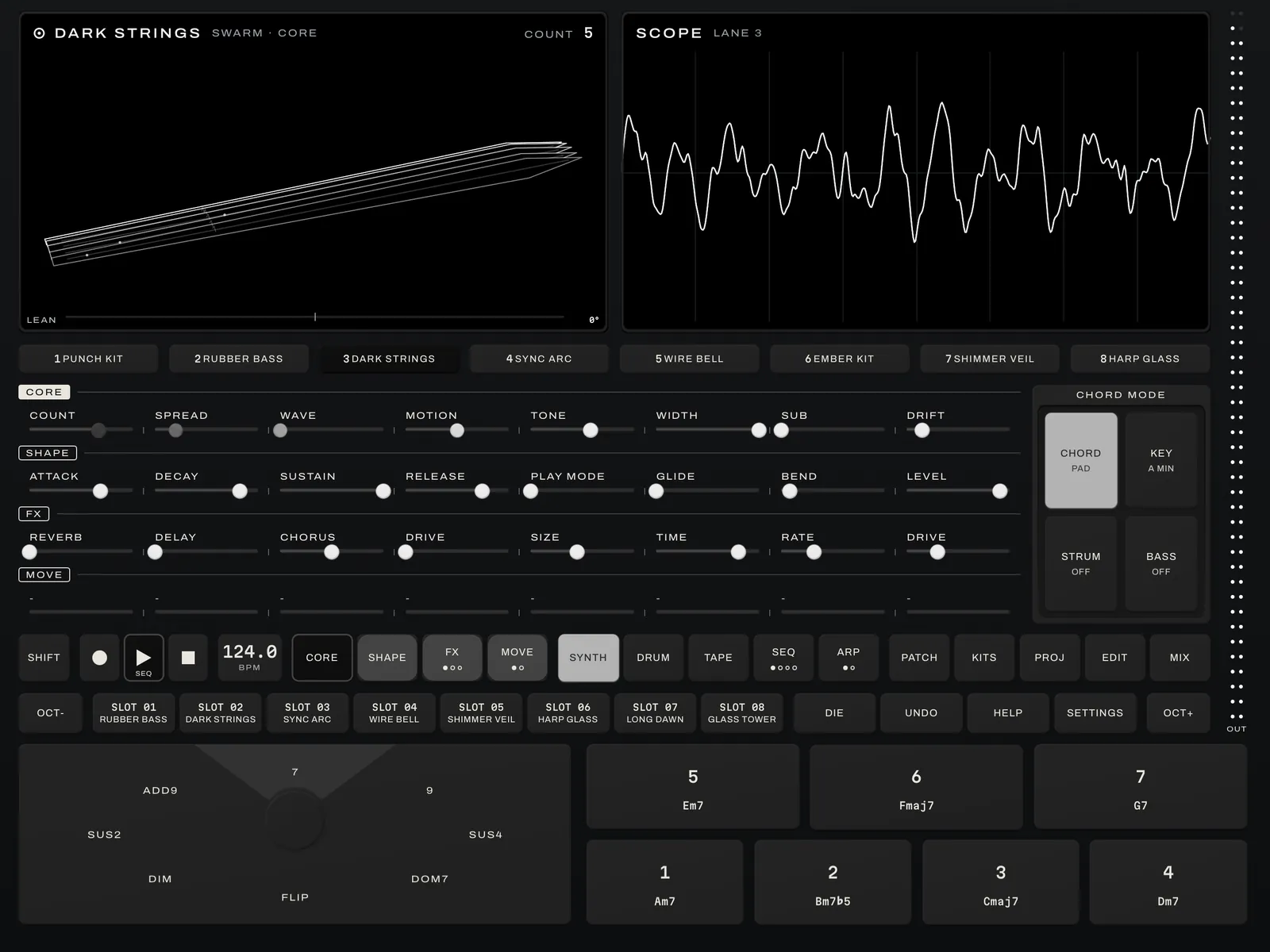
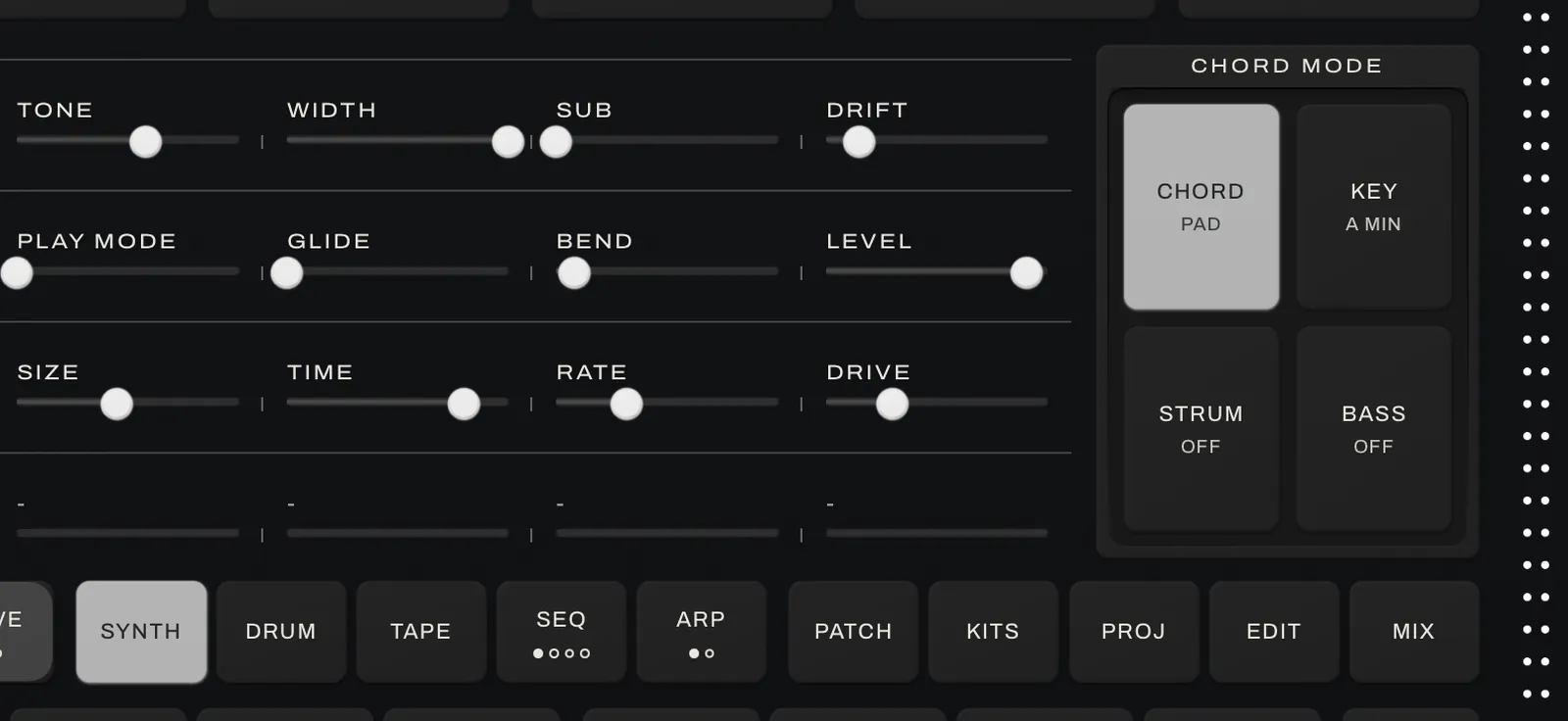
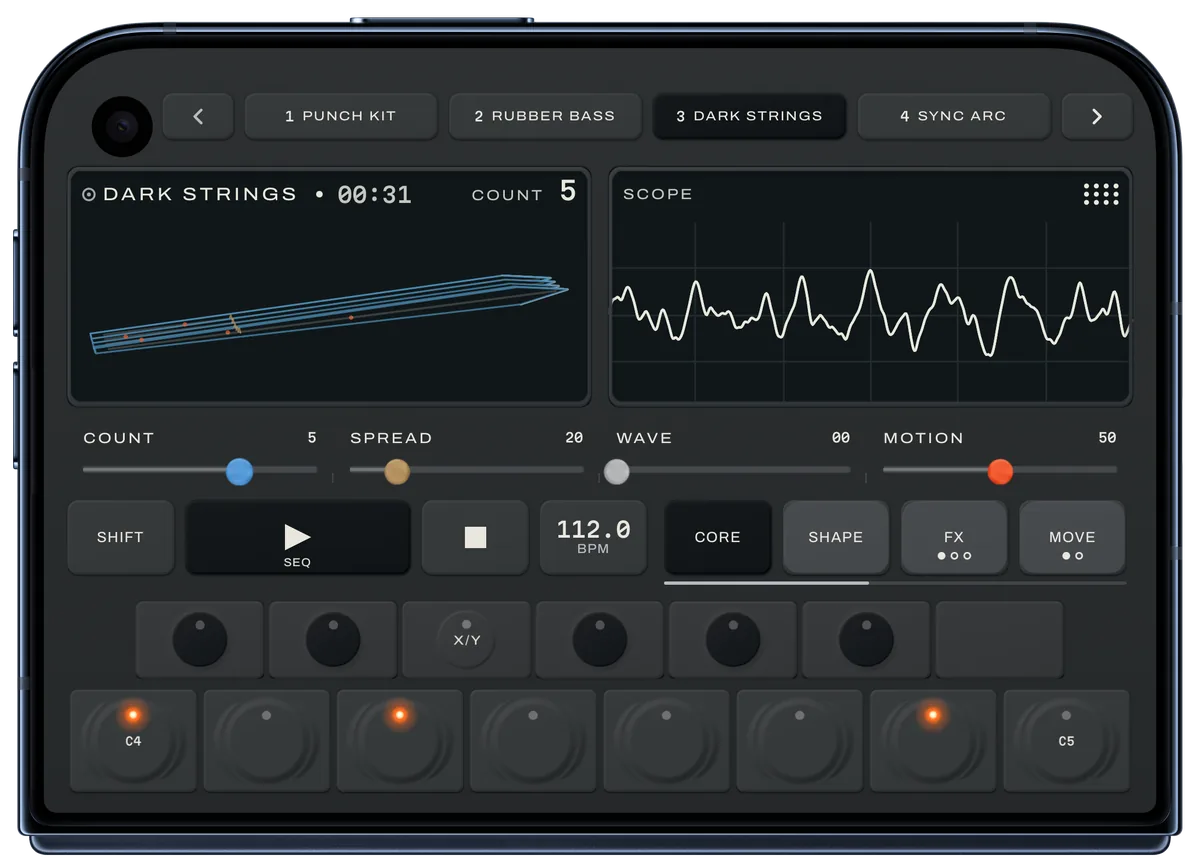
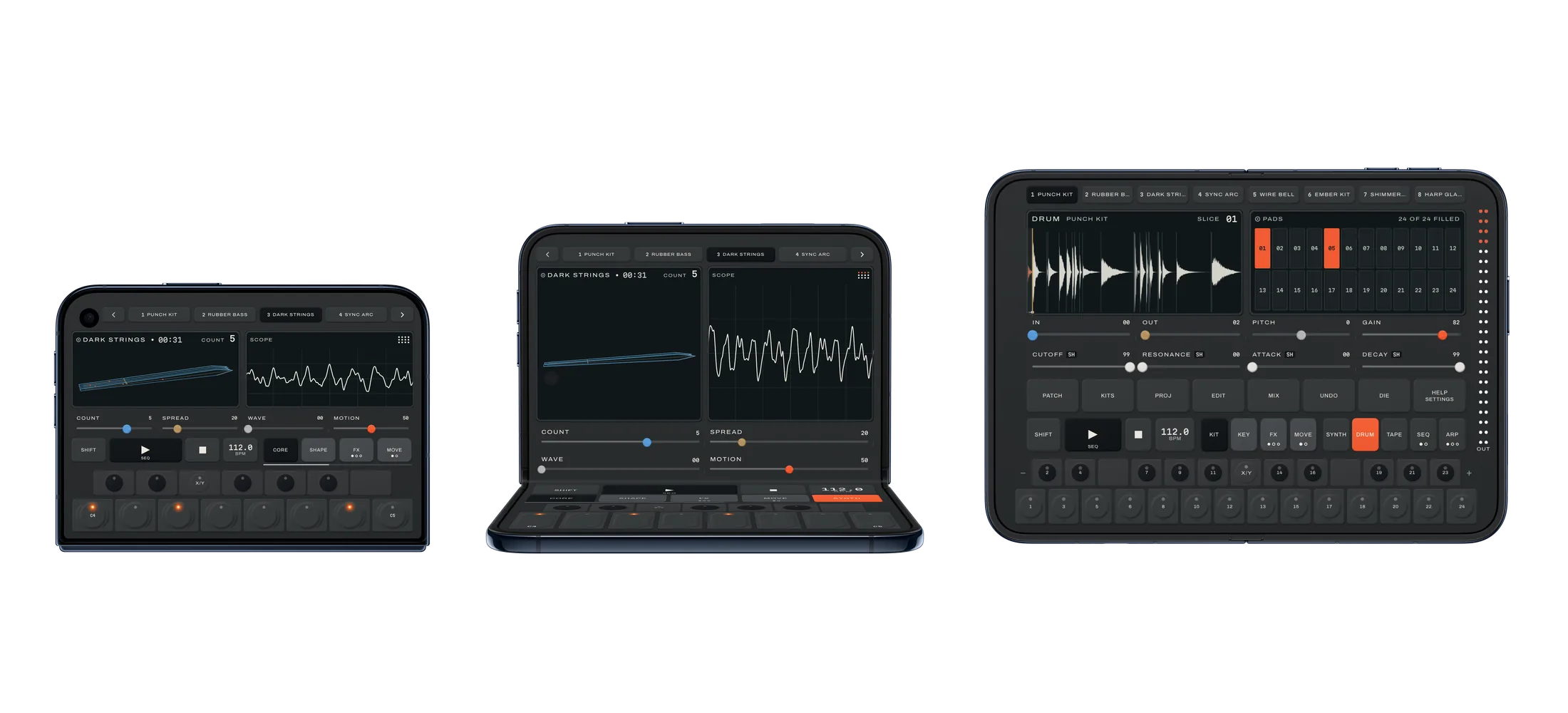
Twelve engines, each drawn in 3D and moving as it plays, four pages each — CORE, SHAPE, FX and MOVE. On iPhone a page shows four controls at a time and SHIFT shows the other four; the iPad keeps all eight of a page in view, in its own row. On iPad, CHORD MODE sits beside them: CHORD, KEY, STRUM and BASS. Or put INPUT on a lane, in PATCHES beside the sounds, and it plays a mic, a guitar or a USB instrument live through the lane’s effects. The mic inputs need headphones, so the speaker can’t feed back into the mic; USB LINE IN plays on the speaker too.
02
Drum
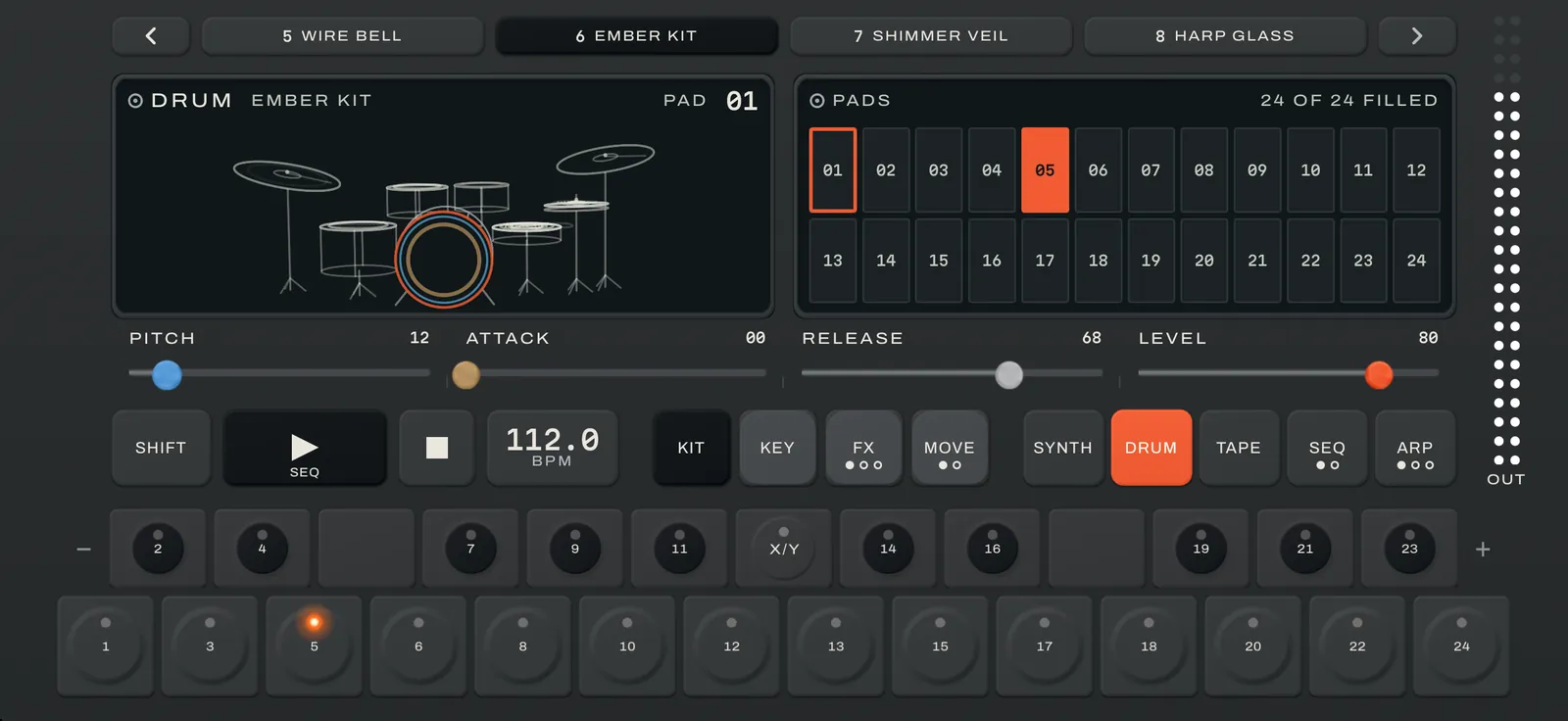
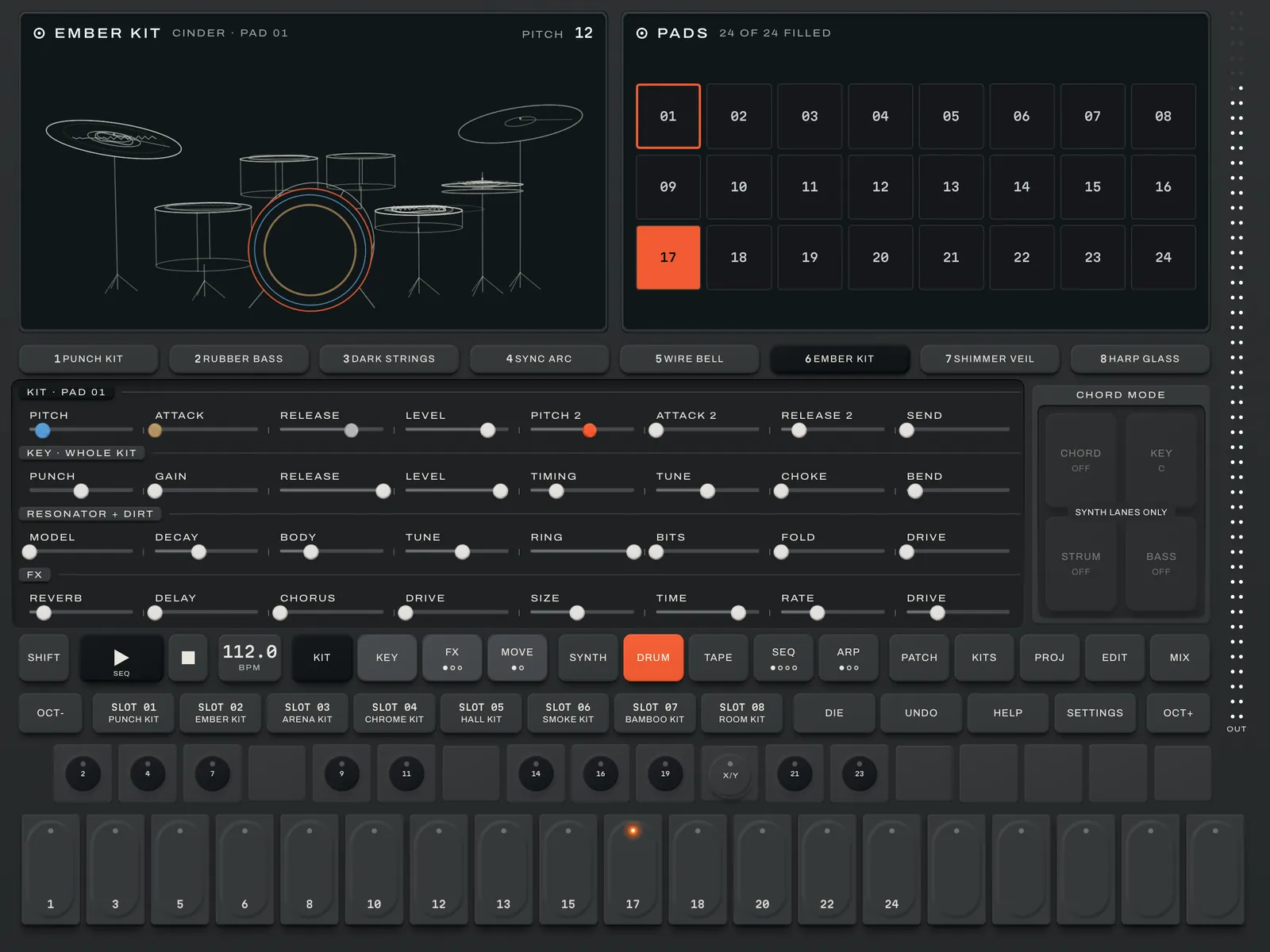
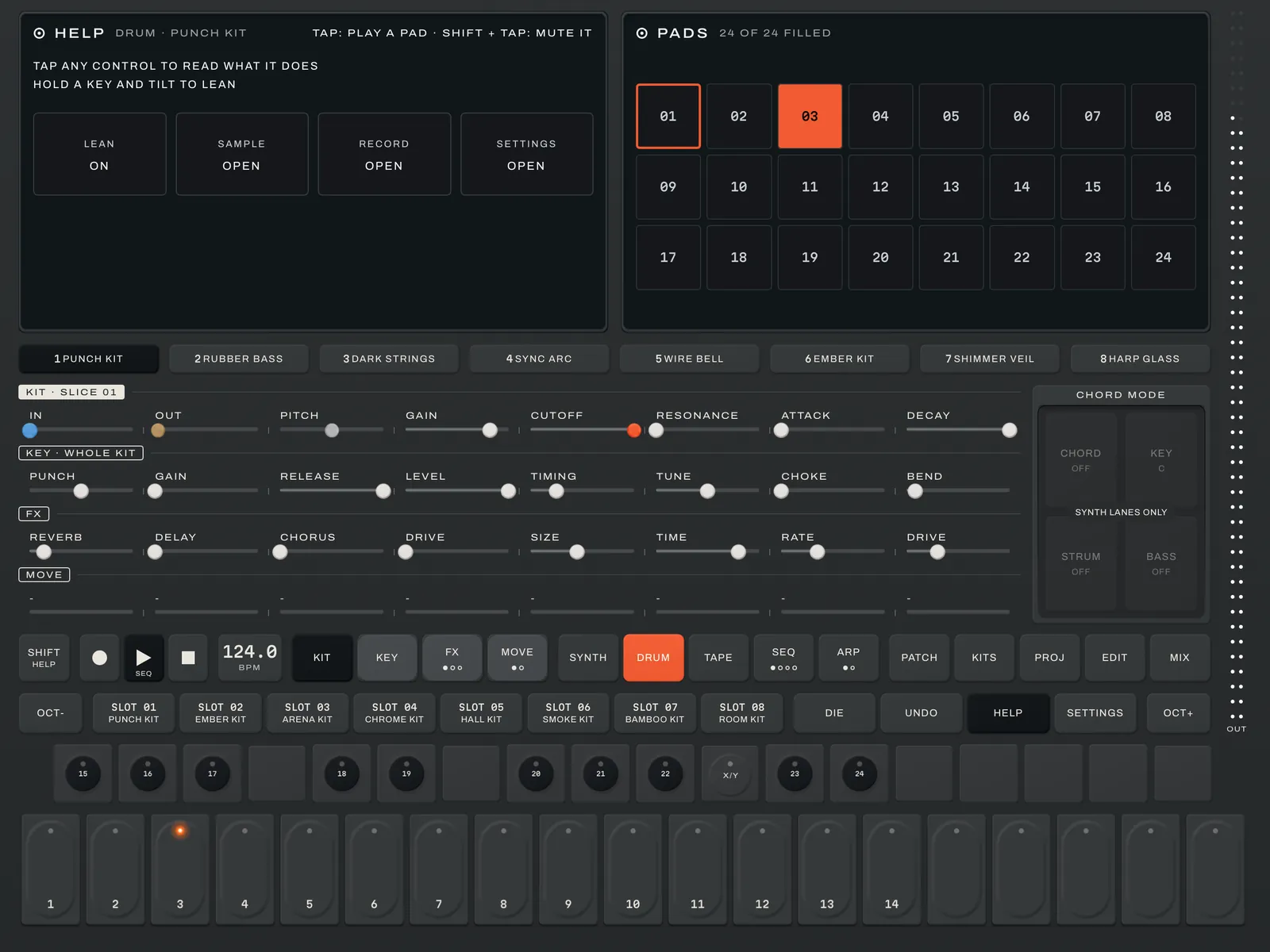
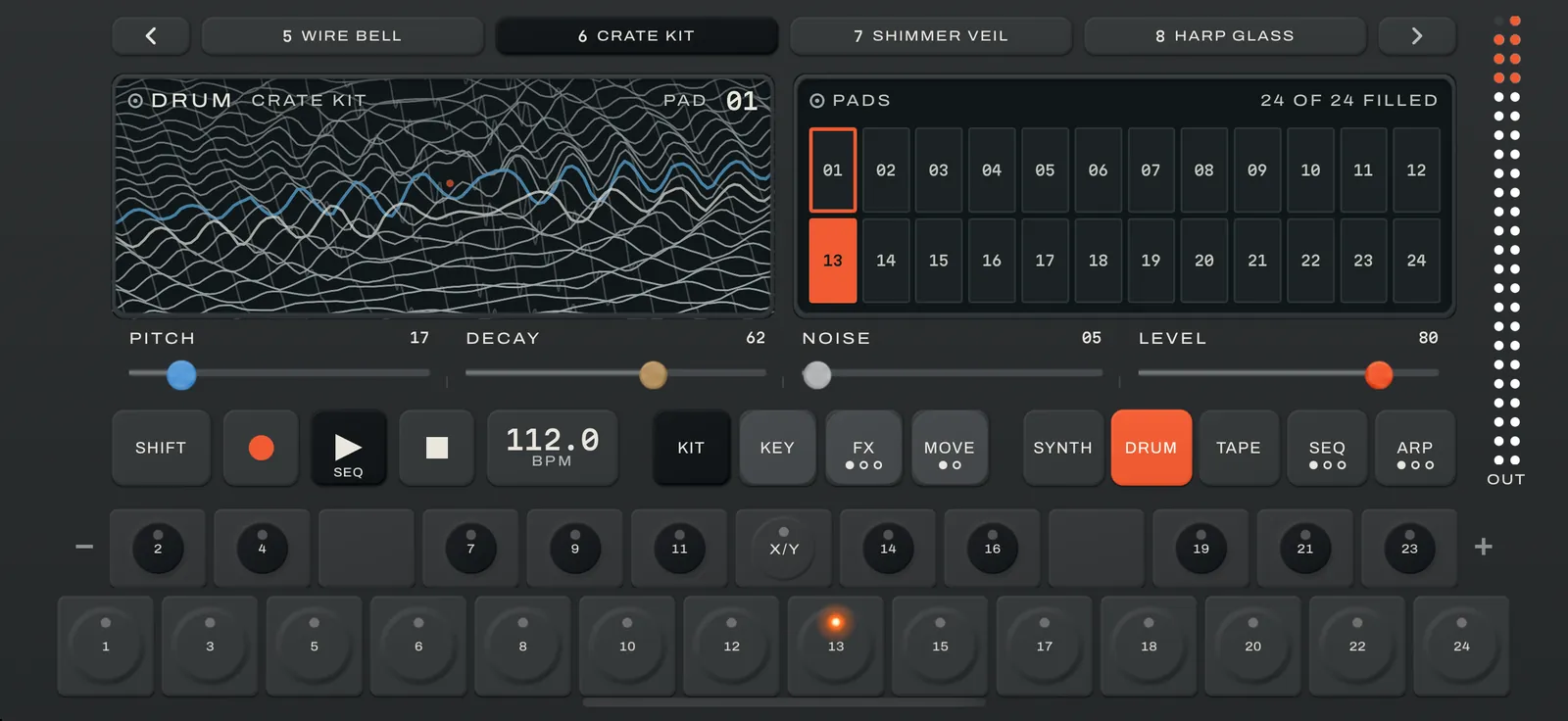
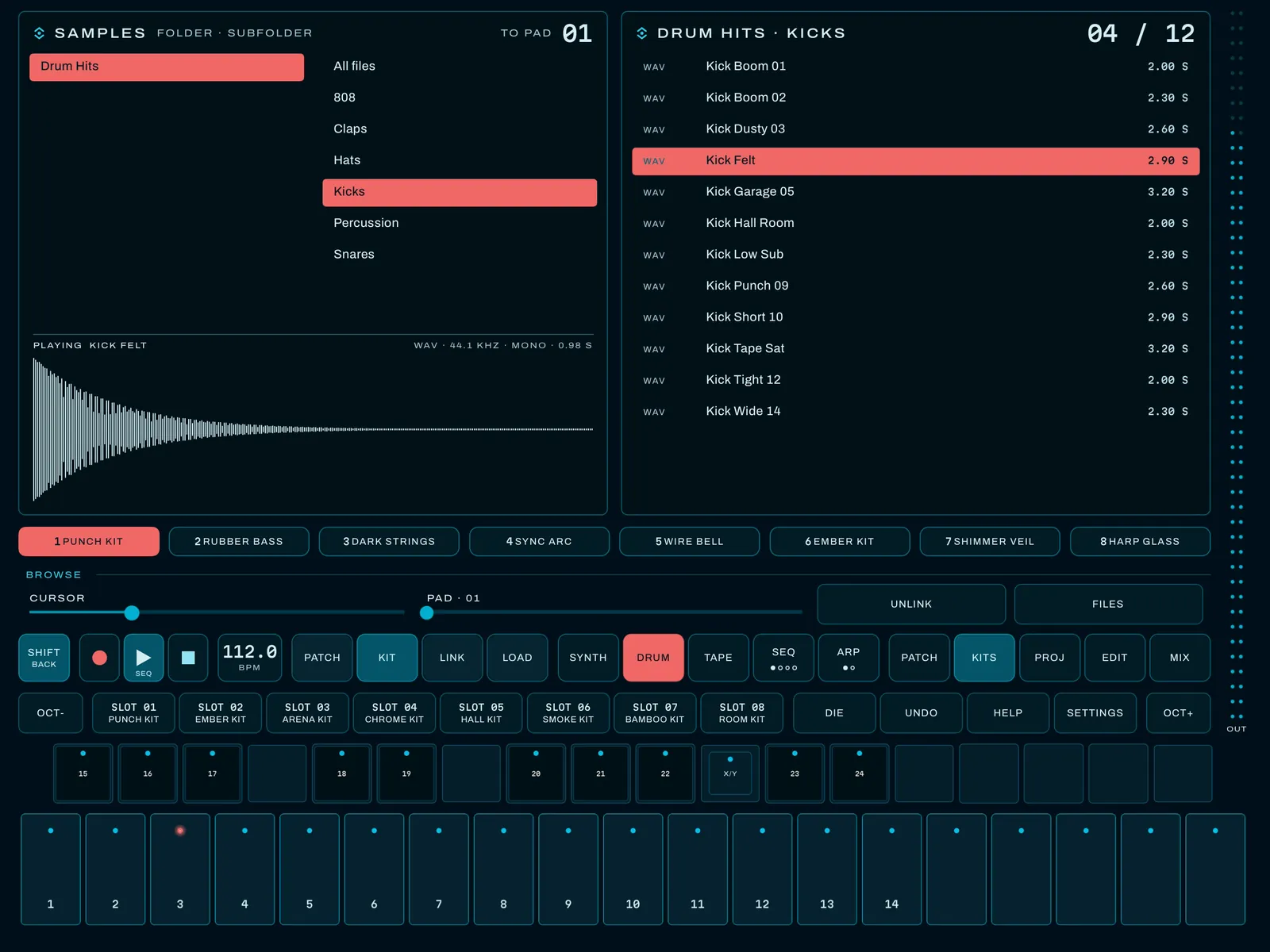
Fifty-five kits: twelve sampled, thirty-one synthesized and twelve lo-fi kits on Grit. Or your own: press SHIFT + REC on a kit lane to sample straight onto it, or load a loop and CHOP it into 8, 16 or 24 slices or at its hits, load files from SAMPLES one to a pad, or drag them in from another app. The keys stop being notes and become the kit, numbered left to right from pad 1 to 24. Every pad on the screen lights as it sounds. A tap on a pad plays it, and SHIFT + tap mutes it in the beat. Knock, Cinder and Grit kits are drawn in 3D: every hit rings a plate, makes a drum hop or sends a ripple across Grit’s field of lines.
03
Tape
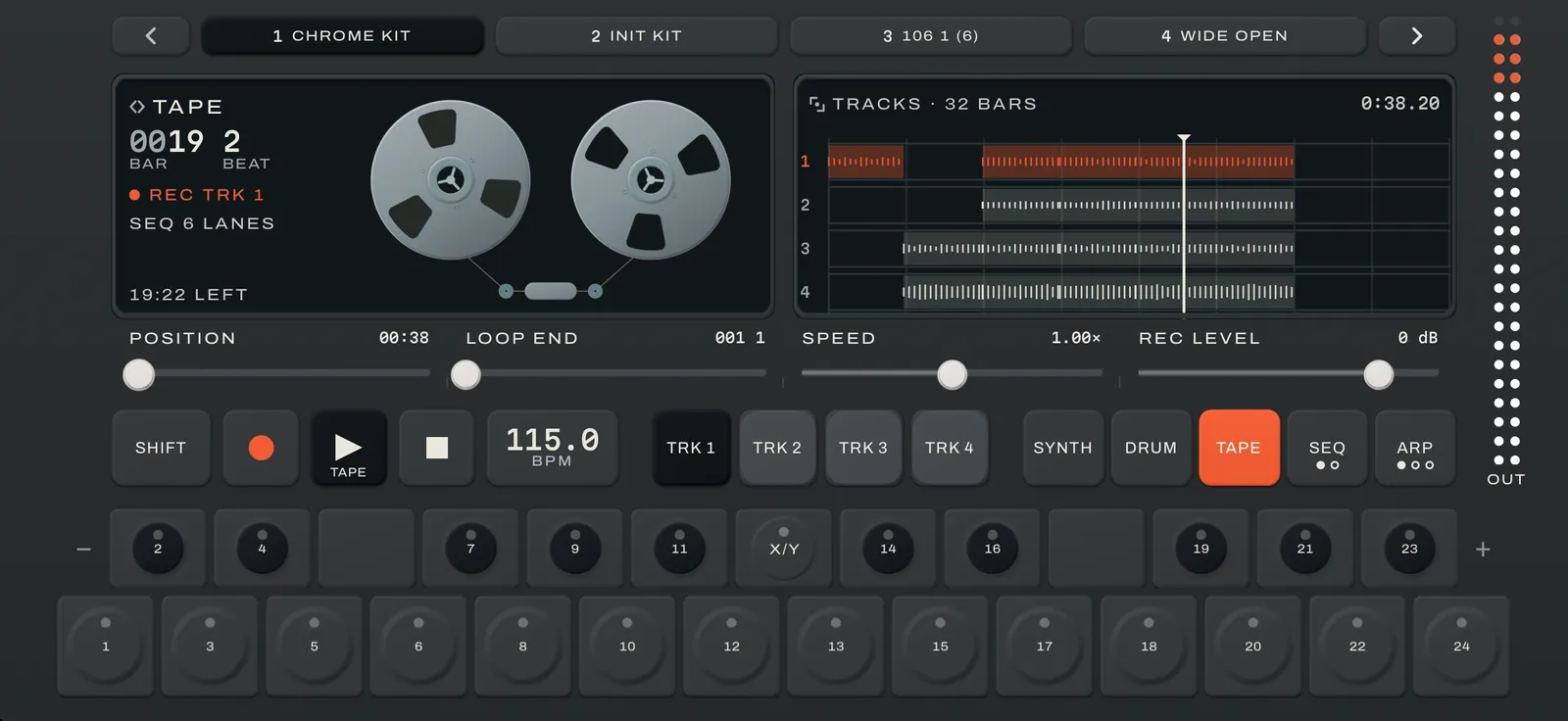
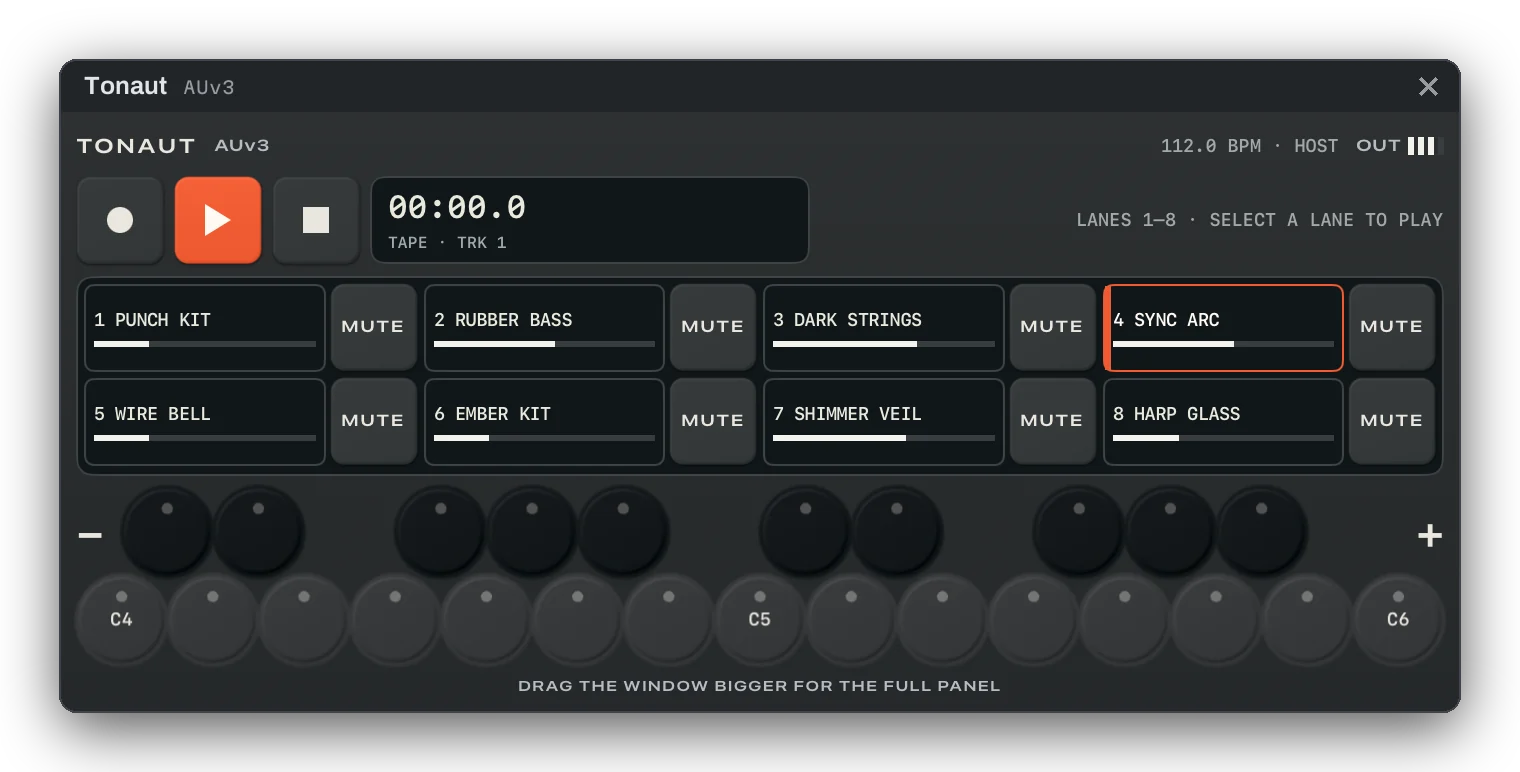
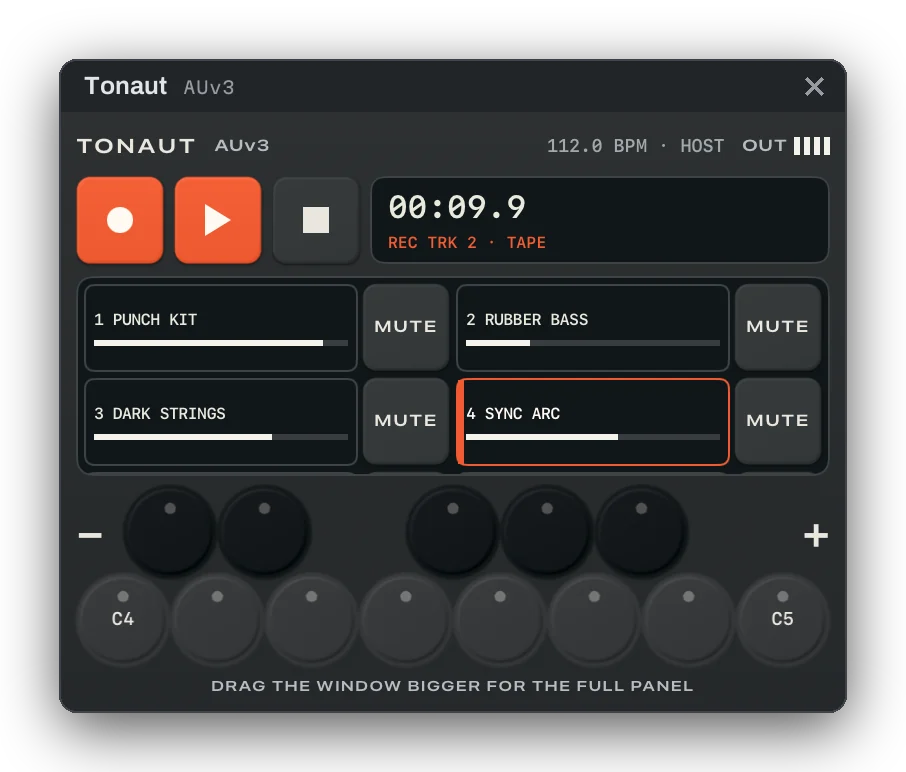
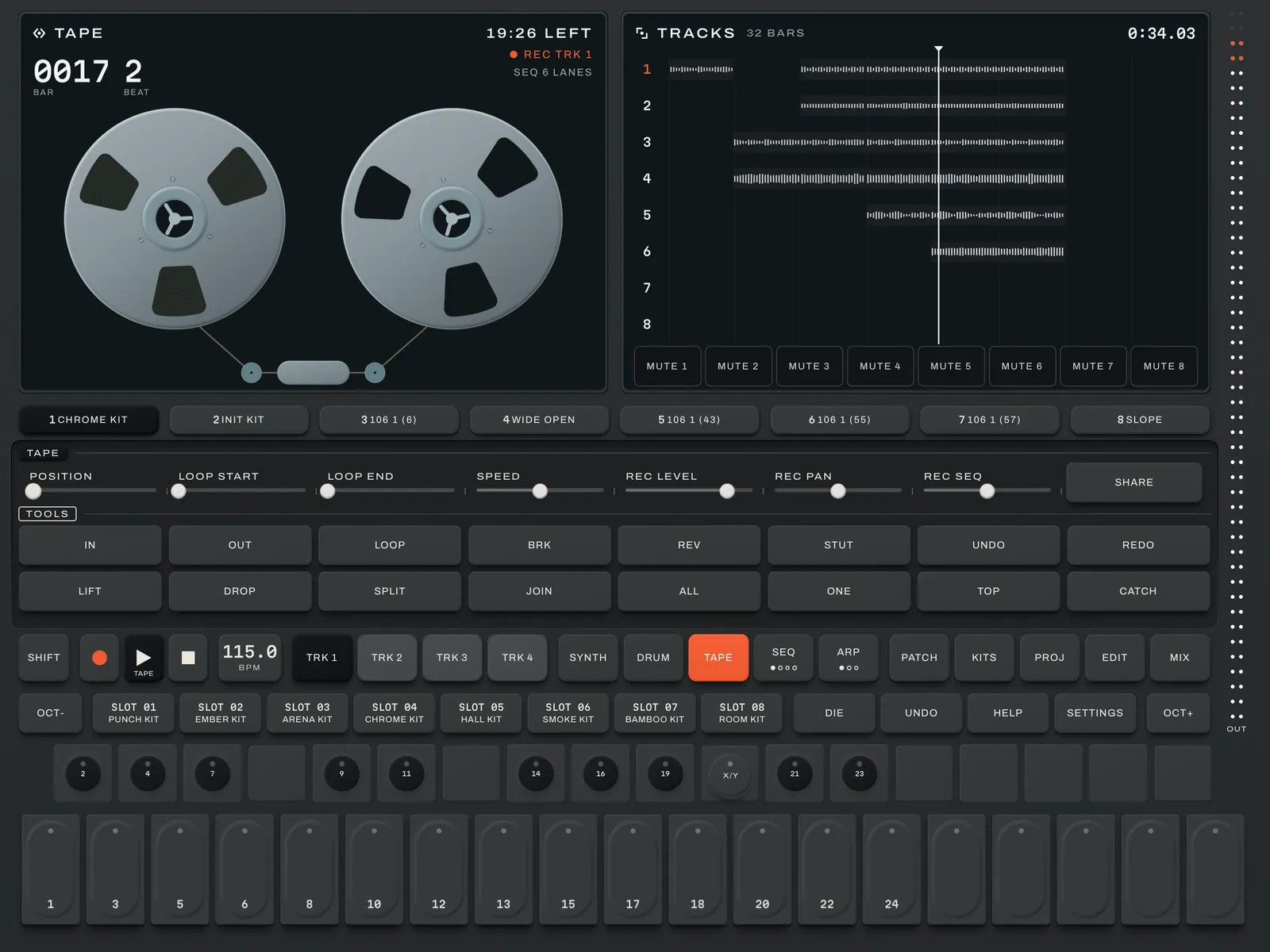
Up to 30 minutes of tape per project: eight tracks of twenty minutes, or six of thirty. Every lane can record to its own track, or several lanes onto one. The TAPE page shows the reels turning as the tape plays, with every take beside them in the right window, where a pinch zooms from eight bars to the whole tape. On iPad, a tap swaps the reels for the tape running past the head. Position, loop end, speed and record level, all on one band. Hold still on LOOP START or LOOP END, then drag, to set the loop between the beats. Set Rec start to SOUND and an armed take waits until you play, then keeps everything from just before the first hit. CATCH puts the last thirty seconds you played on tape, even if you weren’t recording. Mute and unmute lanes while the sequencer records and the tape keeps exactly what you hear, tails and all.
04
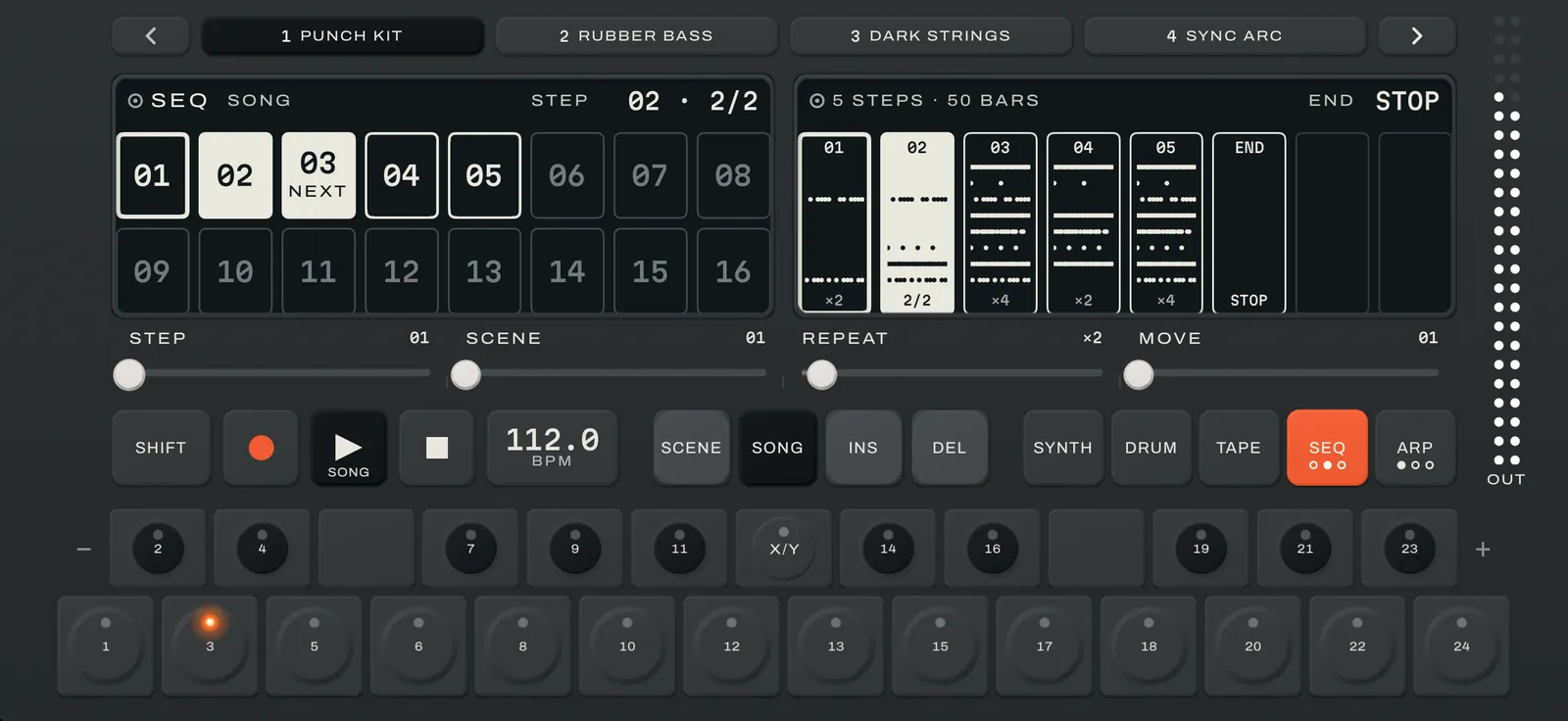
Seq
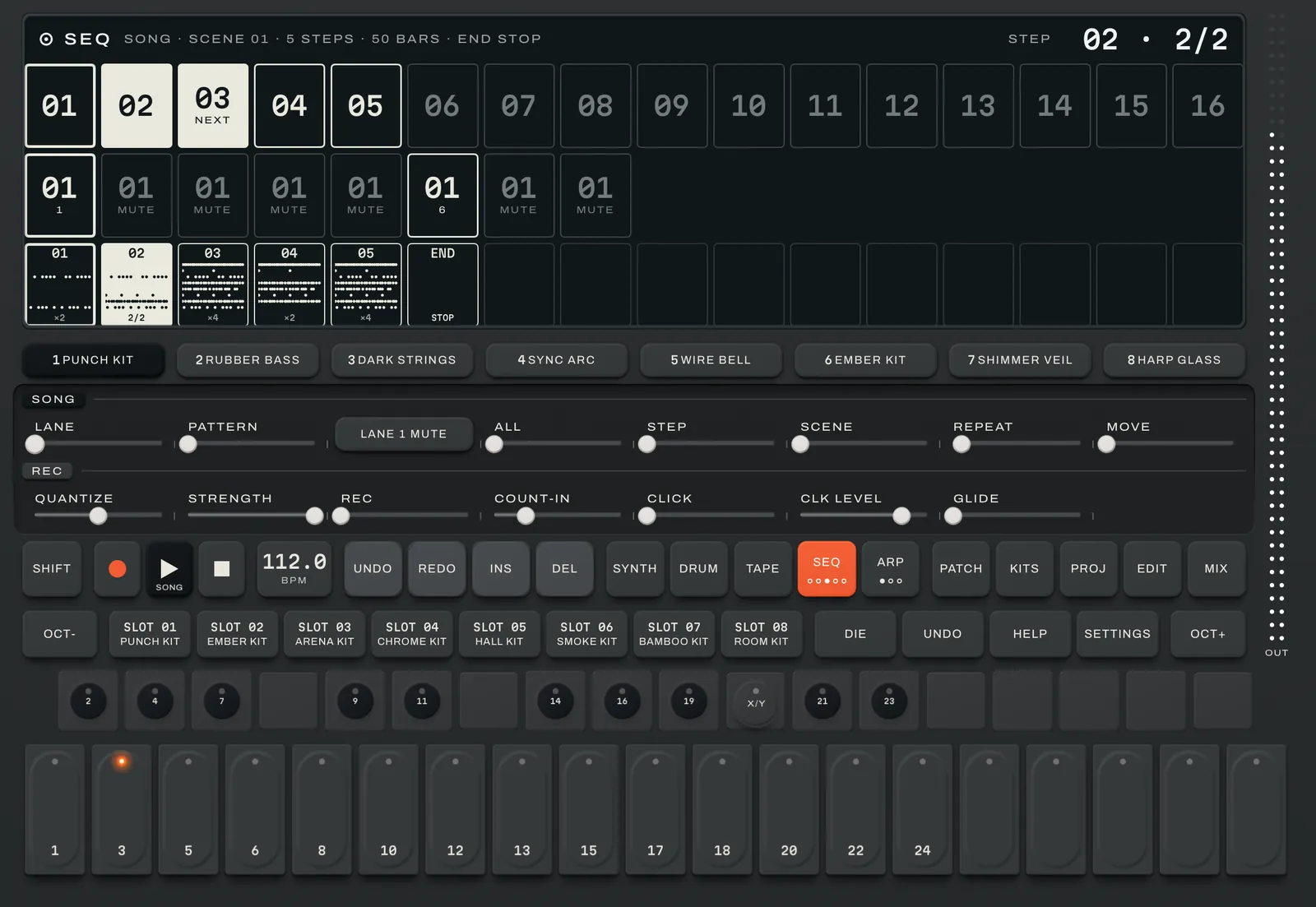
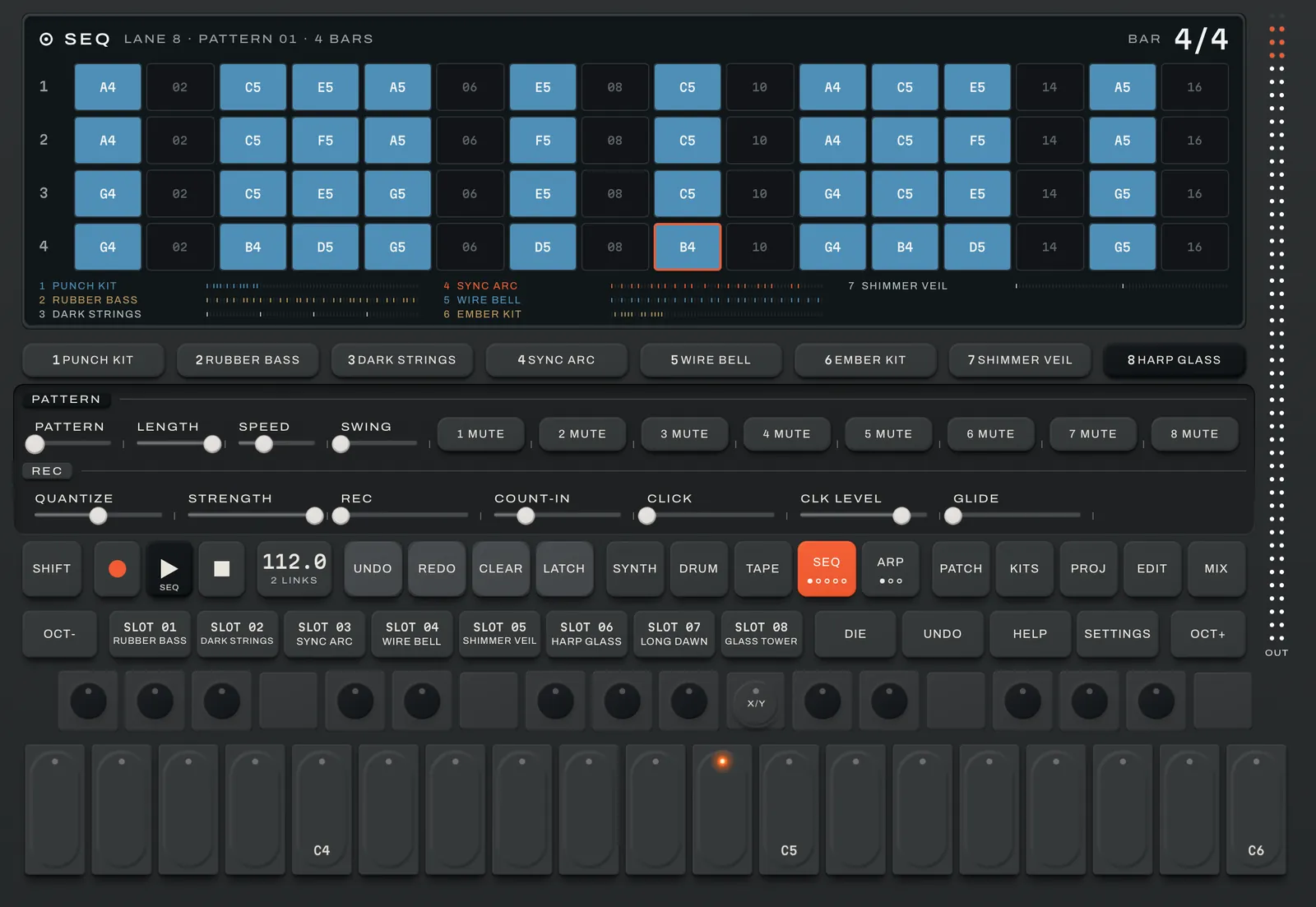
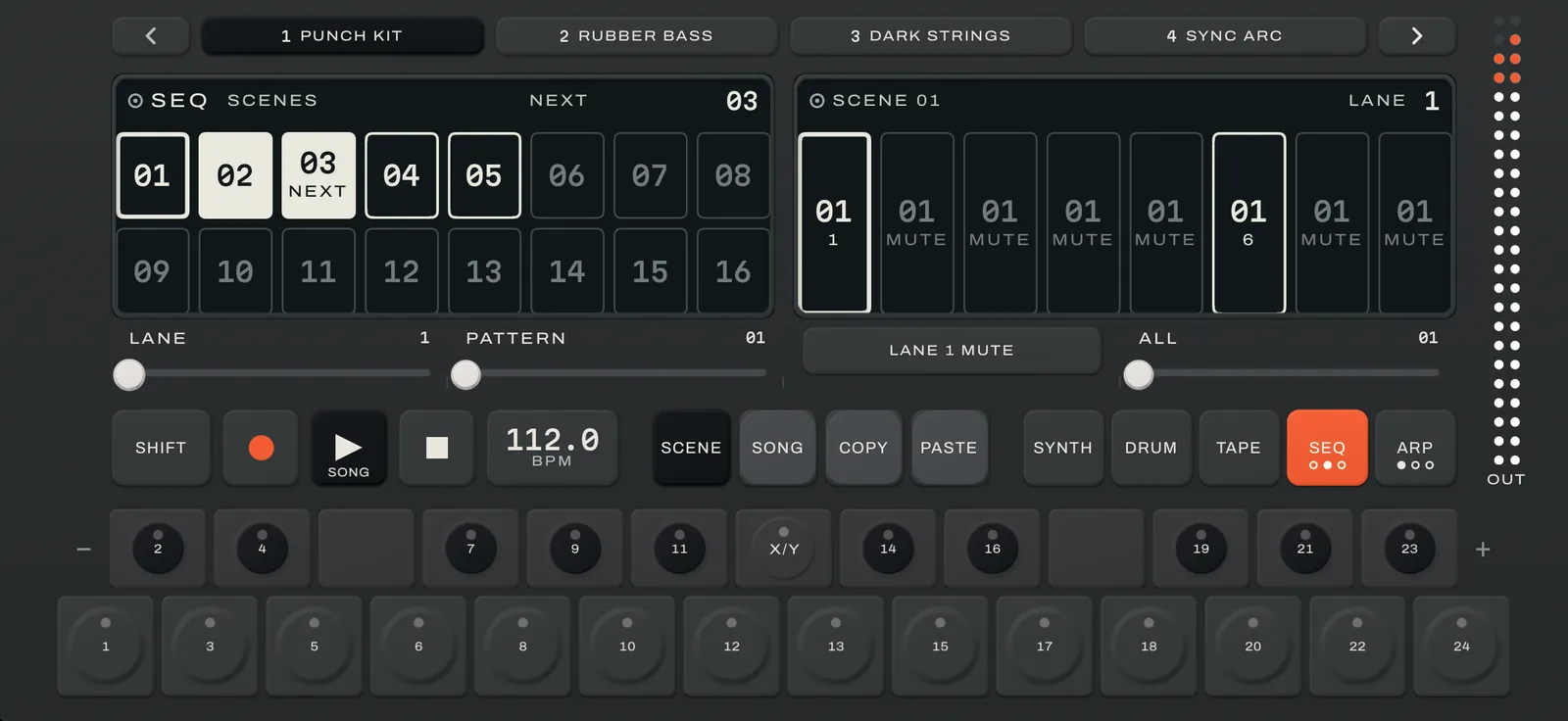
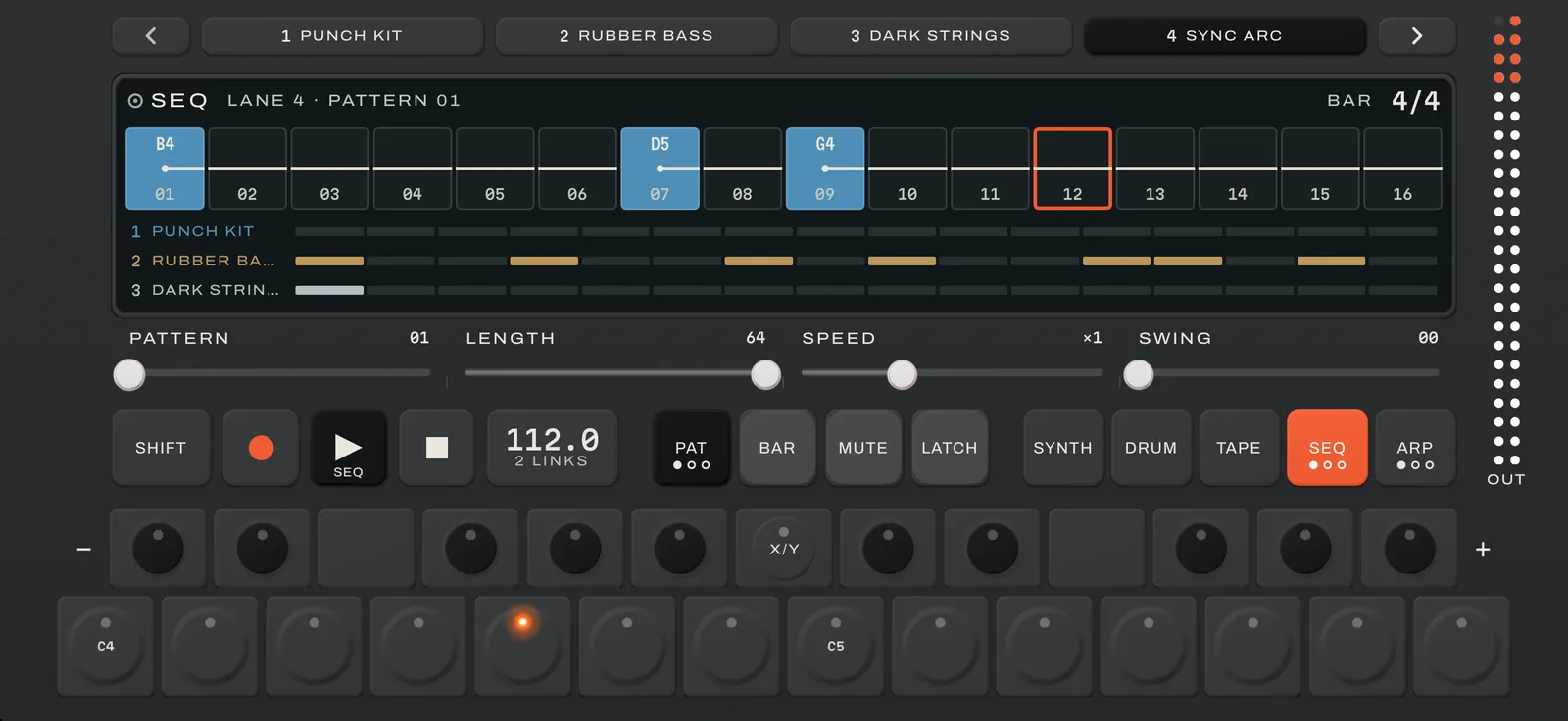
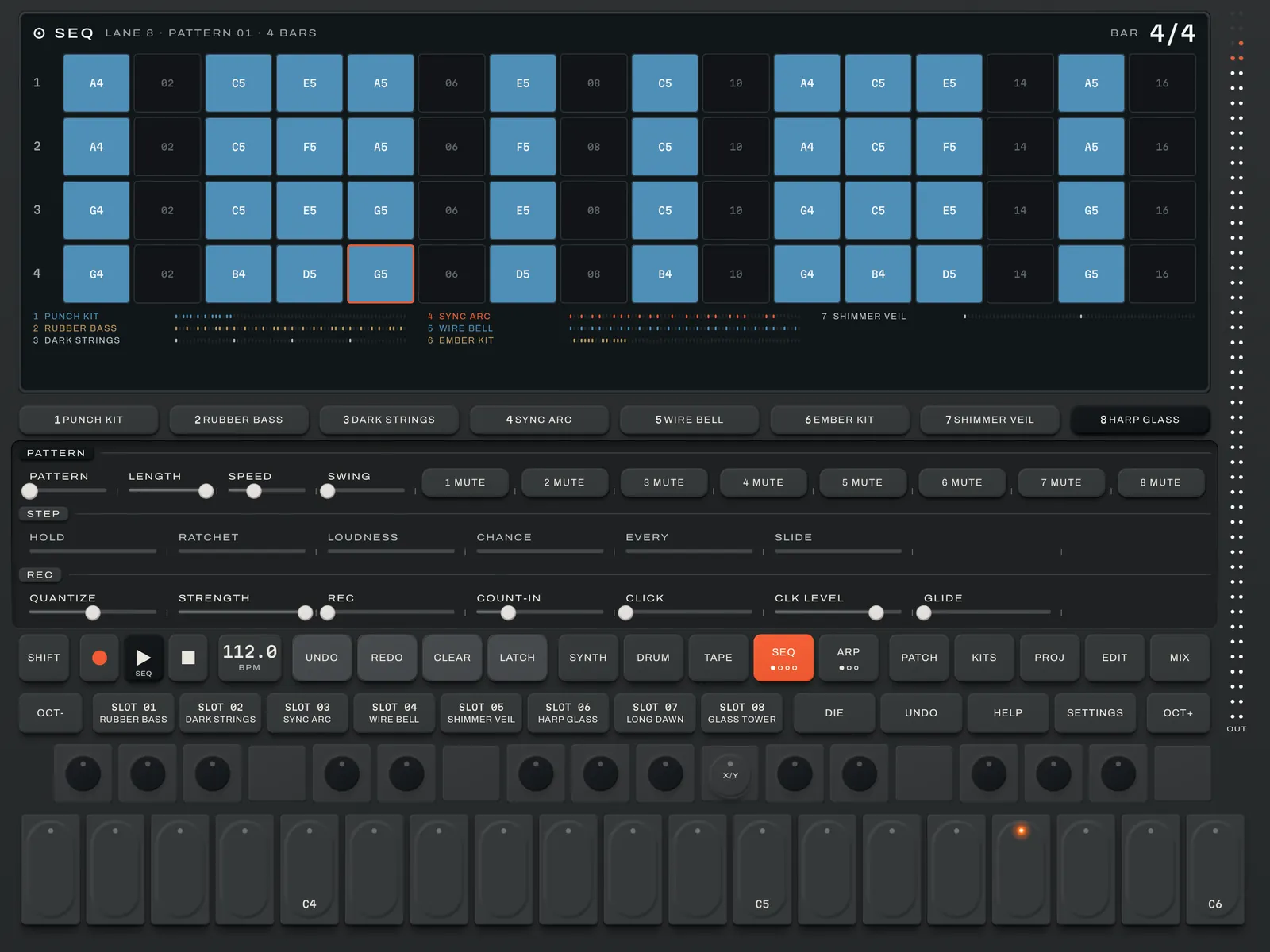
Eight lanes, sixteen patterns each, up to eight bars a pattern. Every step shows the notes it plays, and each step has its own hold, ratchet, loudness and slide, a CHANCE to play (10 to 90%) and EVERY to play only every 2nd, 3rd, 4th or 8th time round, so a loop never has to repeat exactly. Chords, held notes, live recording with count‑in, click and quantize, from REC on SEQ or on any lane’s SYNTH or DRUM page, and undo on every pattern. Hold a step to copy it and tap another to paste it; SHIFT + hold cuts. BAR LOOP loops one bar while you record, so every pass is another try, and CLEAR BAR empties one bar. SHIFT + LENGTH sets any length from 1 to 128 steps, so a 15-step hat can run against a 16-step kick. A muted lane’s steps dim. Hold SHIFT and tap steps to paint in a note, pad or chord, or bring in a MIDI file from Files, a track to a lane, drums on the pads. The two screens become one. PATTERN PLAY queues each lane’s next pattern and the whole song moves on together; patterns copy and swap, move up or down an octave or over to another lane, and lanes reorder. Press SEQ again for SONG, where scenes become a song, and again for PERFORM: two controls a lane that glide back when you stop.
05
Arp
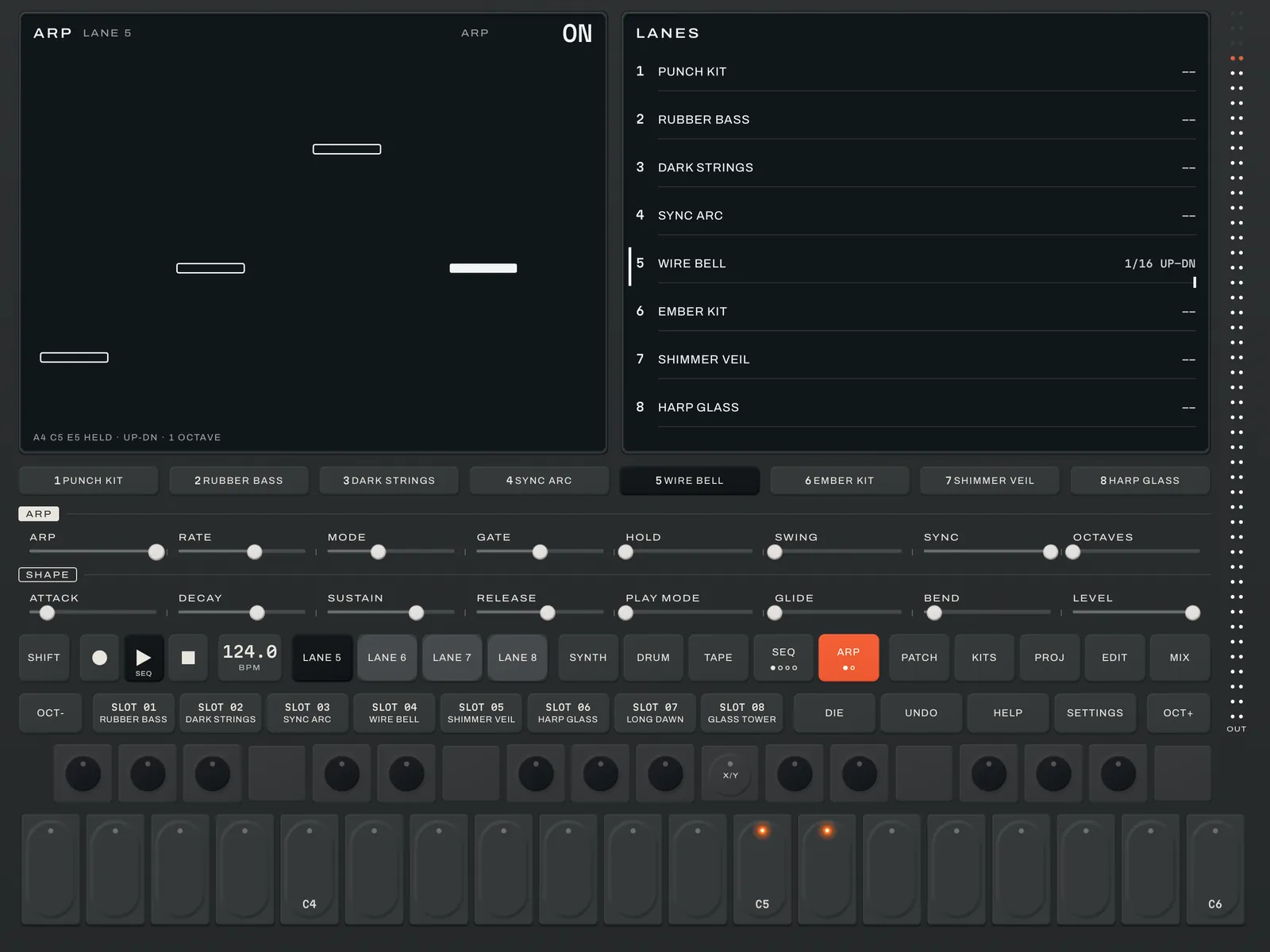
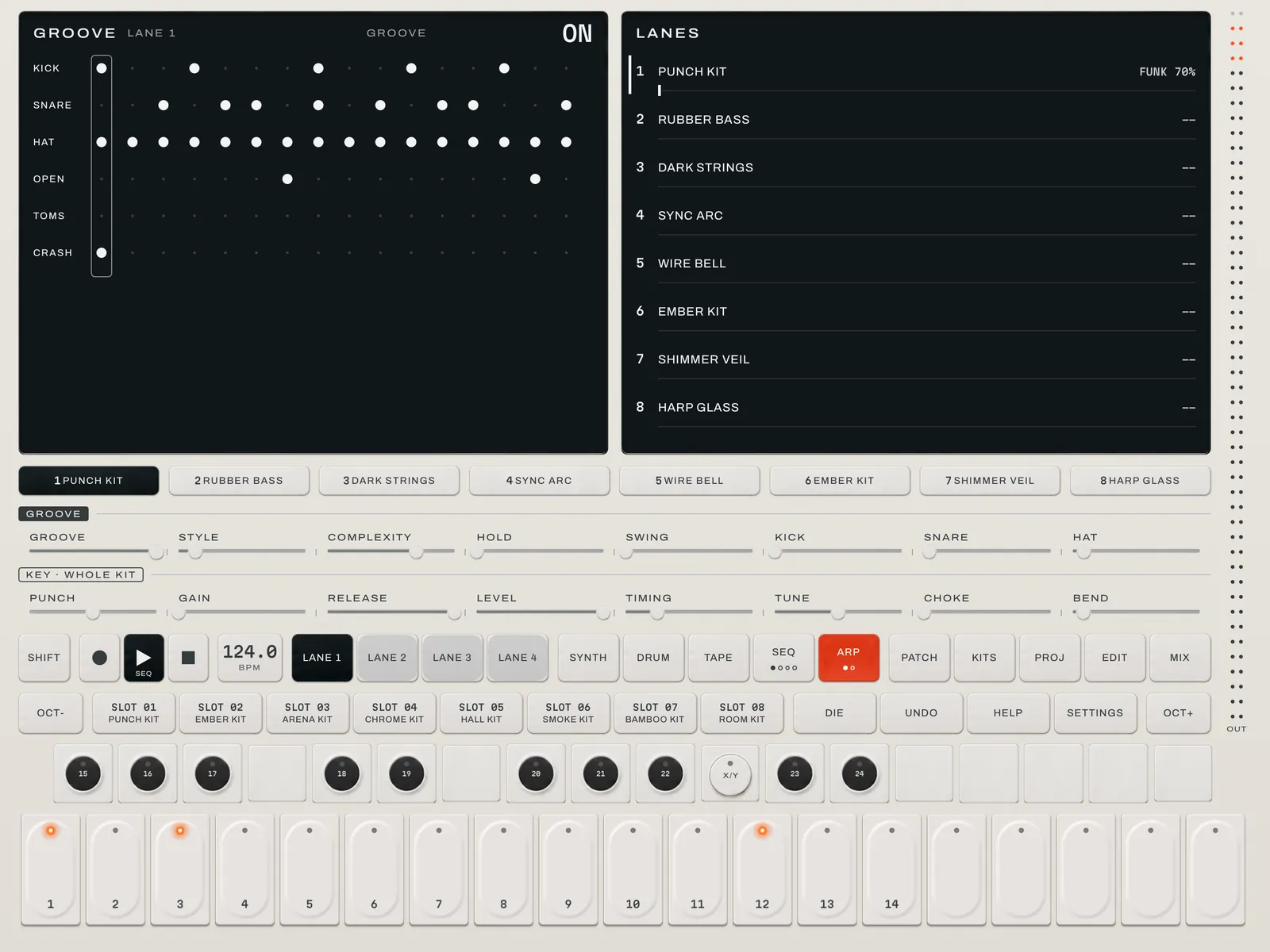
Hold a chord and it plays back as a run. Six patterns (up, down, up-down, as played, random and chord) with rate, gate, swing and octave range per lane. PHRASE makes it a phrase sequencer: hold SHIFT and play up to 999 steps, chords and rests included, then any key plays the phrase from that key. RHYTHM gives an arpeggio a pattern of dots and dashes, and ROTATE shifts it. Grooves and locked arps share one clock, so whatever you start comes in on the beat. Press ARP again for KEY: pick a key and scale, LOCK every note to it, and play a whole chord from one key.
06
Effects
Four effect slots on every synth and kit, starting as reverb, delay, chorus and drive at zero. SHIFT gives each one its main control, and a second press of FX lists all seventeen, for any slot and for the master:
- Spring
- The twangy, splashy reverb of a guitar amp's spring tank.
- Delay
- Stereo echoes that lock to the tempo and bounce side to side.
- Crush
- A bitcrusher: fewer steps and less detail, the grit of an old sampler.
- Fold
- A wavefolder: loud peaks fold back into bright, metallic overtones.
- Comb
- A very short echo that rings at a pitch, for metallic, tuned or flanging sounds.
- Reverb
- From a small room to a long hall, with a gate to cut the tail short.
- Chorus
- Wobbling copies blended in, for width and shimmer.
- Drive
- Warm saturation up to fuzz, with a squeeze on the loud parts.
- Echo
- A tape echo locked to the tempo: each repeat darker and blurrier than the last, with wow and flutter.
- Space
- A huge, slowly moving reverb, with tails up to a minute and a shimmer an octave up.
- Dist
- Real distortion, from crunch to fuzz, much harder than Drive.
- Filter
- A resonant auto-filter, low, high or band, swept in time with the tempo or by how hard you play.
- Pump
- Ducks the sound in time with the tempo, the pumping of a sidechained kick.
- Swirl
- A phaser and a flanger in one, free or locked to the tempo.
- Lo-Fi
- Crackle, hiss, wobble and a narrowed band, all the way down to an old radio.
- Tremolo
- Tremolo or auto-pan in time with the tempo, from a smooth swell to a hard chop.
- Clip
- A soft clipper: push a loud mix hard and it stays clean.
07
Mixer
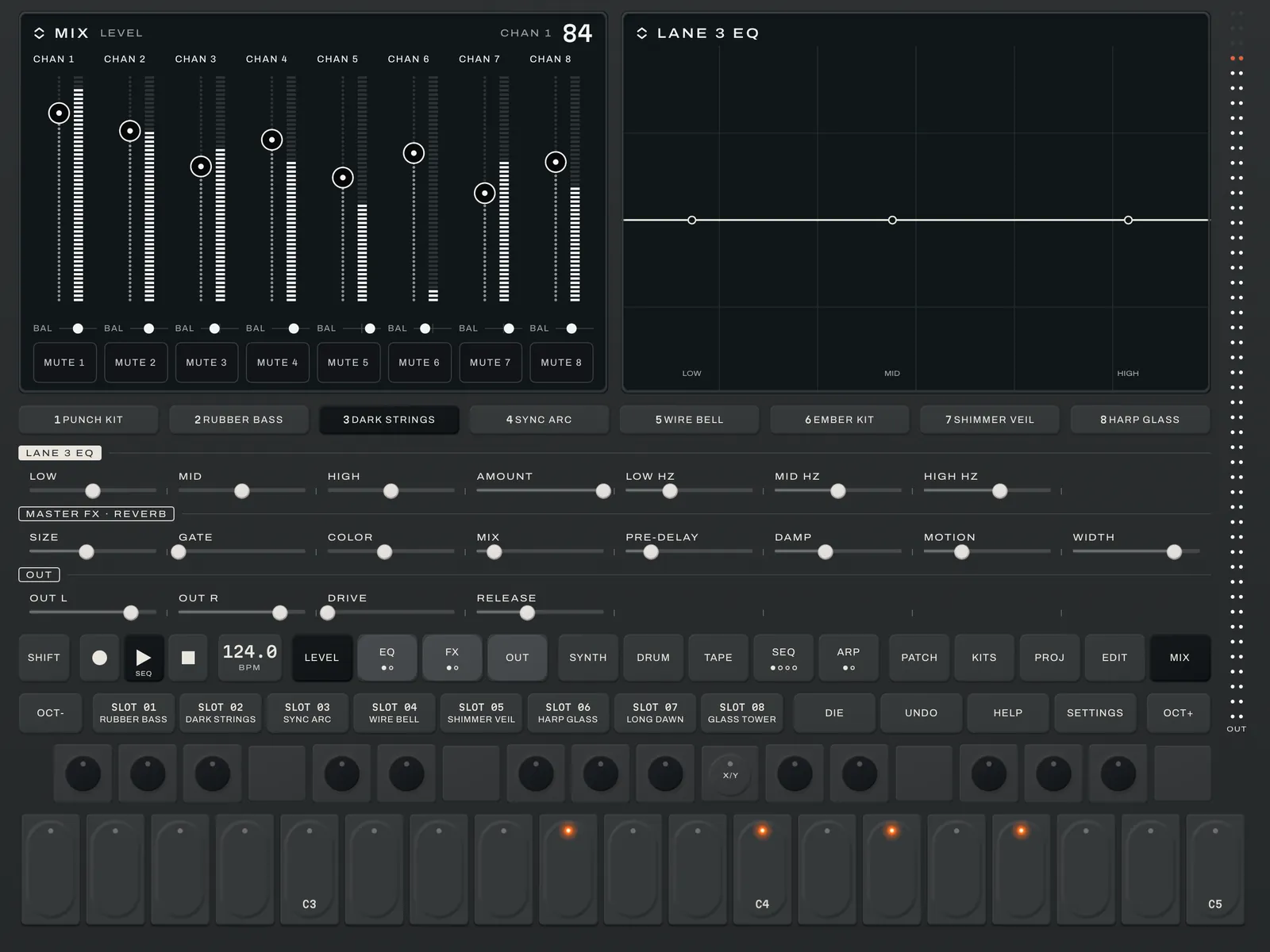
MIX in the SHIFT strip on iPhone, its own key on iPad. A fader with a live meter, a balance, an EQ with a live spectrum behind its curve and a MUTE key for each lane, a master EQ with drive, one master effect and the output in dB. A double-tap puts an EQ band back to flat, as it puts a fader back to 80. TAPE MIX, on the tape page under SHIFT, gives every tape track its own level, balance and mute.
08
Help
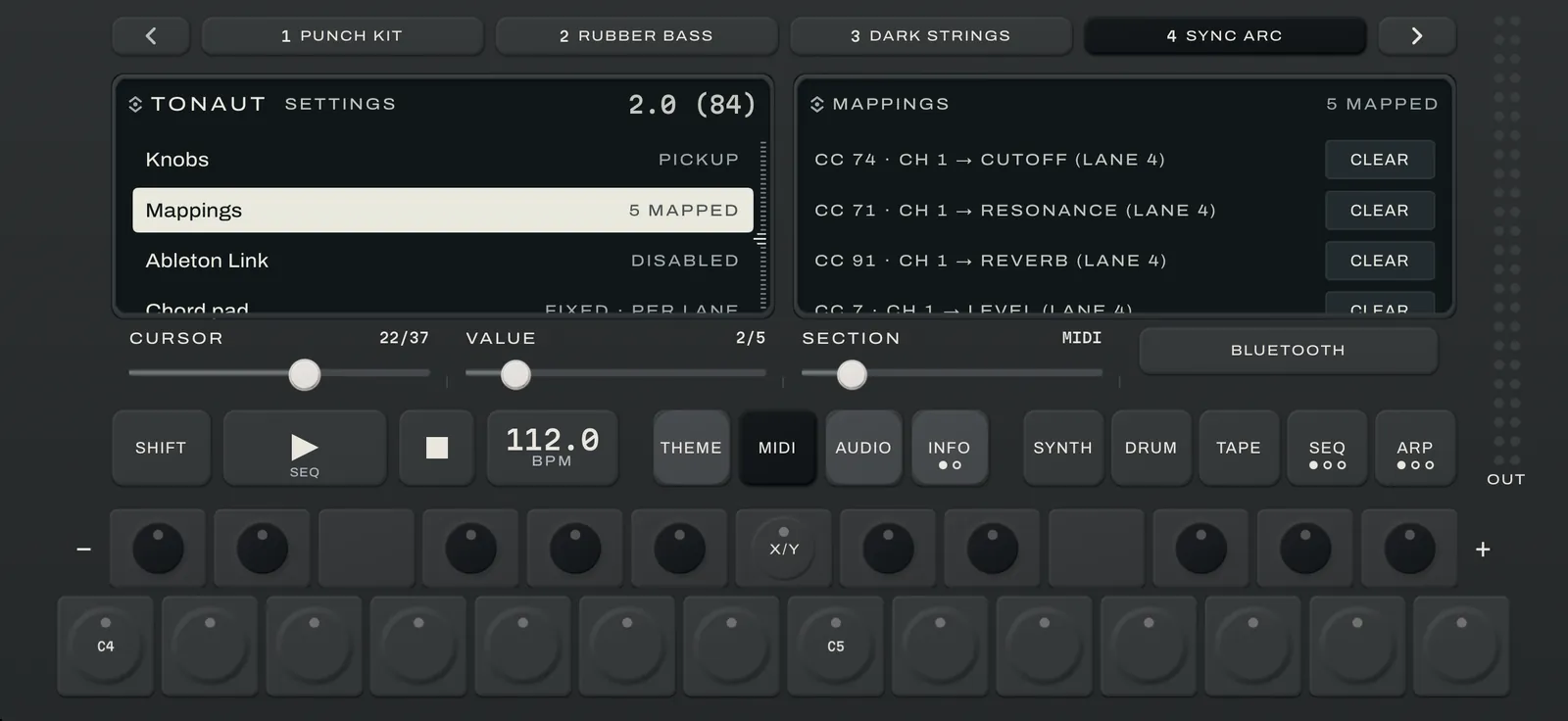
Tap HELP, then any control, to read what it does. HELP opens with a line about the screen you’re on. On iPhone it is HELP / SETTINGS in the SHIFT strip; hold it to go straight to Settings. The first few times you open each screen, a line shows what SHIFT adds there, and a key that makes no sound tells you why. Lean, sampling, recording and settings live here too, and on iPad SETTINGS has its own key beside HELP.